DADman Software 23
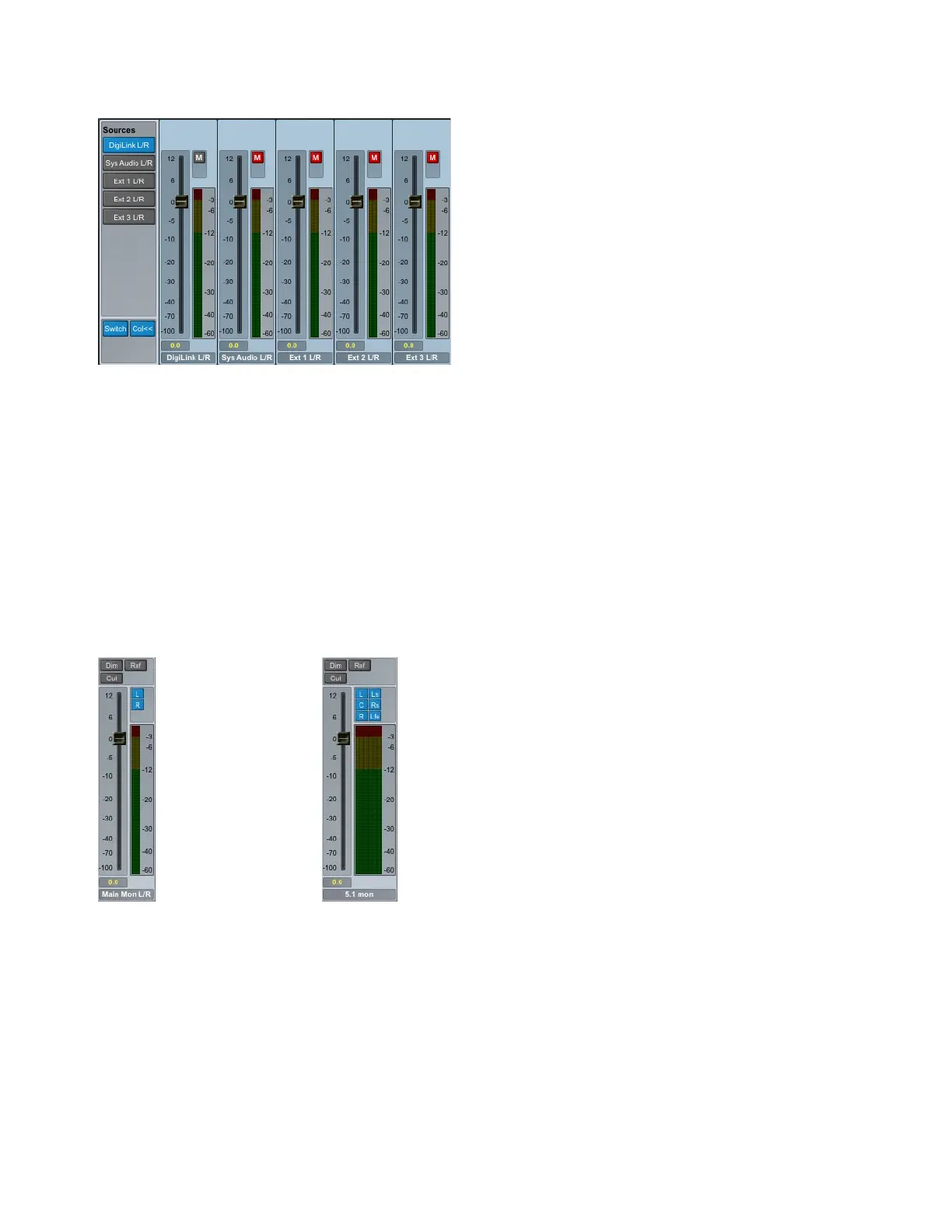
Sources Exp/Col
Click to expand or collapse channel view for all available sources. You can adjust the level for each source in-
dependently. Unselected sources are muted.
Delay
The channel delay knob controls the delay of the selected channel. This delay can be set between 0–600 ms.
Outputs
Under Outputs, all available monitoring outputs are listed (as configured in the Monitor Profile Configuration window). Click to
select the desired output.
Fold Down
Under Fold Down, all available fold down matrix options are listed (as configured in the Monitor Profile Configuration window).
Click to select the desired fold down matrix.
Monitor Channel Strip
Dim
Click to enable or disable dimming of the monitor output signal.
Ref
Click to reset the output level fader to reference level.
Cut
Click to enable or disable cut on the monitor output signal, which effectively mutes the signal.
EQ
Click to show or hide the expanded EQ view for the defined monitor path (see EQ).
Channel Select
Click to engage or disengage any given channel of the monitor signal path. For example, a stereo monitor path has
left (L) and right (R) channels, while a 5.1 monitor path has left (L), center (C), right (R), left surround (Ls), right surround (Rs),
and low frequency (Lfe) channels. Disengaged channels are effectively muted.
Output Level Fader
Move to adjust the monitor signal level.
Defined sources expanded
Monitor channel strip stereo (left); Monitor channel strip 5.1 (right)



 To Next Page