DADman Software 25
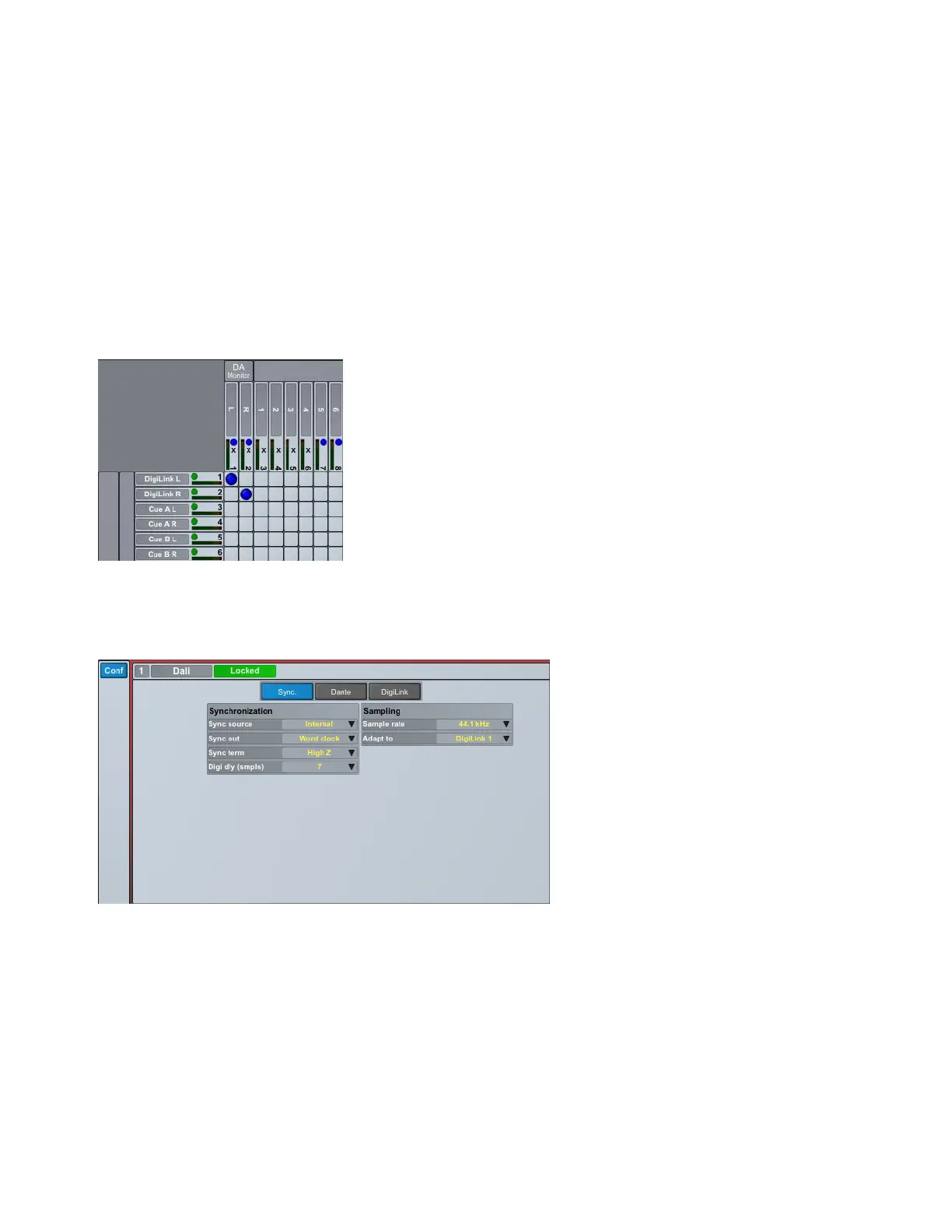
In the left side of the detailed matrix, there is a status indicator next to each channel:
Green
On a digital input, green indicates that there is a valid input and carrier. It does not indicate whether there is an audio signal
present on the channel.
Yellow
Indicates lost synchronization or mismatched sample rates.
Red
Indicates an error with the interface, such as no input signal.
Along the top of the detailed matrix, there is also a status indicator for each channel:
Dark Blue
Indicates an active connection.
Light Blue
Indicates that the patched inputs are not visible on the current page. For example, if you are looking at Dante outputs and
have AD 1–8 patched to Dante outputs but your input selection in the patch grid is ADAT, you will see light blue circles over
1–8 indicating that you need to look at a different (input) page to see the actual patch.
X
Indicates the channel is used as a monitor path.
Configuration Section
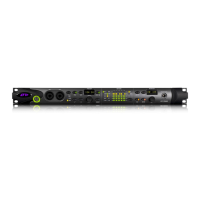
The Configuration section is divided into subsections: Synchronization, Dante, and DigiLink.
Connections section, Xs indicate assigned monitor paths
Configuration section, Synchronization pane shown



 To Next Page