Chapter 2: Pro Tools | Sync X Front Panel 4
Chapter 2: Pro Tools | Sync X Front Panel
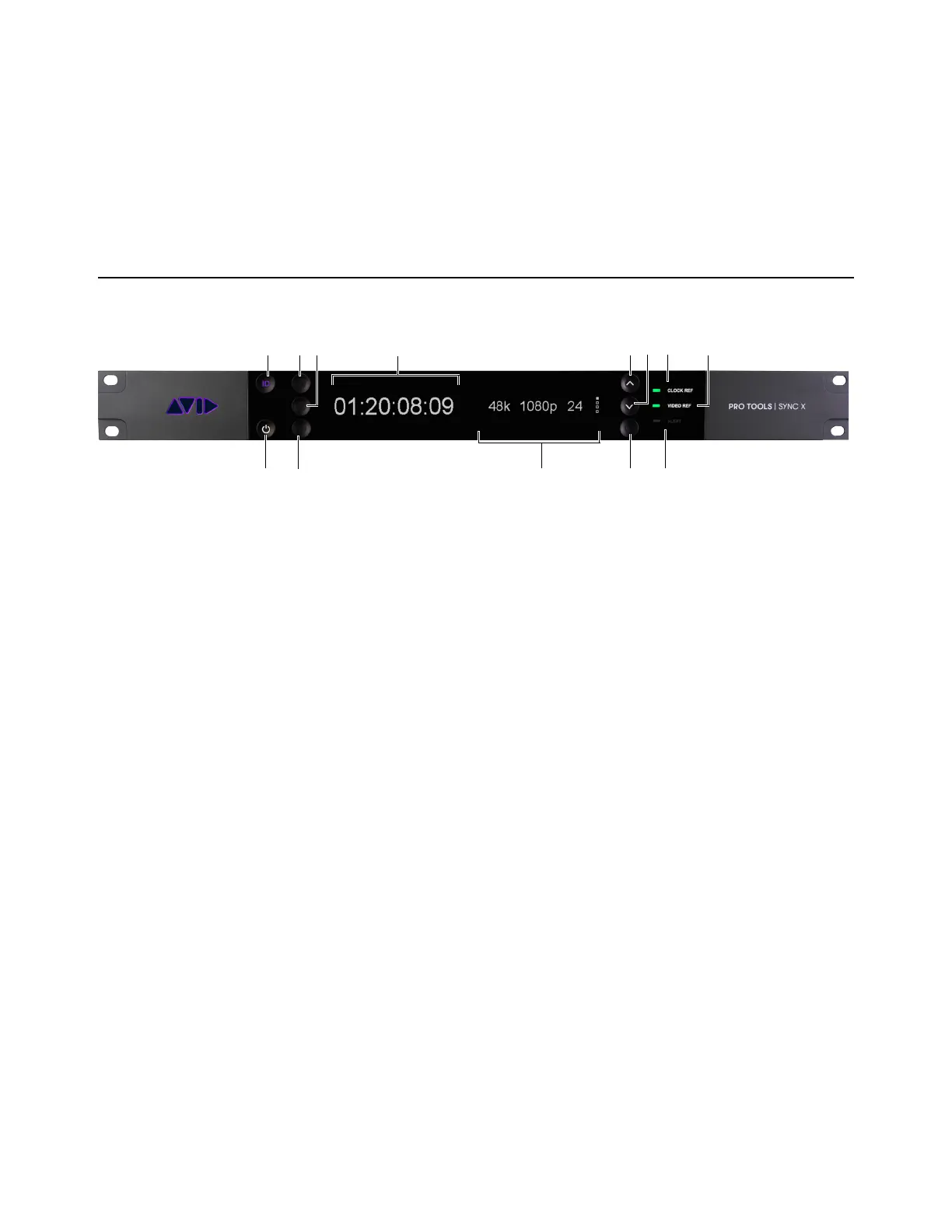
Pro Tools | Sync X is controlled by Pro Tools | Ultimate software on your computer. The front panel of the unit provides displays,
indicators, and controls.
Pro Tools | Sync X Front Panel Features
1 Power button: Press the Power button to power on the unit. Press and hold the Power button for two seconds to power off the
unit.
2 ID button: Press the ID button to flash the ID button and ID LED on back panel. This lets you easily identify the unit from the
back when it is installed in a rack. This button can also be used to reset the unit to its original firmware and factory settings (see
Factory Reset).
3 No functionality at this time.
4 No functionality at this time.
5 No functionality at this time.
6 Timecode display: The current positional reference (internal or external), is displayed in hours:minutes:seconds:frames.
Non-Drop Frame Timecode is indicated by a colon between seconds and frames. Drop Frame Timecode is indicated by a semi-
colon between seconds and frames. The Timecode Display only shows running timecode when generating timecode (GEN LTC
engaged) or when chasing running timecode from an external source.
7 Settings display: Provides four separate page views that show the current settings of Sync X, see Settings Display.
8 Settings Down button: When illuminated, press to display the next page in the Settings display. When not illuminated, the last
page (4) is shown in the Settings display.
9 Settings Up button: When illuminated, press to display the previous page in the Settings display. When not illuminated, the first
page (1) is shown in the Settings display.
10 Settings Select button: Can be used to reset Sync X to the default hardware settings, see Hardware Settings Reset.
Pro Tools | Sync X front panel












 To Next Page