Chapter 4: Installing Pro Tools | Sync X
15
Launch Pro Tools
After connecting Pro Tools | Sync X to your HDX or HD Native system, launch Pro Tools. You are notified if a firmware update is re-
quired for Sync X.
To launch Pro Tools and update Pro Tools | Sync X firmware:
1 After installing Pro Tools | Sync X, launch Pro Tools | Ultimate software:
• On Mac, Double-click the Pro Tools icon in the Applications folder or single-click the icon in the Dock.
• On Windows, click the Pro Tools shortcut on the Desktop or in the Windows menu.
2 If a a firmware update is required, you are prompted to update Sync X firmware using Avid DigiTest (for detailed information, see
Updating Pro Tools | Sync X Firmware).
3 Quit Pro Tools and restart your computer.
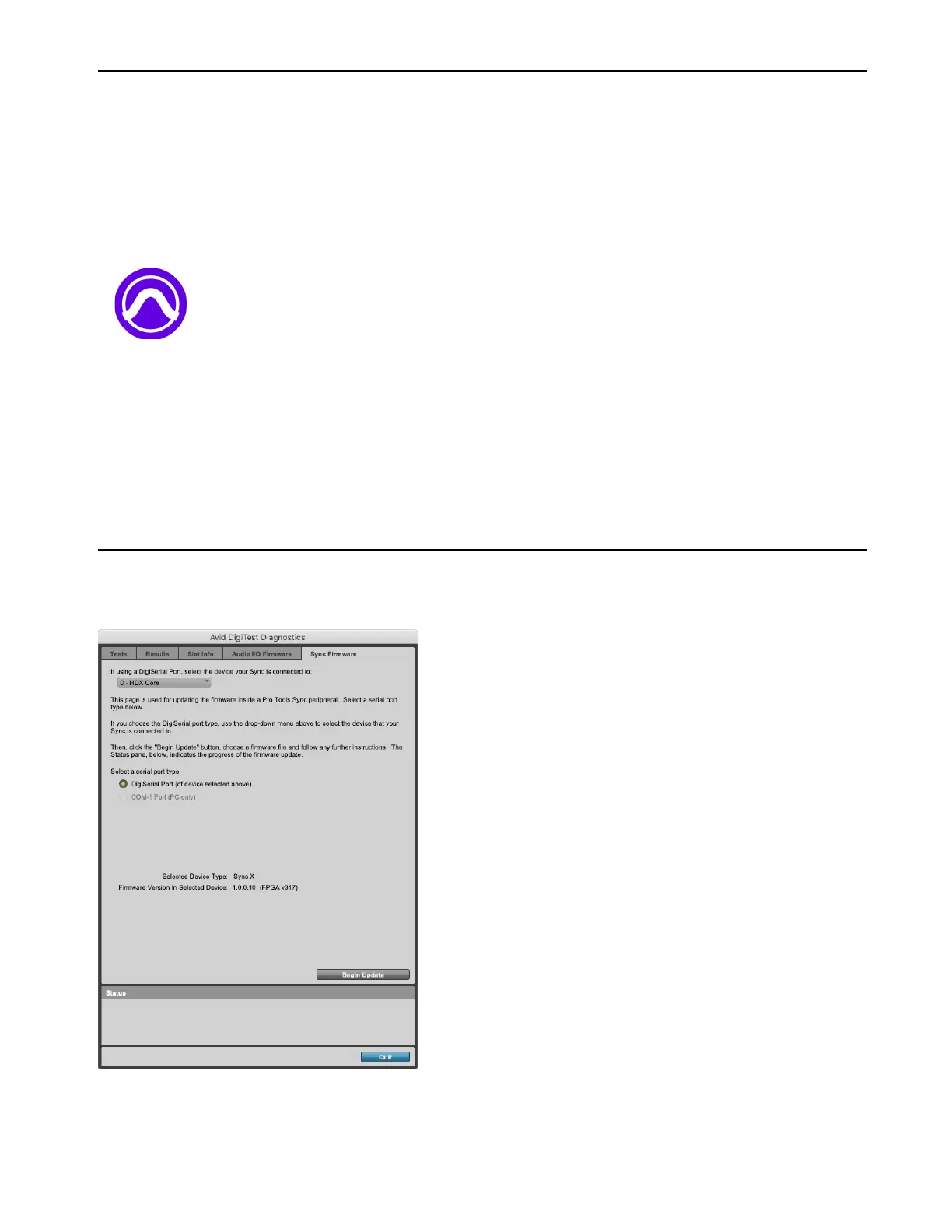
4 After you computer restarts, launch Avid DigiTest and update Sync X firmware.
5 When the firmware update is complete, quit Avid DigiTest and restart your computer.
6 After your computer restarts, launch Pro Tools and configure Sync X (see Configuring Pro Tools | Sync X).
Updating Pro Tools | Sync X Firmware
Update Pro Tools | Sync X firmware using the DigiTest application.
Pro Tools application icon
Updating Sync X firmware with DigiTest












 To Next Page