Chapter 4: Installing Pro Tools | Sync X
11
AC Power
The Pro Tools | Sync X AC connector accepts a standard AC Power Cable (included). Sync X is auto power-selecting (100V to 240V)
and will automatically work with a standard modular cable to connect to AC power receptacles in any country.
Host Serial Connection
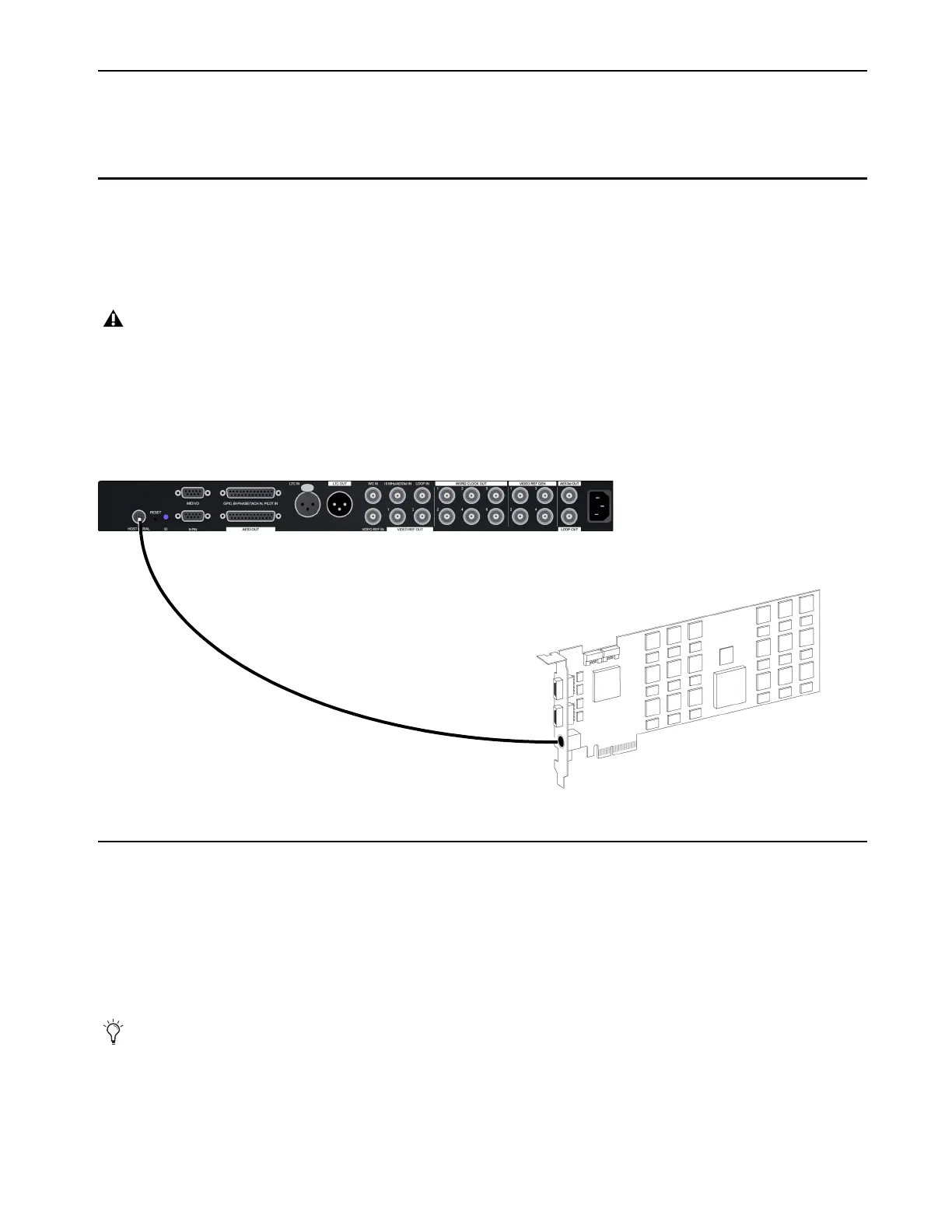
Serial Cable Connection to the HD Native Device or Primary HDX Card
Both Pro Tools | HD Native (PCIe card or Thunderbolt) and Pro Tools | HDX support Pro Tools | Sync X. Pro Tools systems require a
serial cable connection between Pro Tools | Sync X and the HD Native device or the primary HDX card in your system.
To make the serial connection between Sync X and HD Native or HDX:
1 Make sure all equipment is powered off.
2 Connect one end of the included serial cable to the Pro Tools | Sync X HOST SERIAL port.
3 Connect the other end to the serial port on HD Native or the primary HDX card.
Clock for Pro Tools Audio Interfaces
Pro Tools | Sync X must be connected to all Pro Tools audio interfaces in the Loop Sync chain using shielded BNC cables.
Connecting Loop Sync for Pro Tools Audio Interfaces
Pro Tools | Sync X supports Loop Sync and can serve as the Loop Sync Master. Loop Sync is a dedicated clock loop for synchronizing
multiple Pro Tools audio interfaces. Loop Sync is used to connect multiple Pro Tools audio interfaces (such as HD I/O, HD OMNI,
HD MADI, or Pro Tools | MTRX Studio
™
).
Do not substitute a standard off-the-shelf miniDIN8 cable. It will not work. Use the included serial cable, or build a custom cable
wired according to the pin-out information provided in Appendix C, “Wiring Diagrams and Pin Assignments.”
Making serial connections (HDX card shown)
If Pro Tools | MTRX is also included in your system, make Loop Sync connections between Sync X and all Pro Tools audio inter-
faces in your system except MTRX, and make Word Clock connections between Sync X and MTRX (see Connecting Word Clock for
Pro Tools | MTRX).












 To Next Page