Chapter 5: Configuring Pro Tools | Sync X 24
Timecode Settings Section
This section lets you configure Freewheel settings, and Audio Rate and Video Rate Pull Up and Pull Down settings.
Freewheel
The Freewheel section lets you configure how the Pro Tools transport behaves when it is Online and chasing timecode that is in-
terrupted or corrupted. Use these options to protect against errors that can occur if your timecode source has “drop outs” or tem-
porarily lost signals. For example, if Pro Tools is Online and chasing external LTC, the transport continues if the incoming LTC
momentarily drops out for fewer than number of
Frames specified for Freewheel. If the LTC drop-out exceeds the number of
Frames specified for Freewheel, the transport stops.
Sync X supports
Freewheel values from 4 to 40 Frames in increments of 4. If you enter a Freewheel value lower than 4 Frames,
Sync X automatically selects 4. If you enter a
Freewheel value greater than 40 Frames, Sync X automatically selects 40. Free-
wheel
settings are ignored when Sync X is generating timecode.
None
When this option is selected, freewheel is limited to 4 Frames.
Number of Frames
Enable Freewheel and enter the number of Frames (4 to 40 Frames in increments of 4) to set the maximum number of frames
Sync X should continue to output timecode if synchronization is lost because incoming timecode drops out or is otherwise inter-
rupted.
Jam Sync
Enable Jam Sync to have Sync X follow incoming timecode and continue playback or recording even if incoming timecode is
completely interrupted. This can be useful if timecode is damaged, or has been accidentally erased from your source tape.
Pull Up/Down
Pro Tools provides up to 4.271% pull up and down to 4.1% pull down options. You can apply standard or non-standard pull factors
to audio and video separately. This lets Pro Tools and Sync X synchronize to most supported SMPTE frame rates and formats.
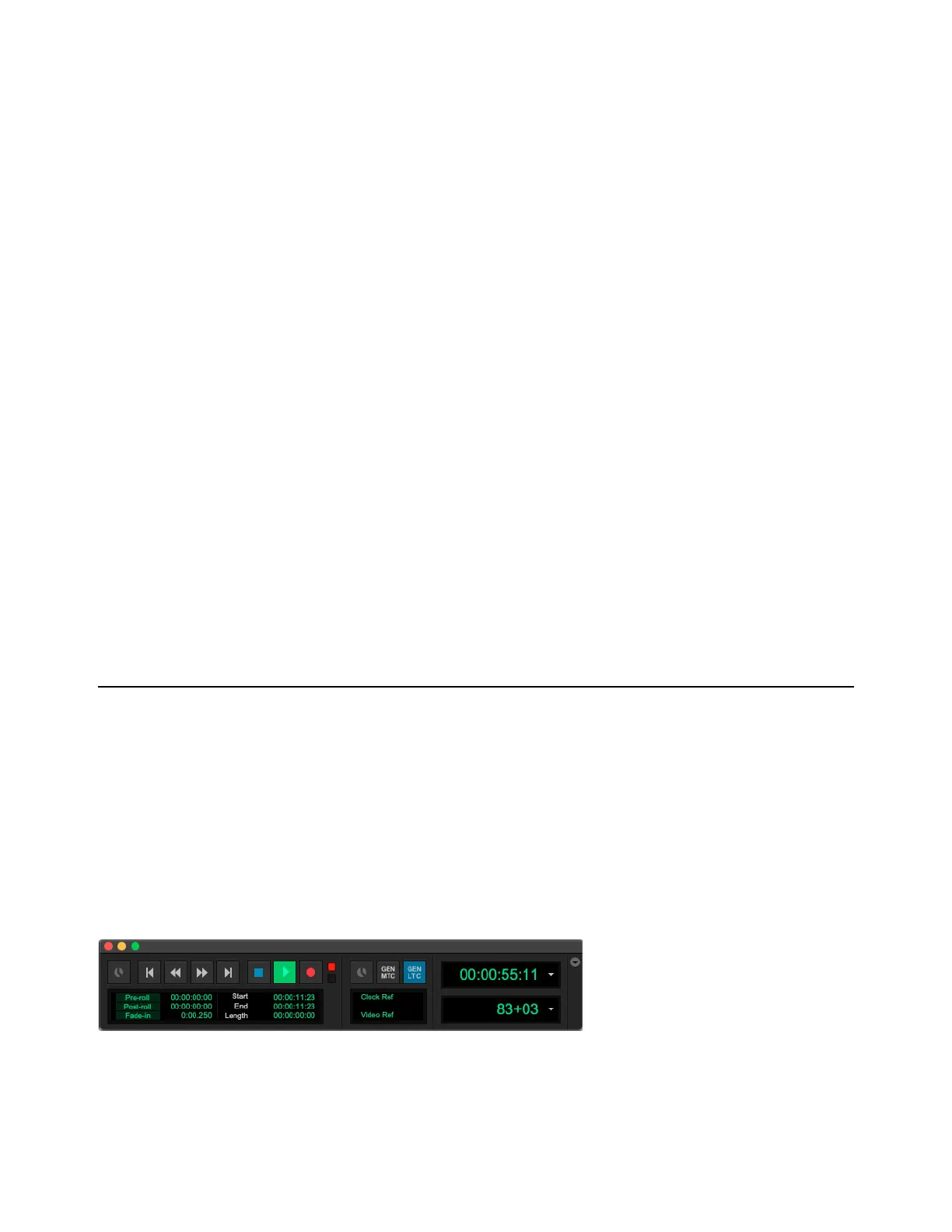
Transport Window and Edit Window Toolbar Synchronization View
Synchronization view in both the Transport window and the Edit Window toolbar provides controls for generating LTC and MTC,
and for putting Pro Tools Online (or Offline) to control the Transport from an external source. The GEN LTC option is only avail-
able if a synchronization peripheral is connected and configured. Additionally, if a synchronization peripheral is connected and
configured, Synchronization view provides Synchronization Status indicators.
To show Synchronization view in the Transport window, do one of the following:
Select View > Transport > Synchronization.
In the Transport Window menu, select Synchronization.
Right-click in the Transport window and select Synchronization.
Synchronization view in the Transport window, GEN LTC enabled












 To Next Page