Chapter 5: Configuring Pro Tools | Sync X 23
Detected Input Format
Sync X automatically detects and displays the format of the incoming External Video Reference signal.
Video Ref Status Indicator
The Status light indicates whether or not the selected Video Reference Source is valid. Text appears to the right of the Status light
indicating if Sync X is
Generating video reference, or if it is Locked or Not Locked to the selected Video Reference Source. The
Video Ref Status indicator is mirrored on the front panel of Sync X as well as in Synchronization view in the Transport window
and in the Edit Window toolbar.
Positional Reference
Format
Select the appropriate Format for Positional Reference.
LTC
When selected, Sync X reads incoming LTC signal and outputs regenerated LTC. LTC output provides gain control (LTC Out-
put Level
in the Synchronization page of the Peripherals dialog), lets you set timecode offsets for external devices (External Off-
sets
), and can be configured to Freewheel.
Serial Timecode
When selected, Sync X can receive and generate serial timecode over the 9-pin connection. Serial timecode can
be read while running or idle.
Bi-Phase
When selected, Sync X requires a reference start address to synchronize Positional Reference to the incoming Bi-Phase
signal (DB-25). Bi-phase is converted to LTC at the LTC output when film speed is within +/– 8% of nominal.
External Offsets
Pro Tools lets you compensate for devices that are consistently offset by a fixed number of frames (such as some color–corrected
video masters), or for material that starts at a different time than the session. With Sync X there are five different types of External
Offsets:
• MMC (MIDI Machine Control)
• 9-Pin (Deck Control)
•LTC
• Satellite
• LTC Sample Offset
Unique values can be defined for each of these types of offsets, or you can link the first four to adjust them in unison. Positive and
negative offset values can be entered to offset the timecode display later or earlier, respectively.
LTC Sample Offset
This field lets you enter an offset in samples (+/–) to fine-tune the point at which Pro Tools synchronizes relative to incoming time-
code (LTC).
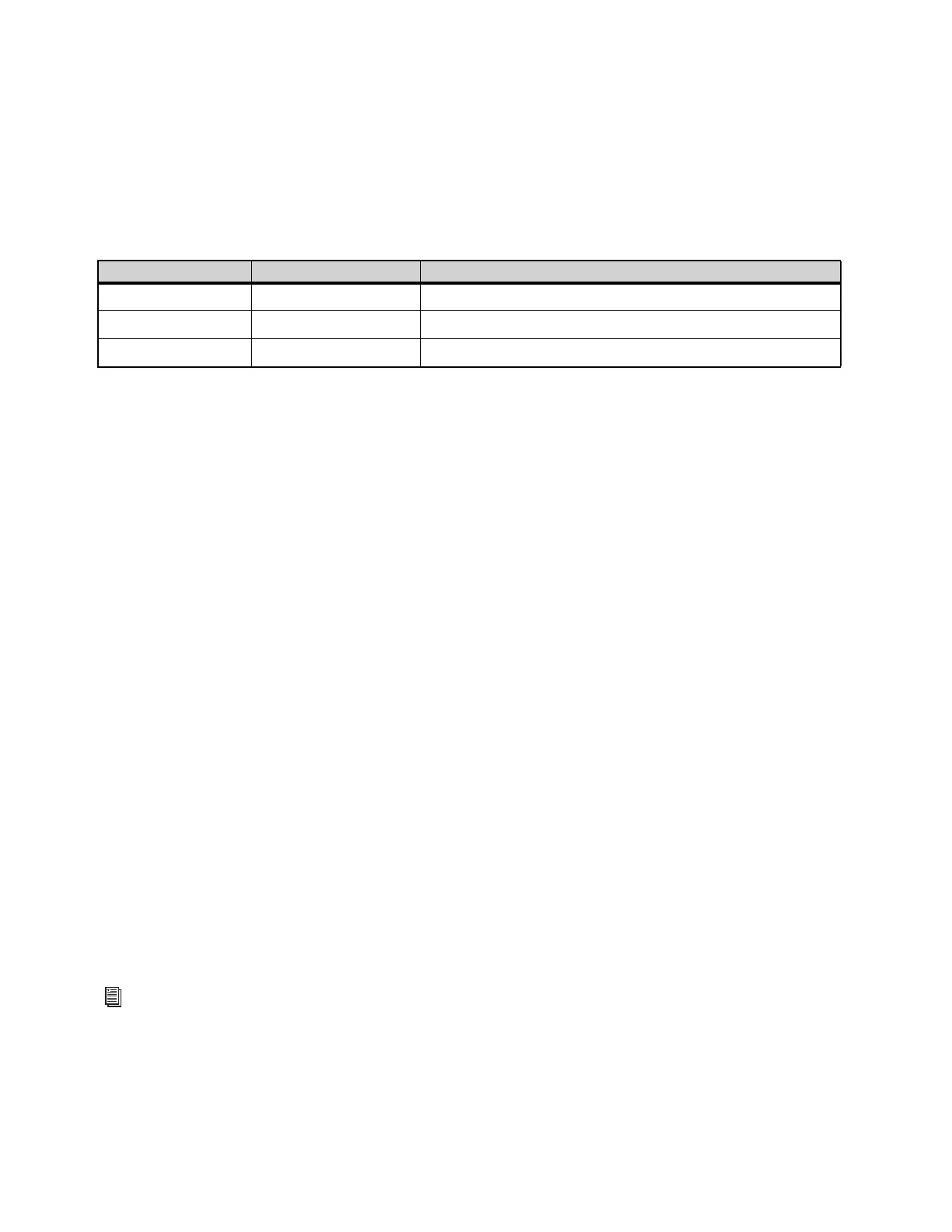
Video Ref Status
Status light Status text Video Reference
Solid Green Locked/Generating Video Reference signal is present and matches the selected format
Flashing Fast Red Not Locked Video Reference signal is present, but does not match the selected format
Unlit Not Present Video Reference signal is missing
Additional options for External Offsets are available when using MachineControl. For more information, see the MachineControl
chapter in the Pro Tools Reference Guide.












 To Next Page