APPENDIX 8 EAZY NETWORKING
80
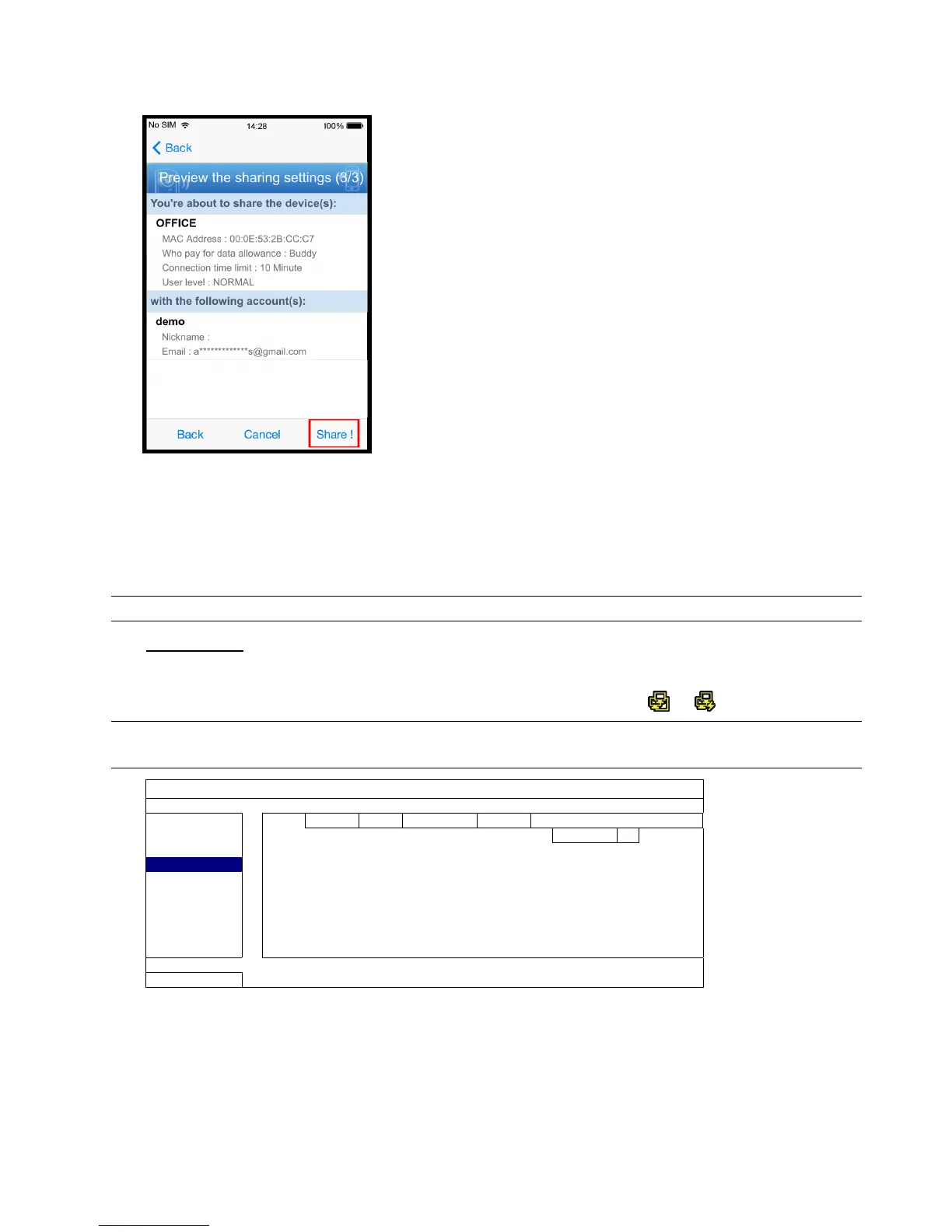
Step6: Check again the configurations you made for the account to which you want to share your cloud device,
and select “Share!” to confirm.
Step7: (Optional) Configure the data allowance shared to other accounts to use.
Step8: Return to the address book of EagleEyes. You’ll see the device being shared is marked with an icon of two
people.
A8.2 Via Internet Explorer on PC / Laptop
Note: EaZy Networking setup via a web browser is only available on Internet Explorer.
A8.2.1 Setup
Step1: Right-click to show the main menu, and select “NETWORK” “WAN”. Set "NETWORK TYPE” to “DHCP”,
and make sure the network icon on the top right corner is changed from to .
Note: If the setting is made via the Setting Wizard, the network type will be automatically switched to
DHCP.
ADVANCED CONFIG
CAMERA WAN E-MAIL
ALERT IP 192.168.001.010
NETWORK GATEWAY 192.168.001.254
DISPLAY NETMASK 255.255.255.000
RECORD PRIMARY DNS 8.8.8.8
DEVICES SECONDARY DNS 168.95.1.1
DCCS PORT 80
IVS CHECK INTERNET AVAILABILITY BY ADDRESS


 To Next Page