6. CS-100 Configurator
A por table backup contains:
• Wallpapers
• Wallpapers settings
• Logging settings
• All display settings
• OSD language
• Location
• Welcome message
• WiFi channel
• WiFi frequency
To manage the configuration files
1. LogintotheConfigurator.
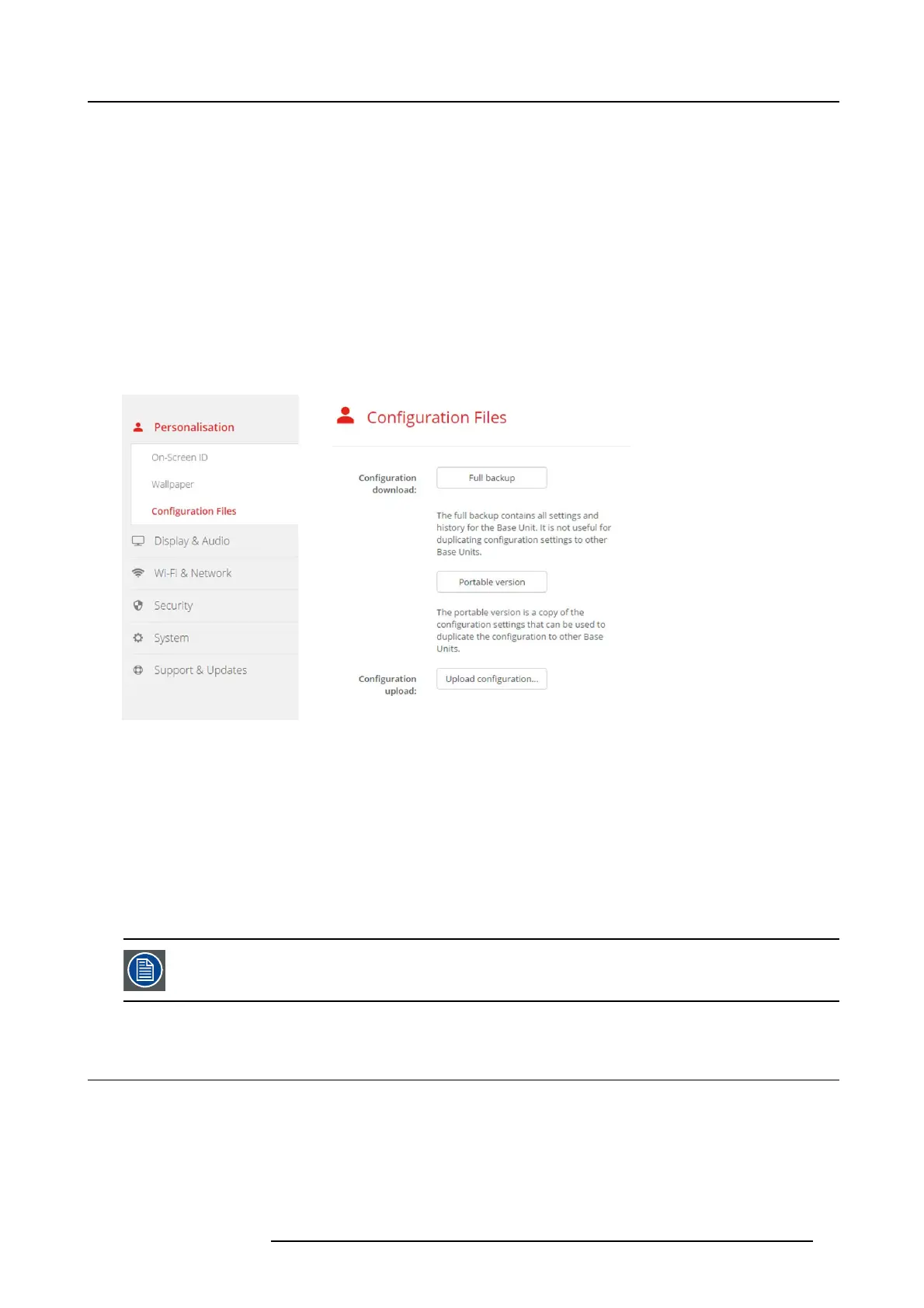
2. Click P ers onalisation → Configuration Files.
Image 6-11
Configuration files
3. To download a f ull backup, click o n Full Backup .
An xml file, containing all information and history will be downloaded. This file can be reused on the same Base Unit only.
4. To download a por table version, click on Portab le Version.
An xml file, containing portable information to duplicate settings on another Base Unit.
5. To upload a c onfiguration, click on Upload Configuration.
A browser window opens. Nav igate to the upload file (xml file) and click Open to upload.
A full backup ca n be uploaded on the Base U nit w he re the backup was
created and a portable version can be uploaded on any
other B ase Unit of the same m odel.
When uploading a config file, the history o f software updates and paired Buttons is lost. Paired buttons will
however remain functional if the Base Unit h as not changed from SSID or w ireless password.
6.7 Display setup
Resolution
The output resolution to the display is set on Auto. That means that the CS-100 output resolution is automatically adapted to the
resolution of the display. For HDMI displays, a hot plug detection is available.
Screen saver setup
1. LogintotheConfigurator.
R5900022 CS-100 16/02/2016
31



 To Next Page