6. CS-100 Configurator
Manual firmware update
1. Download the latest ve rsion of the software from Barco’s website.
2. LogintotheConfigurator.
3. Click Support & Updates → Firmware .
4. To upload a firmwa re vers io n , click on Upload firmware...
A browser window opens .
5. Browse to the file with the new software and click Open to start the upload.
Note: This should be an nad file. You might have to unzip the file downloaded from Barco’s w ebsite.
Note: Updating the software to the Base Unit takes several minutes. Progress can be followed on the meeting room display.
The Base Unit s oftware is updated.
6.20 Support & Updates, Troubleshoot, log settings
About l ogging
Both Button and B ase Unit log data is saved in log files on the Base Unit. These log files c an contain debugging information. They
can be downloaded on a local computer and cleared on the Base Unit. Debug logging covers only a few hours before it will be
overwritten. Therefore, it is important if you discover a problem with y our syste
m to download the logging im mediately.
How to use
1. LogintotheConfigurator.
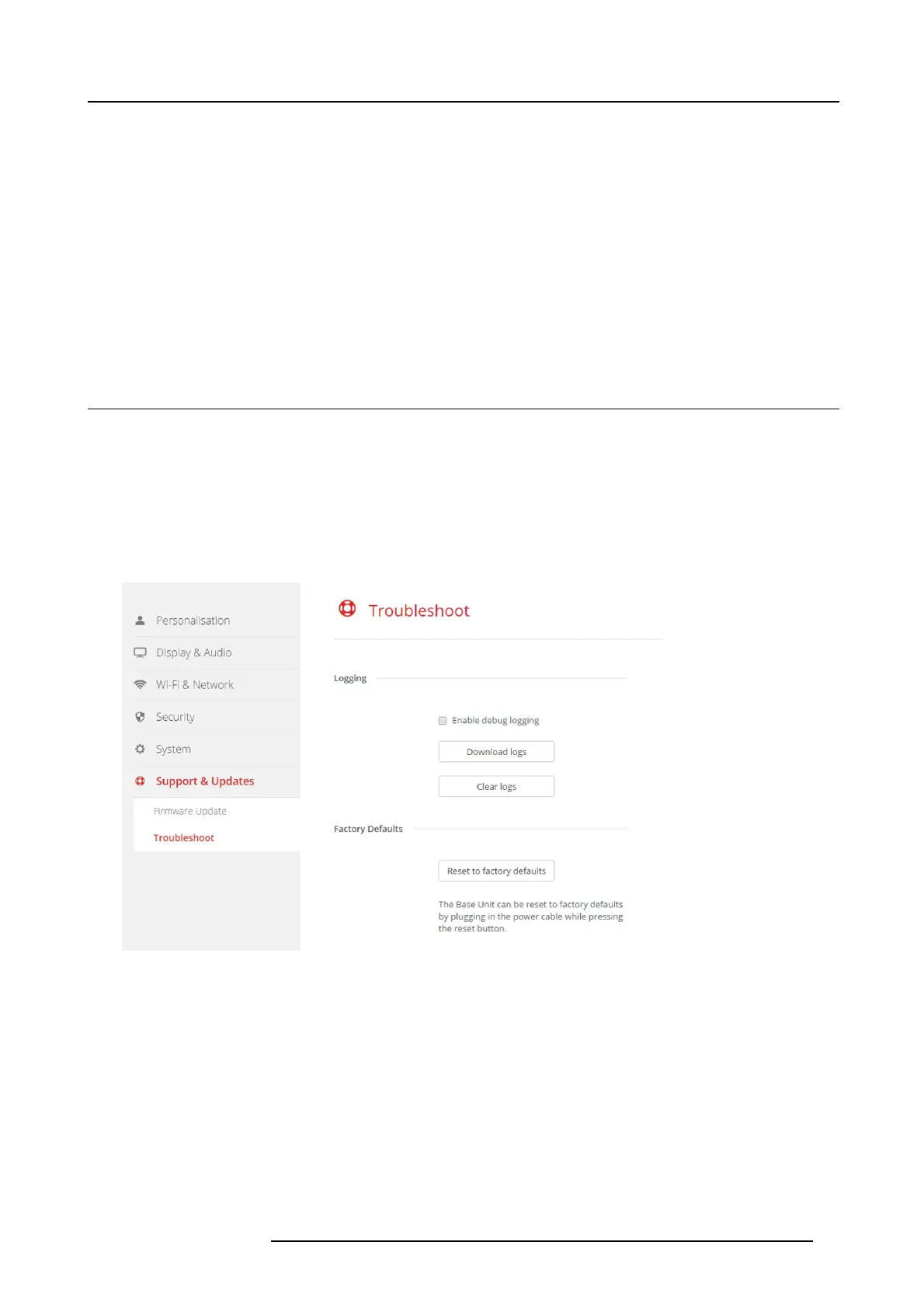
2. Click Support & Updates → Troubleshoot.
Image 6-28
Troubleshoot, logging
3. To create a debug log, check the c heck box next to Enable deb ug logging.
4. Reproduce the issue you want to report.
5. To download the current log file, click on Dow nload logs.
6. To c lear the current log file, click Clear logs .
7. To enable logging by the ClickShare client (6):
- If the launcher service is running hold d own the shift key while con necting the Button to the PC, until logging is started.
- If the launcher service is not running : hold down the shift key while double clicking the ClickShare application.
R5900022 CS-100 16/02/2016
43



 To Next Page