Connecting the PC input
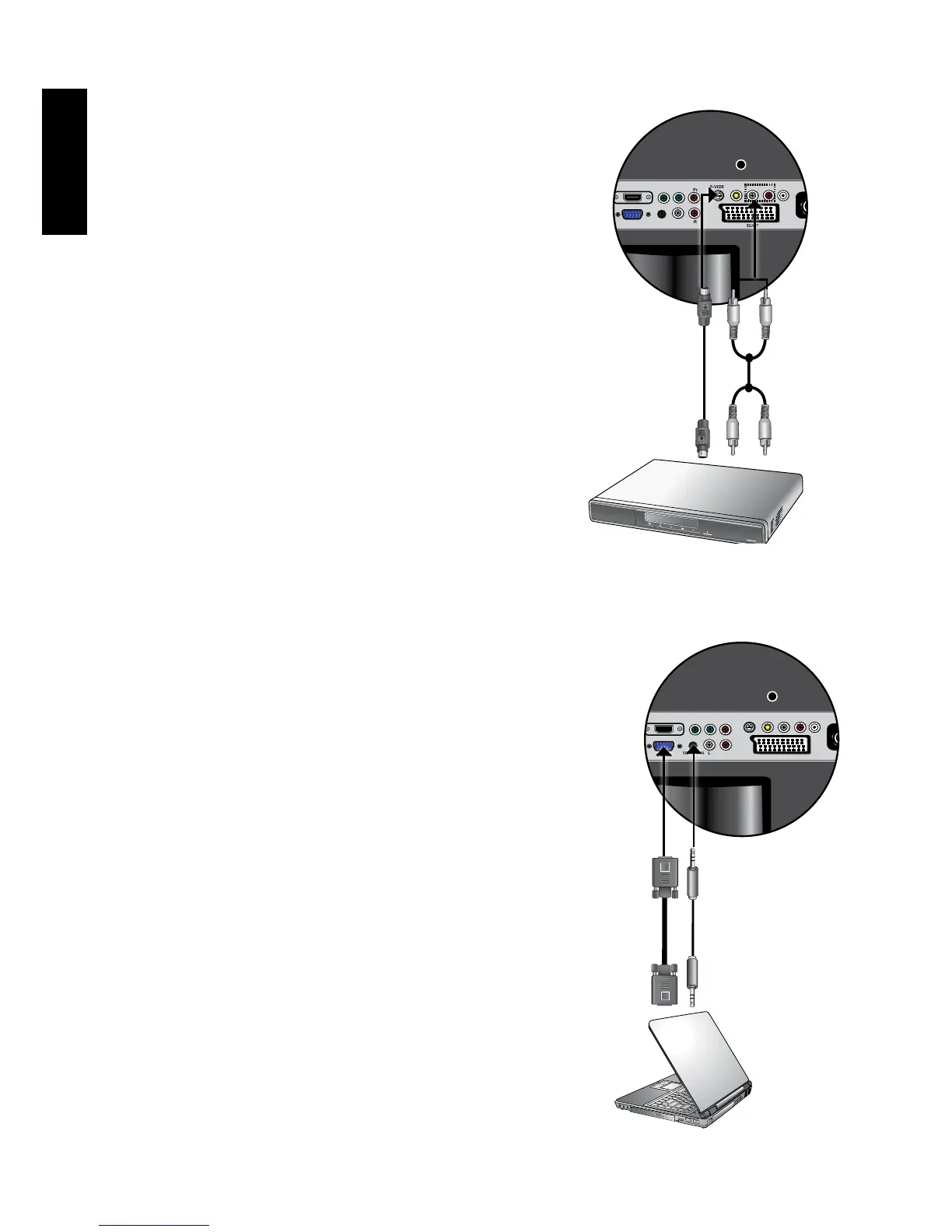
1. Connect the VGA (D-Sub) output of your PC
to the VGA IN terminal on the TV using a mini
D-Sub (15-pin) cable (not provided).
2. Connect the audio output of your PC to the
TV's VGA LINE IN terminal using an appropriate
3.5mm-diameter Mini-jack stereo audio cable
(not provided).
To view video image from this input, press
INPUT and use
▲▼
button to select COMPUTER
(VGA) then press OK button.
WhenyouconnectthedisplaytoaPC,you
should adjust the resolution in the display
properties of the computer to closely
matchthenativeresolutionofthedisplay
(forexample,1680x1050pixels).See
"SupportedPC(D-Sub/DVI)inputsignal
resolutions"onpage39onothersupported
resolutions.
PC
Audio
cable
Mini D-Sub
cable
Connecting the S-Video input
1. Connect the S-Video output of your output
equipment to the TV's S-VIDEO terminal
using an S-Video cable (not provided). Pay
attention to the alignment of the plugs on the
S-Video cable when inserting so as not to
damage any pins.
2. Connect the corresponding audio output of
the output equipment to the S-Video AUDIO
L/R input terminals using a suitable audio
cable (or use the Composite Video cable. The
yellow plug is not used).
To view video image from these inputs, press
INPUT and use
▲▼
button to select VIDEO2
(S-VIDEO) then press OK button.
Youshouldnotconnectbothacomposite
Video and an S-Video from the same
device;justoneortheother.Ifyouhave
the choice, use the S-Video instead of
compositeVideoasanS-videosignal
providesahigherqualitysignaltothatof
composite Video.
DVD PLAYER
Audio cable
S-Video
cable


 To Next Page