Item Function Operation Range
Noise
Reduction
Select to reduce the noise level of connected
equipment.
Press
◄
or
►
to change
selection.
On
Off
Auto Press the OK button to automatically adjust the
display settings to optimize performance based
on the VGA mode.
Press OK
Screen Press the OK button to enter the VGA Setting. Press OK
Horizontal
Pos.
Adjusts the position of the picture left and right
in the window based on the VGA mode..
Press
◄
or
►
to change
selection.
0 to 100
Vertical
Pos.
Adjusts the position of the picture up and down
in the window based on the VGA mode..
0 to 100
Clock Controls the width of the picture based on the
VGA mode
-30 to +30
Phase Controls the signal phase, which can improve
focus clarity and image stability based on the
VGA mode.
0 to 100
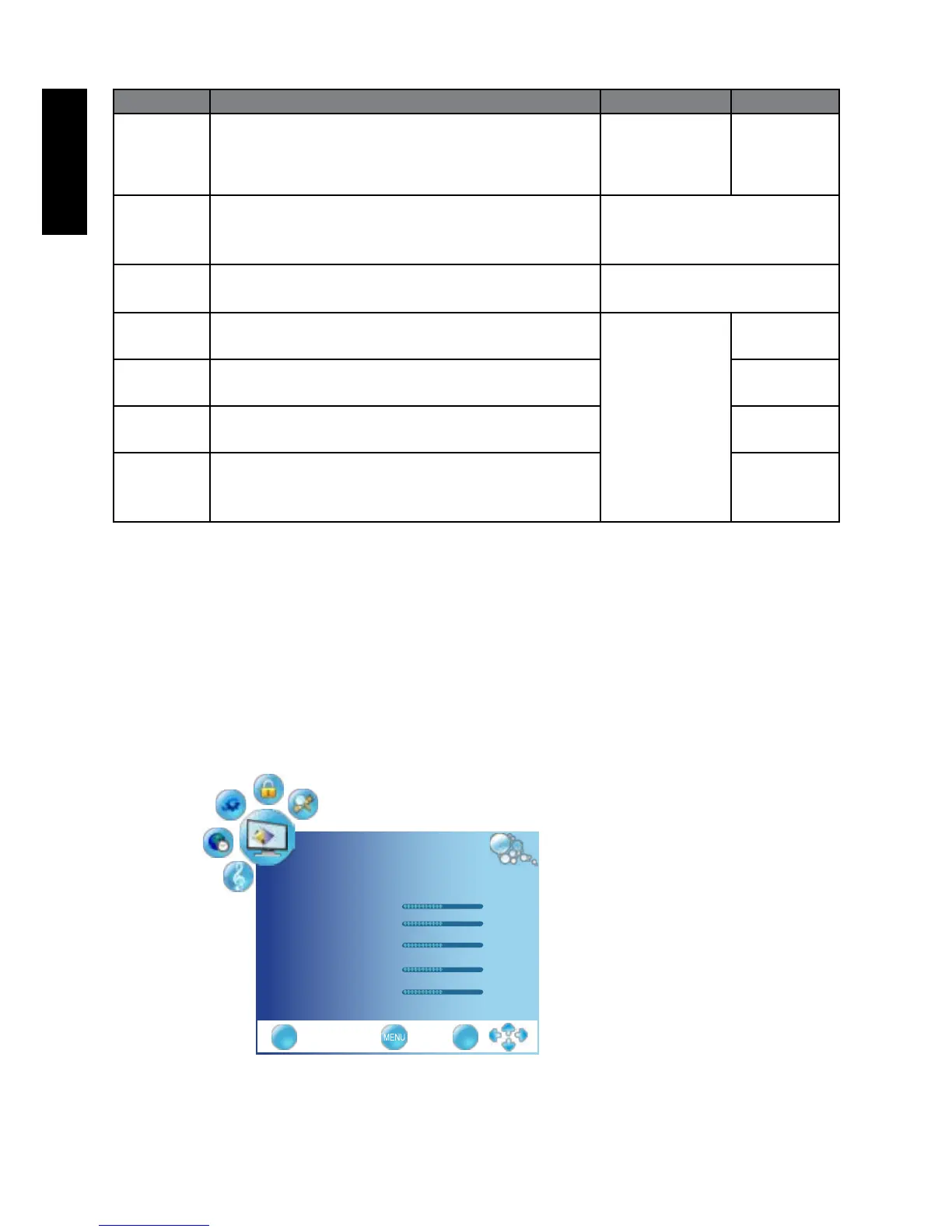
Setting up User Picture mode
You can adjust the settings in the Picture menu and save them as your
Personal Picture Mode. You can pressP.MODE on the remote control to select
these modes directly.
1. Press Menu to display the OSD menu on-screen.
2. Press
◄►
to select PICTURE, and then press OK to enter the PICTURE menu.
3. Press
▼
to select Picture Mode, and then press
◄
or
►
to select User
4. Press
▲
or
▼
o select Contrast, Brightness, Saturation, Sharpness, Tint and
then press
◄
or
►
to adjust the settings to your satisfaction.
5. Press Menu o save the settings and close the OSD menu.
PICTURE
PictureMode User ◄►
Contrast 50
Brightness 50
Saturation 50
Sharpness 50
Tint 0
EXIT OK


 To Next Page