M-7 Rev F
care & maIntenance
Changing Paper While Printing
If the meter runs out of paper while in the middle of a printing task and is displaying the
message PRINTER FAILURE, CHECK PRINTER OR REPLACE PAPER, the paper
may be changed and the print job continued without loss of data or reprinting from the
beginning. Perform the following steps prior to pressing any new keys:
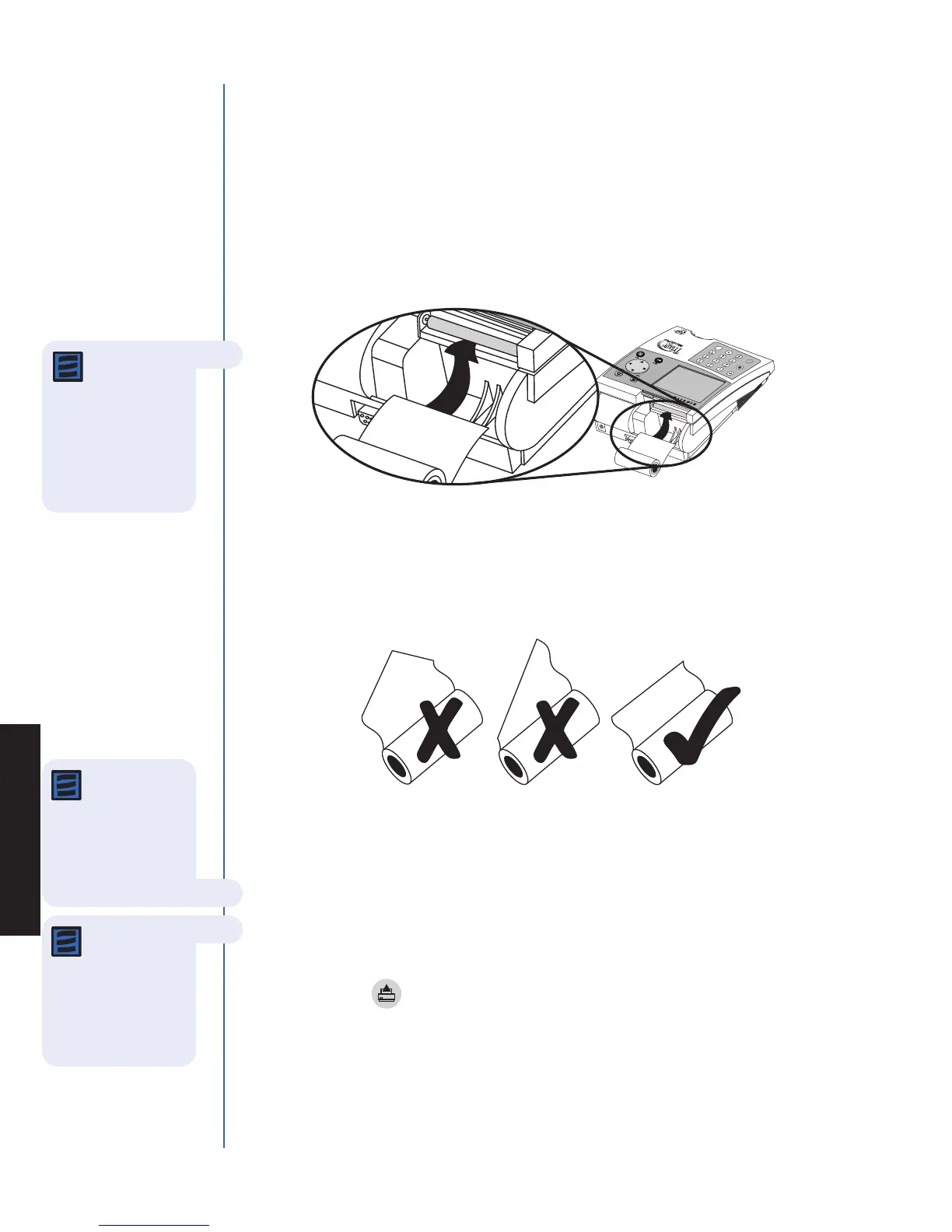
1. Remove the paper compartment cover by pulling up on the cover as indicated by
the arrow on the back of the cover.
2. Gently pull remaining paper slowly up through the printer.
3. Remove paper spindle from the paper compartment.
4. Tear or cut a clean, straight edge to feed into the printer. Do not cut paper at an
angle, as the printer must sense the edge of the paper along the feed path.
5. Insert the new roll of paper into the paper compartment.
6. Position the paper such that the paper will feed from under the roll (as opposed to
over the top of the roll, see picture, above).
7. Insert the paper edge under the paper roller (platen) until it firmly seats or a
resistance is felt.
8. Press the key.
9. When the printer begins to pull the paper in, release the paper. The printer will feed
a few lines and re-commence the print job. To ensure no data is lost, the
10. After the paper has appered above the printer, replace the printer cover, taking care
to ensure the paper does not get caught inside the meter.
Note: The
printer contains
a paper sensor and
will feed the new
paper roll only when
paper with a clean
straight line is pressed
into the paper roller.
Note: The printer
utilizes thermal
paper, if the printed
paper is blank after
replacing a roll, verify
that the paper roll is
not upside down.
Note: If PAPER
FEED button is
pressed before the
printer senses the
paper, the printer will
not respond to the
command.


 To Next Page