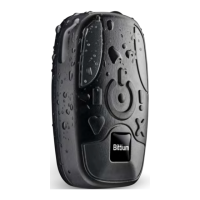
4.6.1 Connecting to computer with the Bittium SafePort
When using a Bittium SafePort device, the Faros device is connected to the computer as follows.
Use the USB cable delivered with your Bittium SafePort USB cradle to connect SafePort to your personal
computer.
1. Plug the USB cable delivered with your SafePort USB cradle to connect SafePort to your personal
computer.
2. Plug the other end of USB cable to your SafePort USB cradle. Green light indicator in Bittium
SafePort is lit.
3. Place the Faros ECG devices in the Bittium SafePort. Blue light indicator on Faros device starts to
blink first, and then green light indicator should start to blink also.
If green led indicator in Bittium SafePort USB cradle is not lit when device is connected to your computer,
there may be a connection issue. In this case, you should disconnect the USB cable connection and
reconnect again, also check carefully that the USB connection between the device and the cable and
between the cable and your computer is not loose.
Remove Faros Device from Bittum SafePort USB cradle if red LED indicator is lit in Bittium
USB cradle when the device is attached to it.


 To Next Page