13
1.8 7 7. 8 7 7. 2 2 6 9 BLACKBOX.COM
NEED HELP?
LEAVE THE TECH TO US
LIVE 24/7
TECHNICAL
SUPPORT
1.8 77.877.2269
CHAPTER 3: INVISAPC RECEIVERS
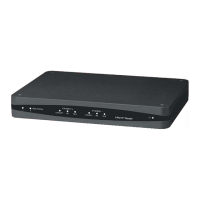
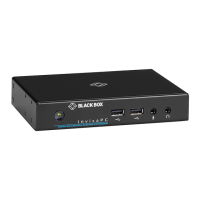
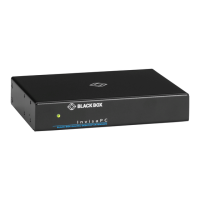
TABLE 3-1. INVISAPC RECEIVER COMPONENTS
NUMBER IN FIGURES 3-1
THROUGH 3-5
COMPONENT DESCRIPTION
1 Power LED Lights green when power is ON
2, 6 (4) USB Type A connectors Link to USB devices
3 (1) 3.5-mm connector Connects to microphone
4 (1) 3.5-mm connector Connects to speakers
5
(1) 2.5-mm barrel connector
for power
Links to 5-VDC external in-line power supply
7 (1) Link/Activity LED Lights green when there is activity on the link
8 (1) RJ-45 connector Links to 10-/100-/1000-Mbps network
9 (1) Link Speed LED
LED blinks green 1= 10 Mbps, 2 = 100 Mbps and 3= 1 Gbps in a 1.5 second interval.
No blinking means no valid link
10 (1) DVI output connector Links to DVI output #1
11 (1) DVI output connector Links to DVI output #2
12 (1) DB9 connector Links to RS-232 serial interface
3.1 CONFIGURATION OF RECEIVER
The Receiver is configured using an On-Screen Display (OSD) built into the Receiver or using the InvisaPC Manager. The network
settings and unit name among others can be configured for a Receiver. The target connections are defined by their target name or
IP address, log-in username/password, and TCP port number to be used. Users can be created and specific connections may be
allocated to the different users.
A Receiver user profile is protected by username and password to permit different users to access the same unit securely.
Multiplatform support
InvisaPC is compatible with the following operating systems:
Microsoft
®
Windows Desktop Operating Systems (e.g. Windows 7, Windows 8, Windows 10) and Microsoft Server Operating
Systems (e.g., 2003, Server 2008, Server 2012)
Linux
®
Solaris
®
Mac OS
®
The default keyboard drivers for these operating systems are supported by the InvisaPC system.
NOTE: For virtual desktops, typically Pro or Enterprise versions of the Windows operating system are required for VDI to support
RemoteFX™. See www.microsoft.com for Terminal Services (RDSH) or VDI (RDVH) requirements.


 To Next Page