56
1.8 7 7. 8 7 7. 2 2 6 9 BLACKBOX.COM
NEED HELP?
LEAVE THE TECH TO US
LIVE 24/7
TECHNICAL
SUPPORT
1.8 77.877.2269
CHAPTER 13: CENTRAL MANAGEMENT
13.1.3 ADDING A DEVICE NOT ON YOUR NETWORK
If the device is on a different network, it cannot be managed it directly (e.g. on a different subnet with no router between devices). It
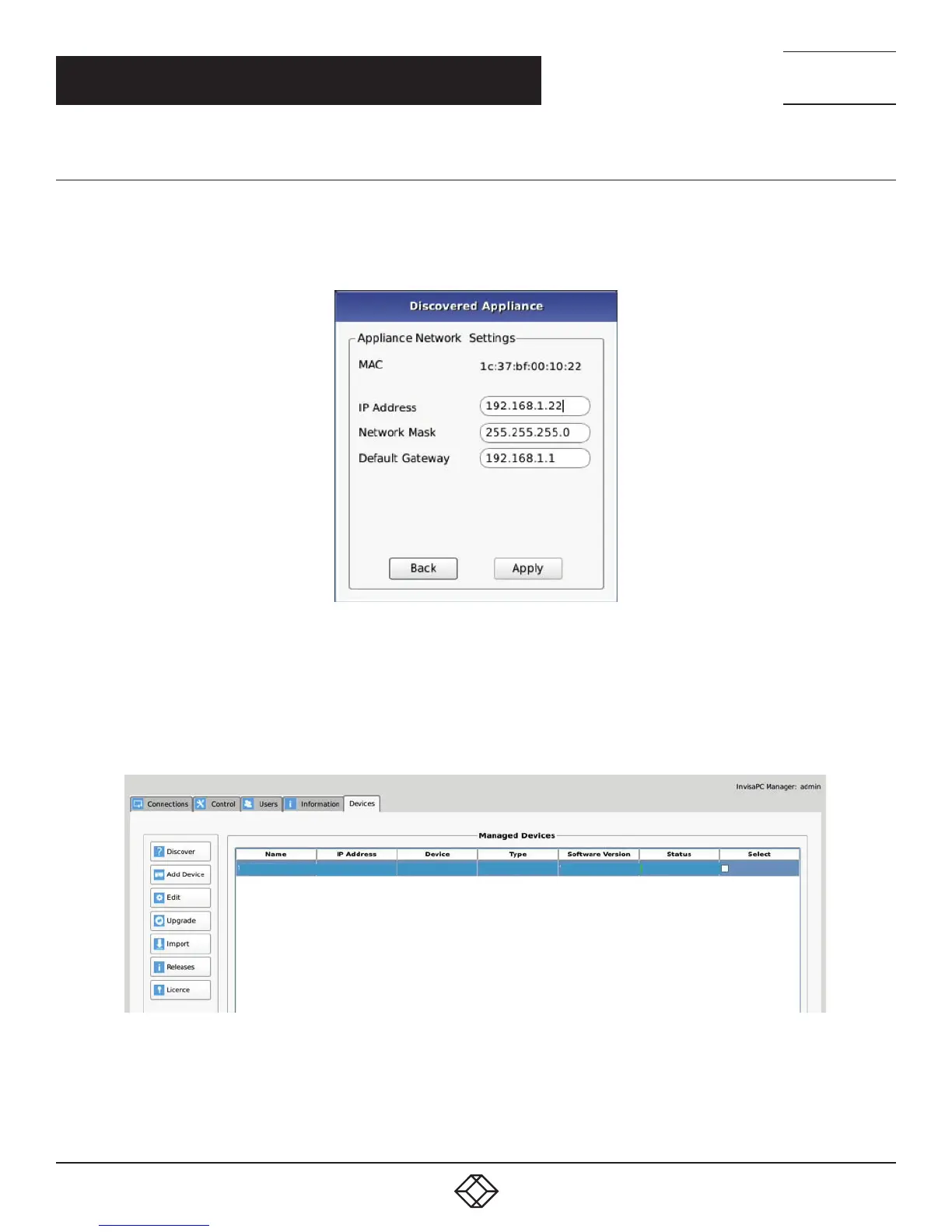
will need its network settings changed. To do this, click the device you want to manage and press the configure button. A dialog box
will appear. This will allow you to change the network settings so the device is on your network.
FIGURE 13-5. APPLIANCE NETWORK SETTINGS
Once you complete this step, the system will bring you back to the Discovered Devices page where you can see the network
information has been changed. You can now select the device and click the Manage button. You will then be asked to give this device
a name and it will be added to your Managed Devices section. We highly recommend giving all devices a unique name. Press the
Back button to go back to the Managed Devices page ,where you will see the device you have added.
TX - 192.168.1.22
19 8.168.1.22
Transmitter
DTX1002-T
v3.7.0
Online
FIGURE 13-6. MANAGED DEVICES


 To Next Page