23
1.8 7 7. 8 7 7. 2 2 6 9 BLACKBOX.COM
NEED HELP?
LEAVE THE TECH TO US
LIVE 24/7
TECHNICAL
SUPPORT
1.8 77.877.2269
CHAPTER 9: INSTALLATION
9.5 INSTALLATION OPTIONS
WARNING: To reduce the risk of electric shock or damage to your equipment, disconnect the power from the InvisaPC device by
unplugging the power supply from the electrical outlet. To reduce the risk of electric shock or damage to your equipment, turn on
the remote workstation and the InvisaPC Transmitter in the order described in the following procedures.
You can install the InvisaPC system either on a point-to-point or networked configuration.
WARNING: To avoid potentially fatal shock hazard and possible damage to equipment, please observe the following precautions:
Test AC outlets at the workstation and monitor for proper polarity and grounding.
Use only with grounded outlets at both the workstation and monitor. When using a backup Uninterruptible Power Supply (UPS),
power the workstation and the Transmitter from the same supply.
NOTE: The AC outlet is the main disconnect.
9.6 CONNECT THE INVISAPC RECEIVER
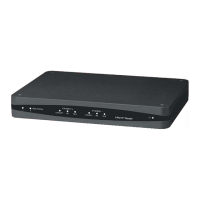
The recommended sequence to connect the receiver is:
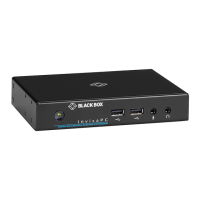
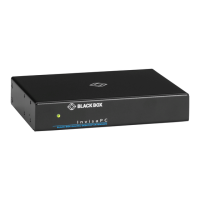
1. Connect your keyboard, monitor, mouse, and other peripheral cables to the appropriately labeled ports on the InvisaPC Receiver.
Video output #1 is closest to the USB ports on the receiver.
2. Connect the UTP cable to the RJ-45 port on the back of the Receiver.
3. Plug the external power supply’s 2.5 mm connector into the DC power jack on the rear of the InvisaPC Receiver.
4. Connect the detachable power cord to the power supply.
5. Plug the power cord into an appropriate wall outlet.
6. Turn on the InvisaPC Receiver. A default connection is available to allow connection to a default InvisaPC Transmitter. You can
use the OSD to add a different connection to a remote Transmitter or virtual desktop (see page 32 for details on how to add a
connection). The default Transmitter IP address is 192.168.1.22.
7. Once a Connection has been defined, use the OSD to make connection.
NOTE: VGA or analog video monitors can be connected to the InvisaPC Receiver by using a DVI-D to VGA converter
(such as Black Box part number AC1038A).


 To Next Page