58
1.8 7 7. 8 7 7. 2 2 6 9 BLACKBOX.COM
NEED HELP?
LEAVE THE TECH TO US
LIVE 24/7
TECHNICAL
SUPPORT
1.8 77.877.2269
CHAPTER 13: CENTRAL MANAGEMENT
13.1.6 UPGRADING A DEVICE REMOTELY
To upgrade a managed device remotely, you need to first import the upgrade file. For an Administrator to import the latest version of
the firmware for device upgrades, he/she needs to import the upgrade file via USB Flash Drive using the Import button located on the
Devices Tab. Place the upgrade file (e.g.“firmware.clu”) in the root directory of the flash drive, and insert the flash drive into USB port
of DTX1032-R, and press the Import button.
Once this is successful, you can select the devices you wish to upgrade and select the Upgrade button.
NOTE: The device can only be upgraded if it is online.
You can check what upgrade releases you have on the Manager at any stage by pressing the Releases button. You can compare this
to the software version on the managed devices via the information shown in the Managed Devices section.
13.1.7 LICENSES
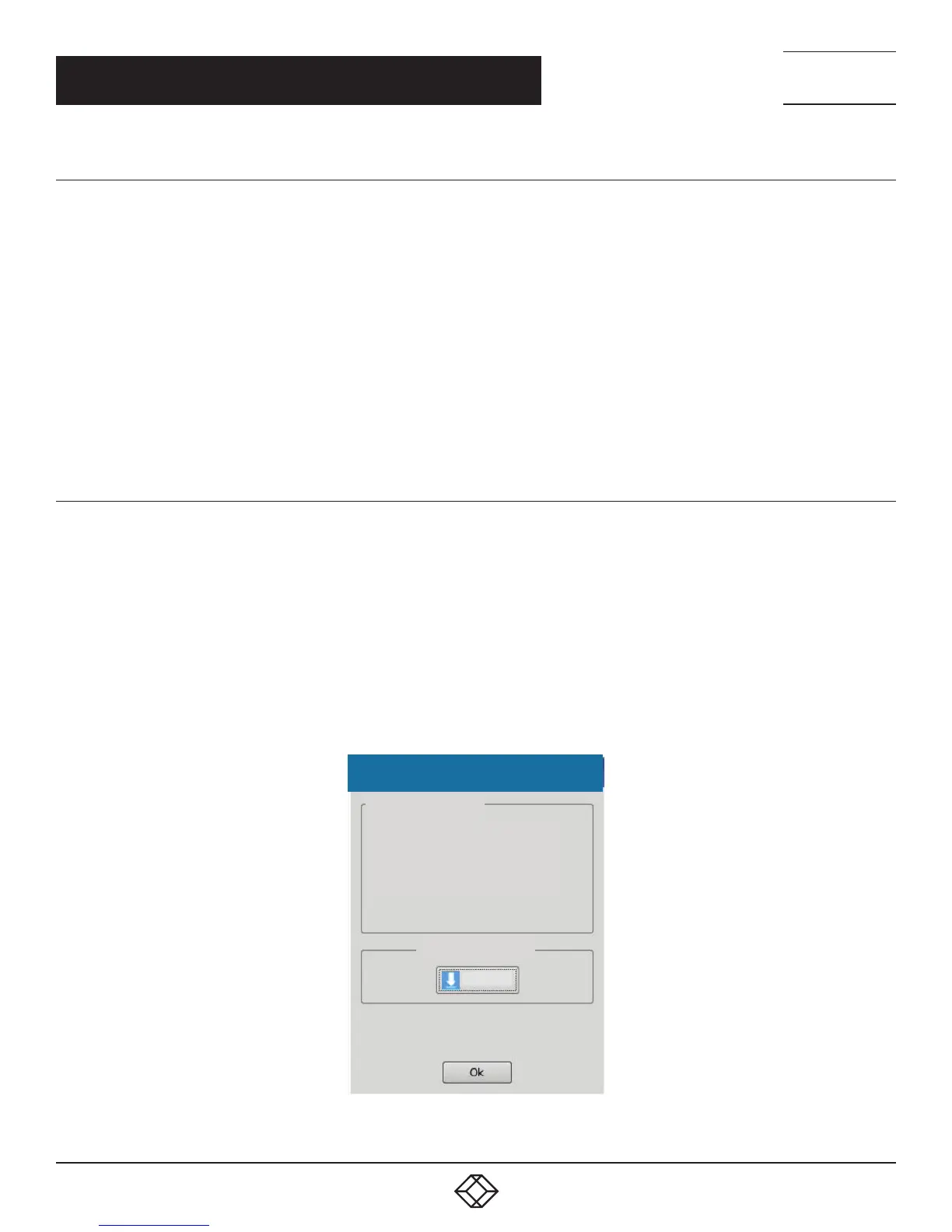
Administrators can see the available Licenses in their system via the License button. They can also Import Licenses via USB Flash
Drive. Place the upgrade file received from Black Box in the root directory of the flash drive. Press the License button. This will pop-up
a window that shows the Serial Number of the unit and the current License limit. By default this is 32 (i.e. 32 users, 32 connections ).
To upgrade, press the Import button shown below. Once this is successful you will see your new License information appear.
There are 100 and 250 upgrade licenses available.
NOTE: You need to increase your limit to 100 licenses before increasing it to 250 licenses. This requires the administrator to import
the 100 license key first and then import the 250 license key after the 100 license key was imported successfully.
Manager License Information
License Information
Import License
Serial Number: SECL14C00003
License Version: 1.0
Maximum Licensed Limit: 32
Import
FIGURE 13-9. MANAGER LICENSE INFORMATION


 To Next Page