57
1.8 7 7. 8 7 7. 2 2 6 9 BLACKBOX.COM
NEED HELP?
LEAVE THE TECH TO US
LIVE 24/7
TECHNICAL
SUPPORT
1.8 77.877.2269
CHAPTER 13: CENTRAL MANAGEMENT
13.1.4 ADDING DEVICE VIA IP ADDRESS
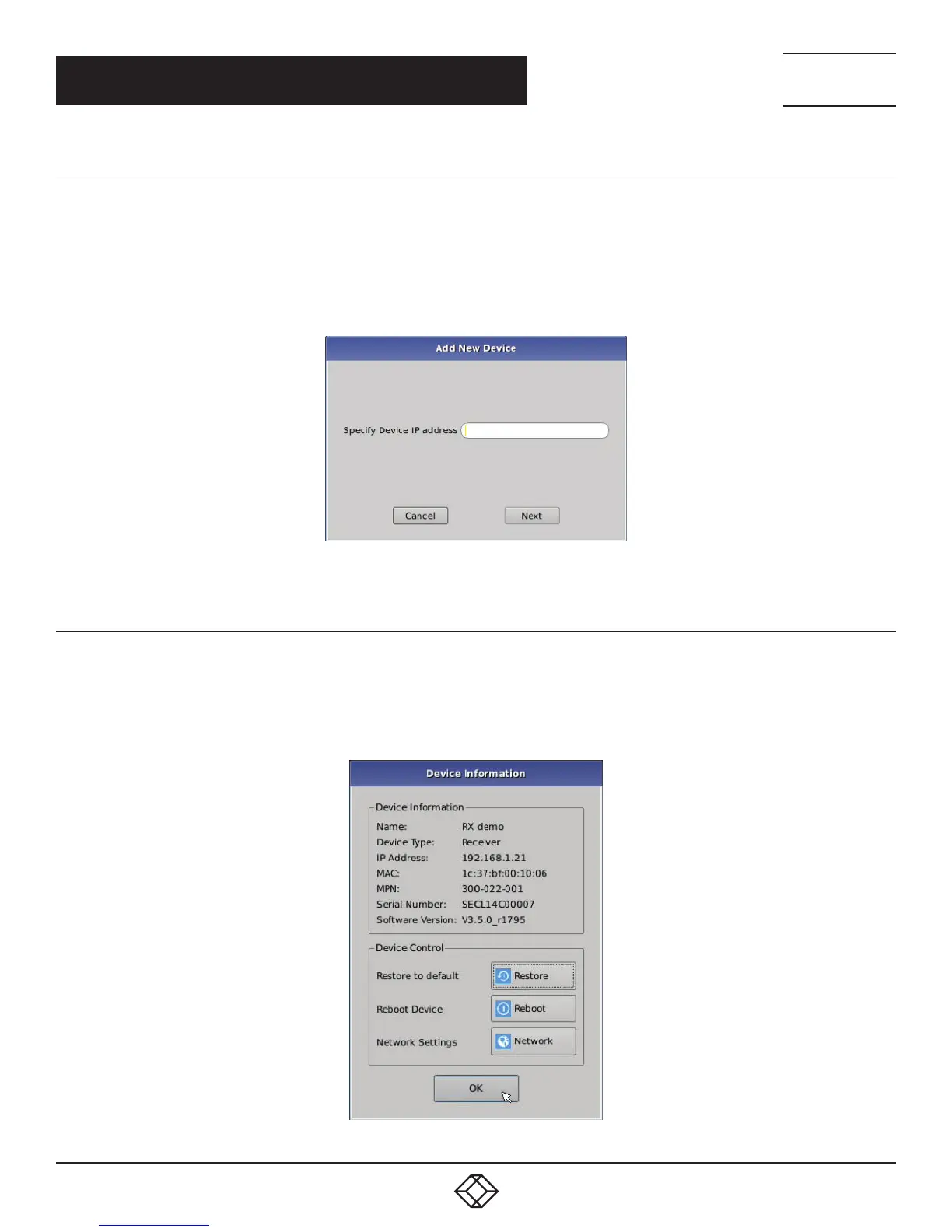
The Add Device section only applies to devices that are on the same network as the manager. The Add Device pop up window allows
the administrator to add a device using the device’s IP address. Once you have entered in the device’s IP address and press next, a
dialog box appears. You will then be asked to give this device a name and it will be added to your Managed Devices section. We highly
recommend giving all devices a unique name.
FIGURE 13-7. ADD NEW DEVICE
13.1.5 EDITING MANAGED DEVICES
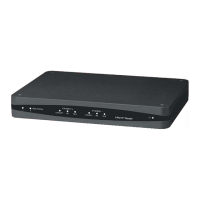
After selecting a device, the administrator can edit that device by pressing the Edit button. The Edit dialog box is shown in Figure
13-8. This enables the administrator to edit device information remotely. The administrator can restore to factory default settings,
reboot the device, change network settings and view device information. If you want to delete a device from your managed devices
list, press the Restore button. This restores the device to its factory default settings (this removes it from your managed devices).
FIGURE 13-8. DEVICE INFORMATION


 To Next Page