When installing the Teranex Mini Smart Panel to your Blackmagic MultiView 4, holding the panel
with your fingers and thumb aligned with the panel’s rear connector will help guide it into place.
Teranex Mini Smart Panel Features
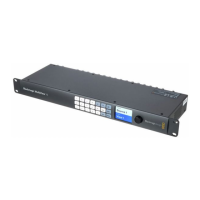
The features of the Smart Panel are similar to the MultiView 16’s built in control panel. The home
screen is the first feature you’ll see on the LCD and is the default display showing a convenient
overview of settings, such as:
Multi view output frame rate - Located in the upper left corner, this displays the
selected frame rate for your Ultra HD SDI multi view output.
Audio input - This information is located next to the multi view output frame rate and
displays which SDI input is being used for embedded audio in the HDMI and SDI multi
view output signal.
Multi view layout - This displays the 2x2 multi view layout.
The ‘home’ screen is the default display
on TeranexMini Smart Panel’s LCD.
Control Buttons and Rotary Knob
Your Teranex Mini Smart Panel has a set of buttons and a rotary knob that are used to navigate
your Blackmagic MultiView 4’s settings menu.
1 and 2 buttons - Press these buttons to increase or decrease numeric setting values,
or to move up or down through menu settings.
Set - After changing a setting using the 1 and 2 buttons, press the ‘set’ button to
confirm your setting.
Menu - Press to enter the settings menu for your Blackmagic MultiView 4. You can
also press the menu button to step back through menu items all the way to the
home screen.
1 MENU
2 VIDEO
SET AUDIO
2160p 29.97 Input 3
1 3
2 4
1616Changing Settings using TeranexMiniSmart Panel


 To Next Page