First click on the ‘color’ tab to open the color page.
You’ll see the camera raw settings, color wheels, curves palettes and general color correction
tools as well as the preview and nodes window. Don’t feel overwhelmed by the vast array of
features in front of you, they are all there to help you get the most amazing looking pictures.
This getting started section will show the basics, but for more detailed information refer to the
relevant sections in the manual. They will show you exactly what all the tools are for and how to
use them in easy to follow steps. You’ll learn the same techniques the professionals use in high
end color correction facilities.
Generally, the first step for primary color correction is to optimize the levels for shadows, mid
tones and highlights in your clips. In other words adjust the ‘lift’, ‘gamma’ and ‘gain’ settings.
This will help get your pictures looking their brightest and best with a clean, balanced starting
point from where you can begin grading the ‘look’ of your film. To optimize the levels, it’s helpful
to use the scopes.
Using Scopes
Most colorists make creative color choices by focusing on the emotion and the look they want
their program to have and then simply work using the monitor to achieve that look. You can look
at everyday objects and how different types of light interact with them to generate ideas on
what you can do with your images and a little practice.
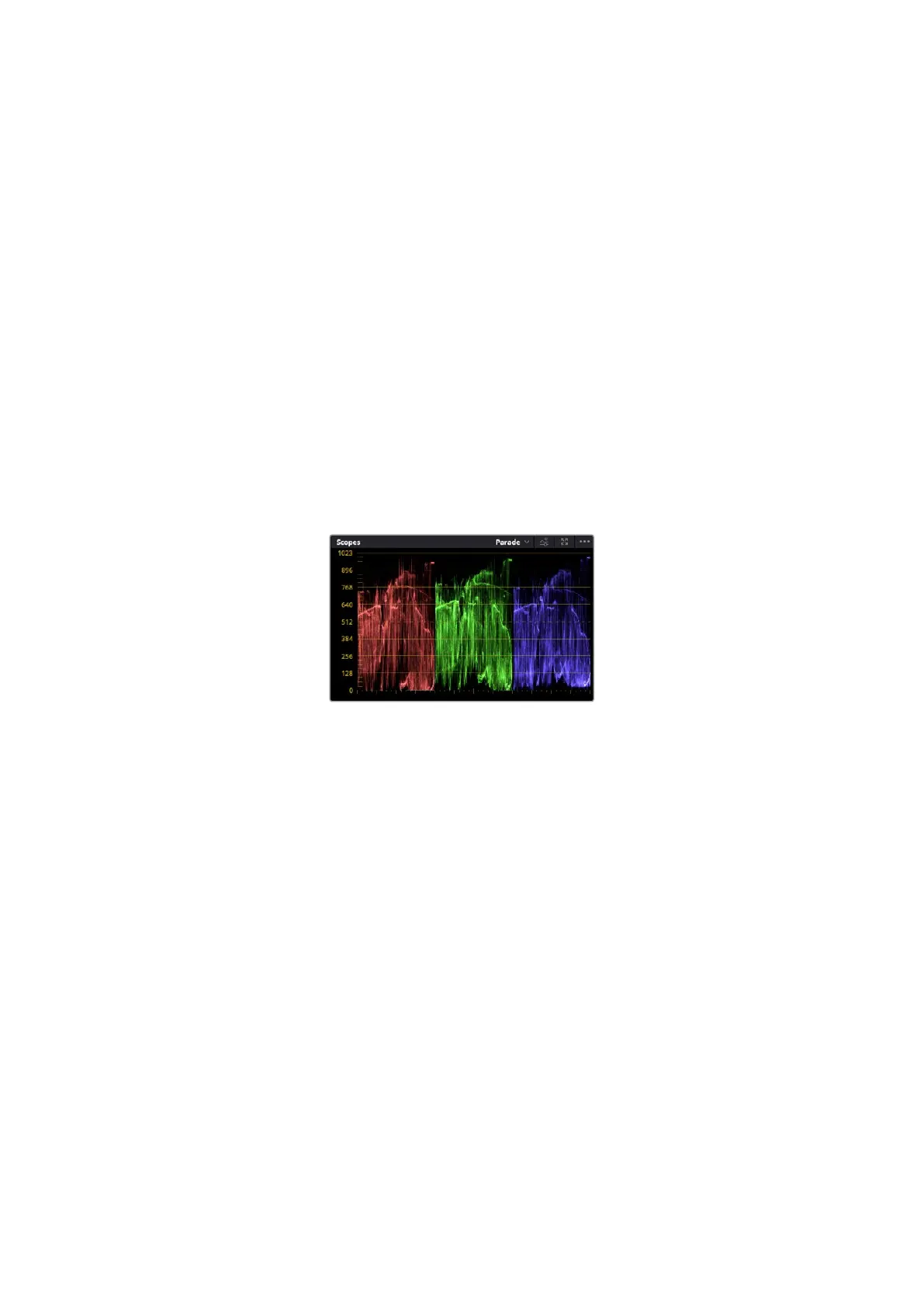
The parade scope helps you optimize highlights,
midtones and shadows
Another way to color grade is to use the built in scopes to help you balance shots. You can
open a single video scope by clicking the ‘scope’ button, which is the second from the right
on the palette toolbar. You can choose to display a waveform, parade, vectorscope, histogram
or CIE chromaticity scope. Using these scopes you can monitor your tonal balance, check the
levels of your video to avoid crushing your blacks and clipping the highlights, plus monitor any
color cast in your clips.
The ‘color wheels’ palette contains the ‘lift’, ‘gamma’ and ‘gain’ controls which will generally
constitute your first adjustment. If you’ve previously had experience with color correction,
these should resemble controls you’ve seen in other applications for doing color and
contrast adjustments.
104Using DaVinci Resolve



 To Next Page