Focus Chart
The viewfinder has a built in focus chart so you can focus the eye piece to suit your eyes.
The diopter has an adjustment range of -4 to +4. Simply turn the focus diopter on the
eyepiece until the chart is in perfect focus.
Smooth Motion
This setting smooths the motion of fast moving images displayed by the viewfinder. It is
common to see judder when shooting at frame rates lower than 30p on a display that
doesn’t run at that native frame rate, especially when you see the display close up. Judders
are eliminated when you switch on ‘smooth motion’ with the shutter angle at 180 or less and
the frame rate set to 23.98, 24, 25, 29.97 or 30p.
Audio Settings
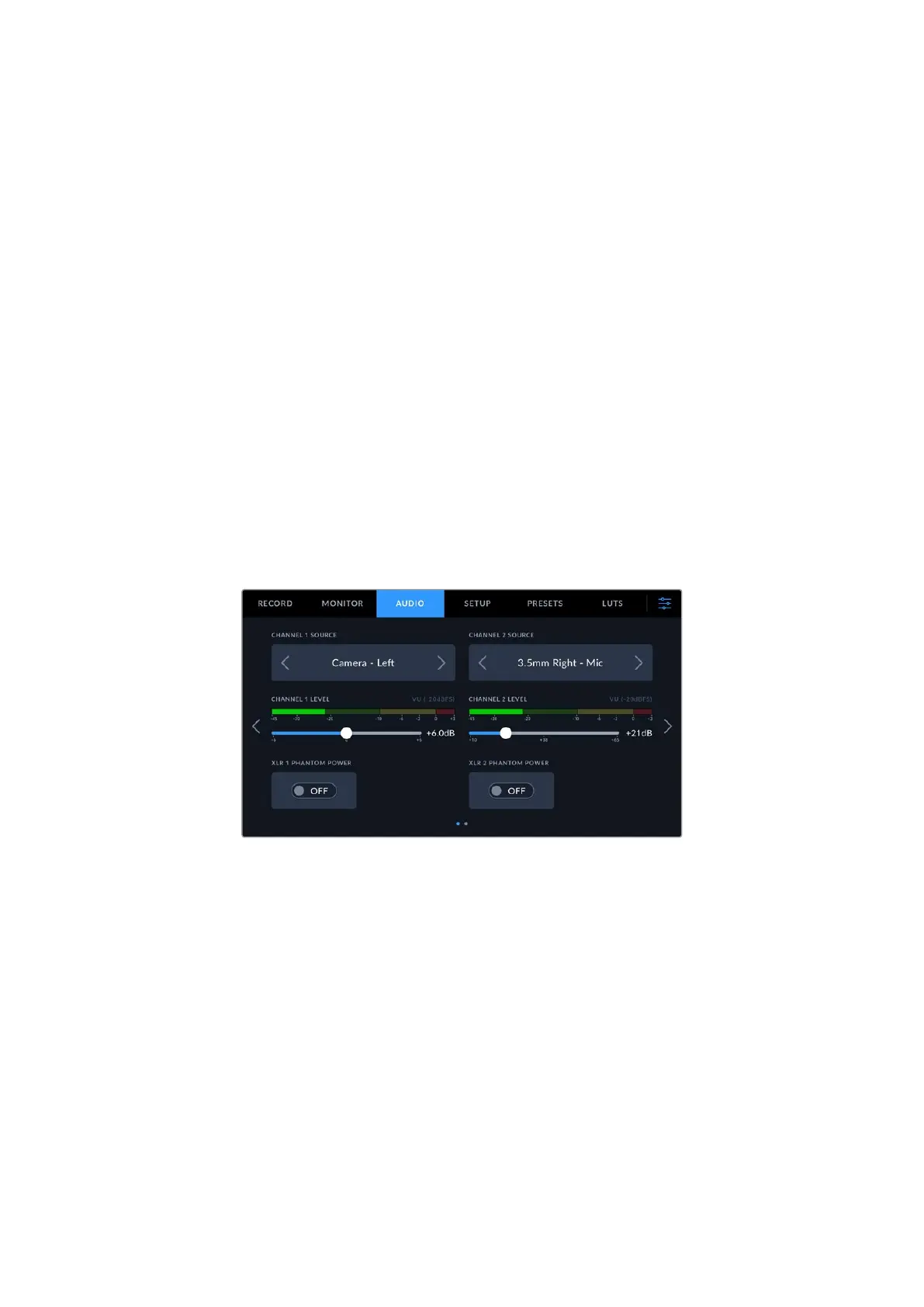
The ‘audio’ tab lets you adjust the audio input and monitoring settings on your camera.
The audio settings for the camera are spread over two pages and divided between
channels 1 and 2.
You can map each audio channel to a different source, as well as adjusting various settings
such as gain control.
Audio Settings 1
The first page of the ‘audio’ tab contains the following settings.
• Channel Source
Use the ‘channel 1 source’ and ‘channel 2 source’ buttons to select your audio source for
each audio channel. Below is a description of each channel source setting.
• Camera Left or Right
Records from your camera’s internal microphones.
• Camera Mono
Creates a single audio channel from your Blackmagic Cinema Camera 6K’s built in
microphone’s left and right channels.
• XLR Line
Uses your camera’s XLR input to record line level audio. You can also use this setting to
accept a timecode signal through the XLR port.
• XLR Mic
Records mic level audio from your camera’s XLR input. If phantom power is enabled
and you have your XLR input set to ‘mic’ you’ll also see a ‘+48V’ indicator here. It is also
important to ensure that the 48V switch gets turned ‘off’ when you disconnect your
65Settings



 To Next Page