If your external recorder supports trigger recording, you will need to enable it via the recorder’s
settings menu.
Recording Motion Sensor Data
Blackmagic Cinema Camera 6K automatically records gyro data from the internal motion sensor.
DaVinci Resolve can then use this data to stabilize clips. For more information refer to the ‘gyro
stabilization’ section in this manual.
Shooting using a Vertical Aspect Ratio
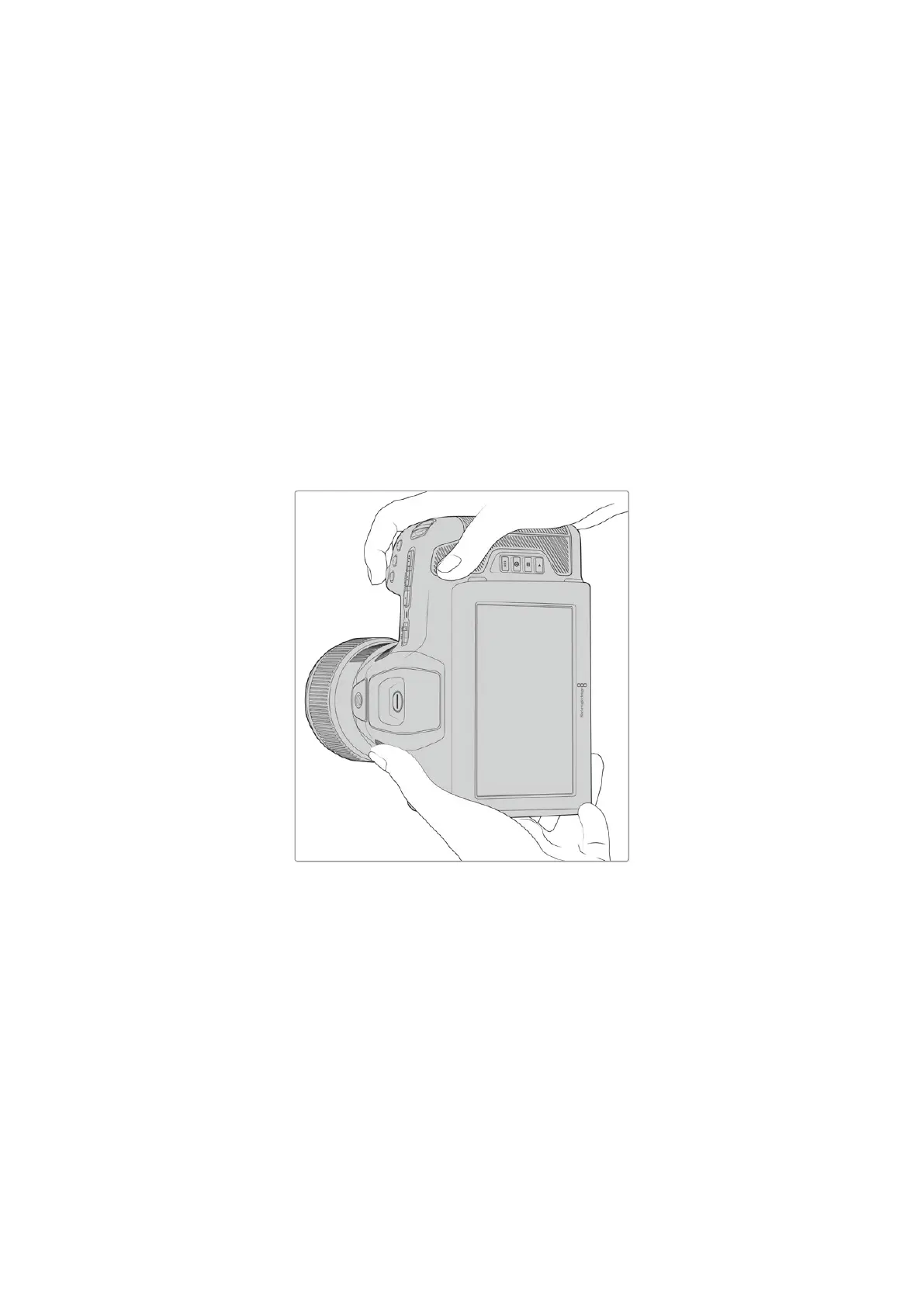
Your Blackmagic Cinema Camera 6K supports vertical aspect ratios so you can craft cinematic
content for platforms like YouTube and TikTok with the color and dynamic range of digital film.
Simply rotate the camera to record in a vertical aspect ratio such as 9:16 and 4:5. The on screen
HUD rotates so critical information, such as frame rate, shutter angle and frame guides, are easy
to view. Pressing record locks all overlays for the duration of the shot so you can change angles
and the on screen information will remain in place.
Your camera tags vertical video in the clips’ metadata so it appears
correctly on your edit timeline
Locking Vertical and Horizontal
Locking the display to vertical or horizontal stops the on screen information from rotating
automatically. For example, when vertical is locked, your camera will maintain the vertical on
screen HUD even at extreme angles. Refer to the ‘vertical recording’ section under ‘record
settings’ for more information.
20Shooting using a Vertical Aspect Ratio



 To Next Page