1 Record Buttons
Press either of the record buttons to start and stop recording. A record button is located on the
front of the camera to let you start and stop recording more easily if you are recording yourself.
2 Settings Wheel
The settings wheel lets you adjust the aperture of compatible lenses mounted to your
camera. With the touchscreen facing you, rotate the wheel left to open the iris, and right
to close. The settings wheel is also used to adjustwhite balance, shutter angle and
ISO settings. You can also use the settings wheel in conjunction with the ‘focus zoom’
button to adjust the magnification level of the optional electronic viewfinder. Press the
corresponding buttons on the top of the camera, then make your selection by rotating the
settings wheel. After making your selection, press the settings wheel to quickly dismiss
the selection menu.
3 Stereo Microphones
There are four built in, high quality stereo microphones. Refer to the ‘audio settings’ section
for information on microphone audio settings.
4 Lens Mount
Your Blackmagic Cinema Camera 6K features an active lens mount for L-mount lenses. This
means you can use lenses with built-in stabilization, as well as use auto focus and auto
exposure with compatible lenses. To use the image stabilizer or ‘IS’ feature found in many
active lenses, set the stabilizer switch to‘on’ to enable image stabilization on your camera.
If your lens also features a stabilizer mode switch, set it to the appropriate mode for still
shots or for movement. If your lens does not have a physical stabilizer switch, you can turn
‘image stabilization’ on or off in your camera’s setup menu.
5 Tally / Record Indicator
The small LED on the front of your camera indicates the recording status. You can enable
or disable the tally light indicator and adjust its brightness in the setup menu. Refer to the
‘setup settings’ section for more information.
Right Side
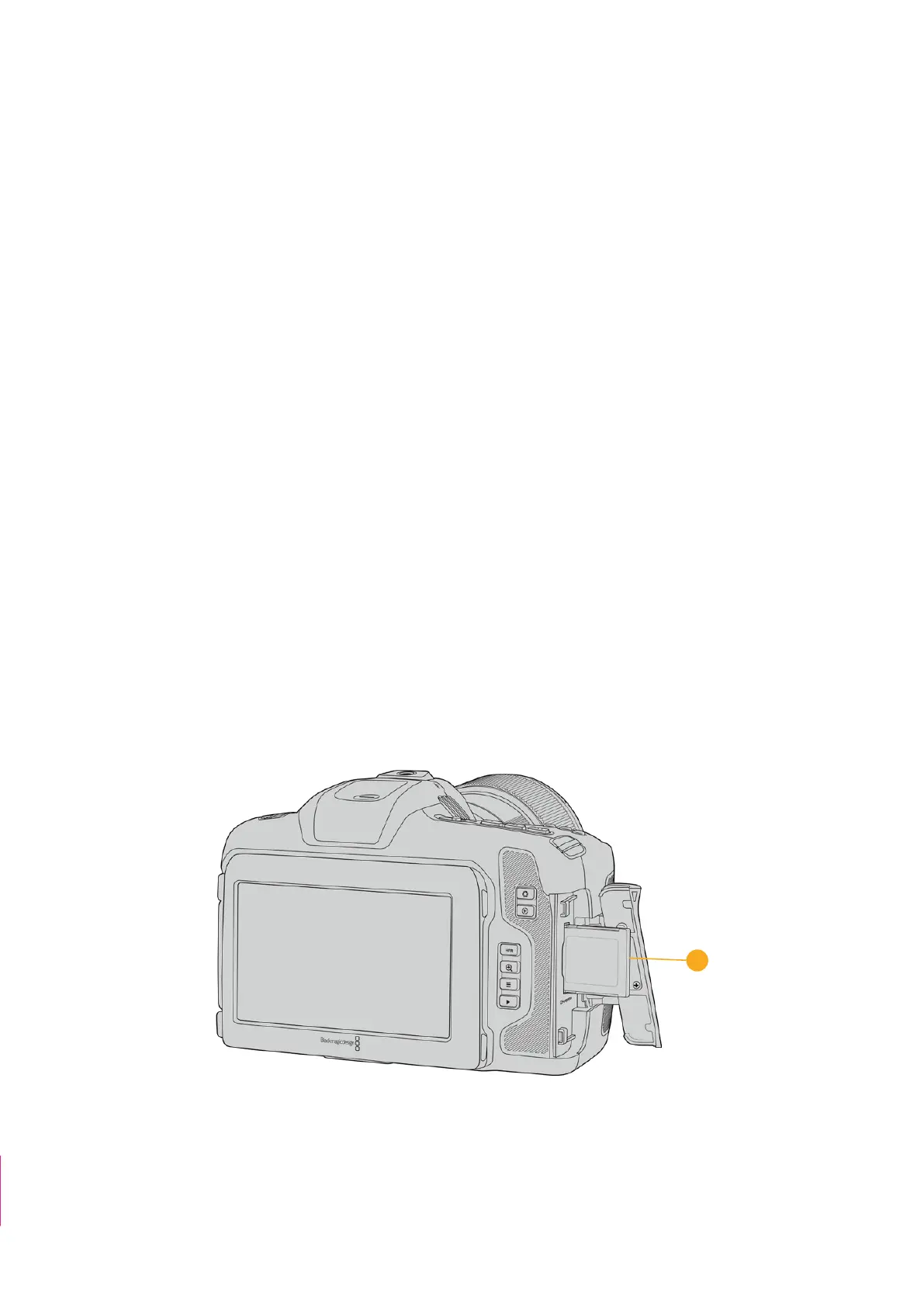
6
6 CFexpress Card Slot
Insert CFexpress Type B cards into the slot for record and playback. Refer to the
‘CFexpress cards’ section for more information.
Item #7 deleted
23Camera Features



 To Next Page