Using Avid Media Composer
To edit your clips using Avid Media Composer, create a new project and set a suitable video
format and frame rate. For this example, clips are set using 1080p24.
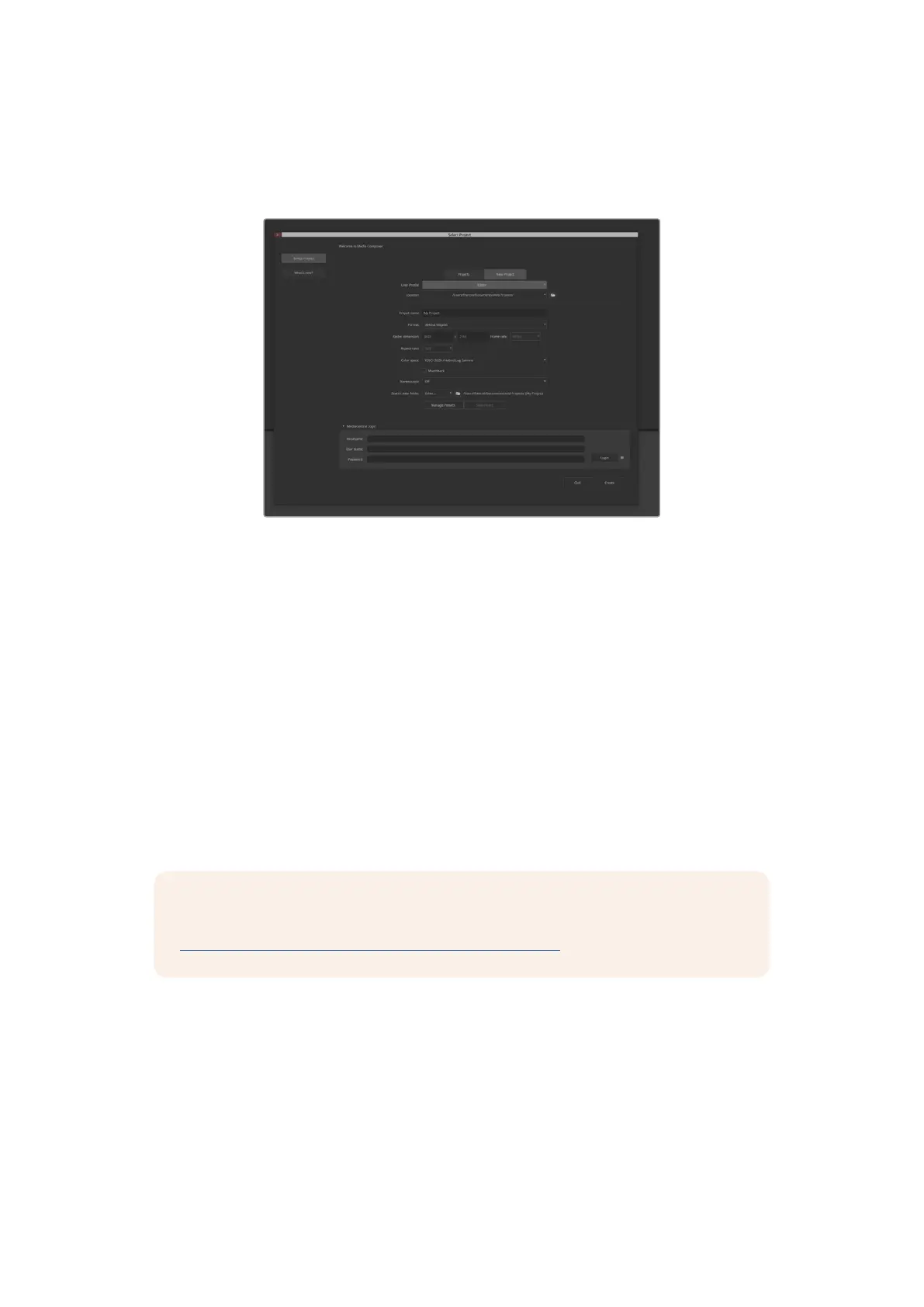
Setting the project name and project options in Avid Media Composer
1 Launch Avid Media Composer and the ‘select project’ window will appear.
2 Click on the ‘new project’ tab
3 Choose your preferred ‘user profile’ if you have previously created one.
4 Select a private, shared or external project location for your project.
5 In the ‘format’ drop down menu select HD 1080 > 1080p 24 and click ‘create’ to create
the project.
6 Double click the project in the ‘select project’ window to open it.
7 Select file > input > source browser and navigate to the files you wish to import.
8 Select your ‘target bin’ from the drop down menu and click ‘import’.
When the clips appear in the media bin you can drag your clips onto the timeline and
begin editing.
NOTE To edit Blackmagic RAW files recorded using Blackmagic Cinema Camera 6K in
Media Composer, you will need the Blackmagic RAW Installer. This can be found here
https://www.blackmagicdesign.com/blackmagicrawinstaller
126Working with Third Party Software



 To Next Page