focus zoom and look through the optional electronic viewfinder, you can turn the settings
wheel to adjust zoom level and press the settings wheel to select the region of interest.
To zoom out, press the ‘focus zoom’ button again.
31 Menu Button
Press the ‘menu’ button to open the dashboard.
32 Play Button
Press the play button to switch to playback mode. Press the button again for instant playback
of the last recorded clip on the LCD, and on any display connected to the HDMI output.
33 Blackmagic Pocket Cinema Camera Pro EVF
Blackmagic Cinema Camera 6K has an optional electronic viewfinder. Theviewfinder
tilts vertically 70 degrees and comes with four eyecup types for left or right eye. Asensor
in the viewfinder detects when it is in use, and will switch off the LCD touchscreen to
conserve battery power and prevent accidental taps on touchscreen controls. You can
set the viewfinder to overlay camera status information or display a clean feed. For more
information, see the ‘monitor settings’ section.
To install the viewfinder, use a small flathead screwdriver to loosen the screw in the
connector port cover on top of the camera. Remove the cover and confirm the connector
port is clean and dry. Slide the viewfinder into the connector port. Fasten theviewfinder
into position by tightening the thumb screw.
34 Diopter for Electronic Viewfinder
Turn the diopter knob to adjust the focus of the optional electronic viewfinder to suit your
eyes. It’s important to note the diopter adjusts the focus of the image presented in the
viewfinder, and does not change the focus of the image attained by the camera sensor. For
more information, see the ‘focus chart’ section.
Touchscreen Controls
Touchscreen Features
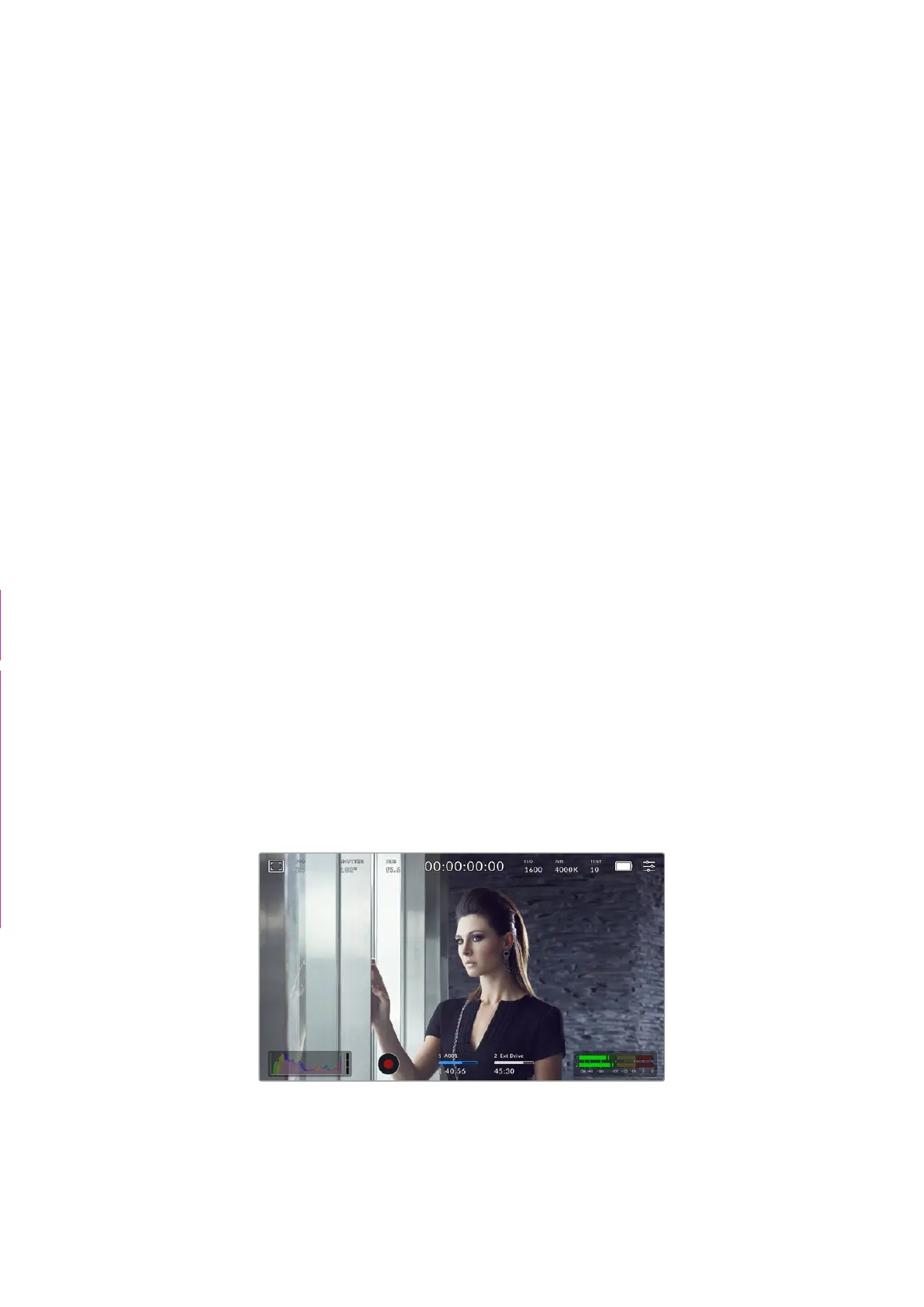
Your camera’s touchscreen features a touch and gesture based interface that is specifically
designed for fast and intuitive operation. Bytouching and swiping on different areas of the LCD
touchscreen, you can quickly access the camera’s functions while shooting.
The LCD touchscreen gives you easy access to your camera’s most
used settings
“ND Filter” dot point
section removed
FROM v27 ONWARDS,
ALL ENG UI’s ARE RE-LINKED TO :
/Volumes/marketing/Graphic_
Design/> PRINT/> MANUALS/
Blackmagic Cinema Camera/
Cinema Camera 6K ALT/Links
Translations/ENG
29Touchscreen Controls



 To Next Page