LCD Monitor Options
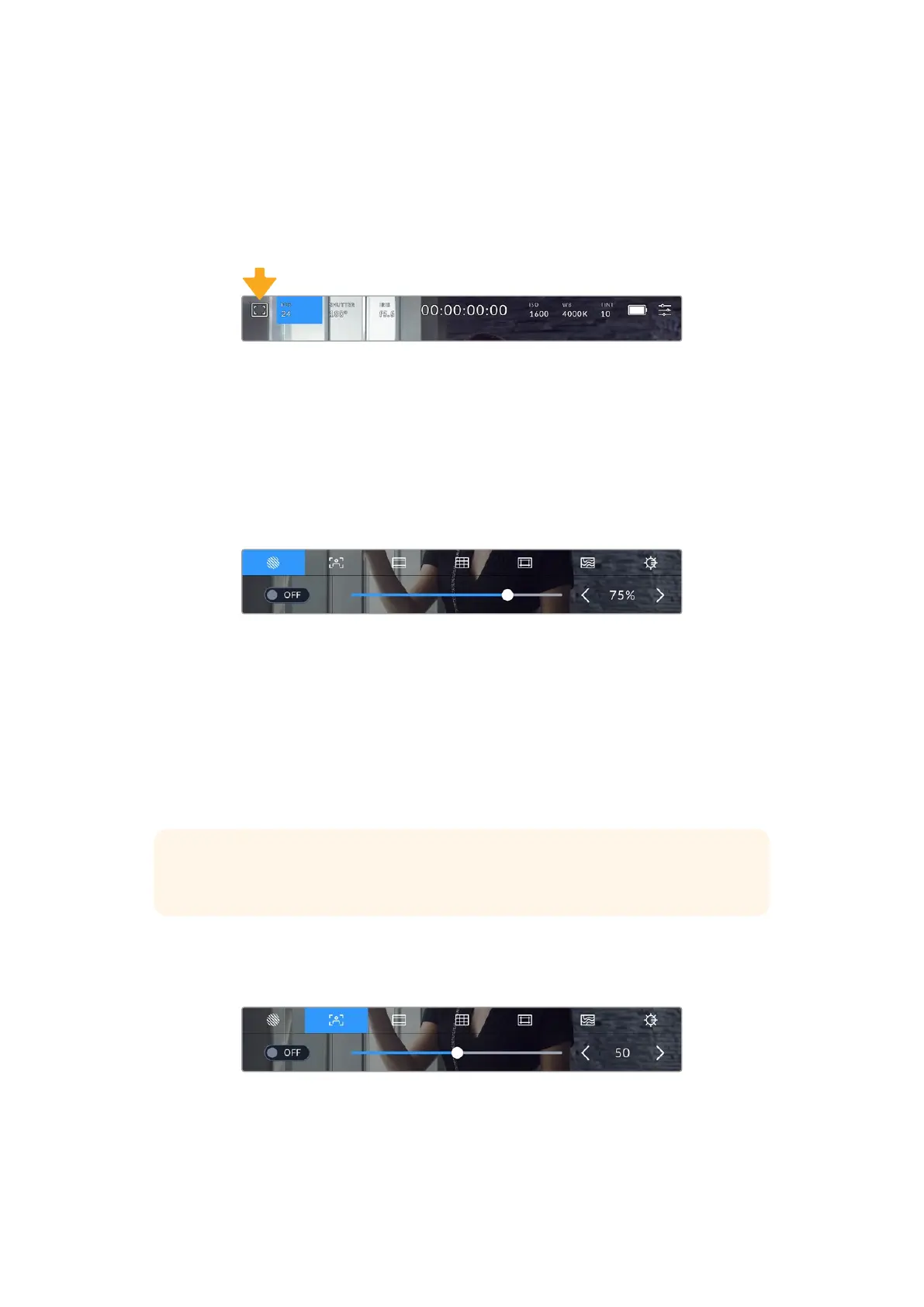
Tap the ‘monitor’ icon at the top left of the touchscreen to access the LCDmonitor settings.
These settings let you toggle and adjust the appearance of your camera’s monitoring features,
including zebra, focus assist, frame guides, grids, safe area guides and false color. When
accessing LCDmonitor options, the controls for these features appear in a tabbed menu along
the bottom edge of the LCD touchscreen.
Tap the icon at the top left of your camera’s LCDtouchscreen to access LCD
monitor options
Zebra
The ‘zebra’ setting toggles the appearance of zebra on the LCD touchscreen, as well as setting
the zebra level for the HDMI output.
Zebra displays diagonal lines over areas of your image that exceed a set exposure level.
Forexample, setting zebra to 100% shows which areas are completely overexposed. This is
useful for achieving optimum exposure in fixed lighting conditions.
Tap the ‘zebra’ icon while accessing ‘LCD monitor options’ to access the zebra settings
To toggle zebra for the LCD touchscreen, tap the switch icon in the bottom left of the screen
while in the ‘zebra’ tab.
Set the level that zebra appears at by dragging the slider left and right, or tapping the arrow buttons
next to the zebra level indicator. There are eight zebra presets available including middle gray and
middle gray plus one stop, then in five percent increments from 75 to 100 percent exposure.
For information on enabling zebra on your camera’s HDMI output, see the ‘monitor settings’
section in this manual.
TIP If you’re shooting in variable light such as outdoors on a partly overcast day,
setting your zebra level lower than 100 can warn you of potential overexposure.
Focus Assist
The ‘focus assist’ setting toggles the appearance of focus assist on the LCD touchscreen,
aswell as setting the level of focus assistance for the HDMI output on your camera.
Tap the ‘focus assist’ icon while accessing ‘LCD monitor options’ toaccess your
camera’s focus assist settings
To toggle focus assistance for the LCD touchscreen, tap the switch icon in the bottom left of the
screen while in the ‘focus assist’ tab.
30Touchscreen Controls



 To Next Page