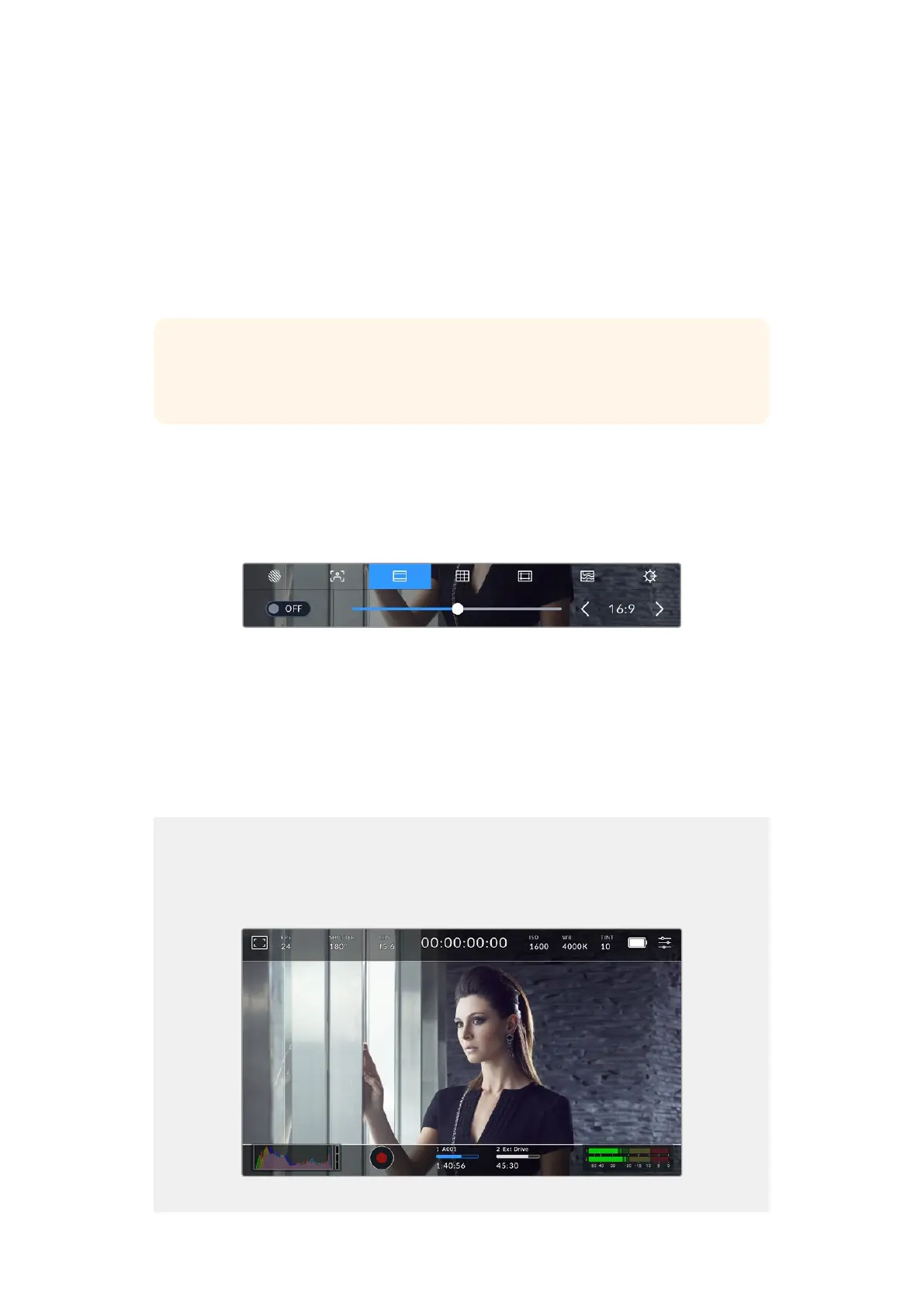
To set the level of focus assistance for all outputs on your Blackmagic Cinema Camera 6K, drag
the slider left and right along the bottom of your touchscreen, or tap the arrow buttons next to
the focus assist level.
The optimum level of focus assistance varies shot by shot. When focusing on actors, forexample,
a higher level of focus assistance can help resolve edge detail in faces. A shot offoliage or
brickwork, on the other hand, may show distracting amounts of focus information athigher settings.
For information on enabling focus assist on your camera’s HDMI output, see the ‘monitor
settings’ section in this manual.
TIP Your camera has two focus assist modes. You can switch between ‘peaking’ and
‘colored lines’ focus assistance in the ‘monitor’ settings menu. Formore information,
see the ‘monitor settings’ section in this manual.
Frame Guides
The ‘frame guide’ setting toggles the appearance of frame guides on the LCD touchscreen.
Youcan also choose frame guide options for your camera’s HDMI output. See the ‘monitor
settings’ section for more information.
Frame guides include aspect ratios for various cinema, television and online standards.
Tap the ‘frame guides’ icon to access your camera’s frame guide settings
To toggle the appearance of frame guides on the LCD touchscreen, tap the switch icon in the
bottom left of the screen.
Choose the frame guide you want to use by dragging the slider left and right, or tapping the
arrow buttons on either side of the currently selected aspect ratio. You can also enter a custom
frame guide ratio by tapping on the ratio between the arrow buttons.
The available guides are:
2.35:1, 2.39:1 and 2.40:1
Displays the broad widescreen aspect ratio compatible with anamorphic or flat widescreen cinema
presentation. The three widescreen settings differ slightly based on the changing cinema standards
over time. 2.39:1 is one of the most prominent standards in use today.
The LCD touchscreen with 2.40:1 frame guides enabled
31Touchscreen Controls



 To Next Page