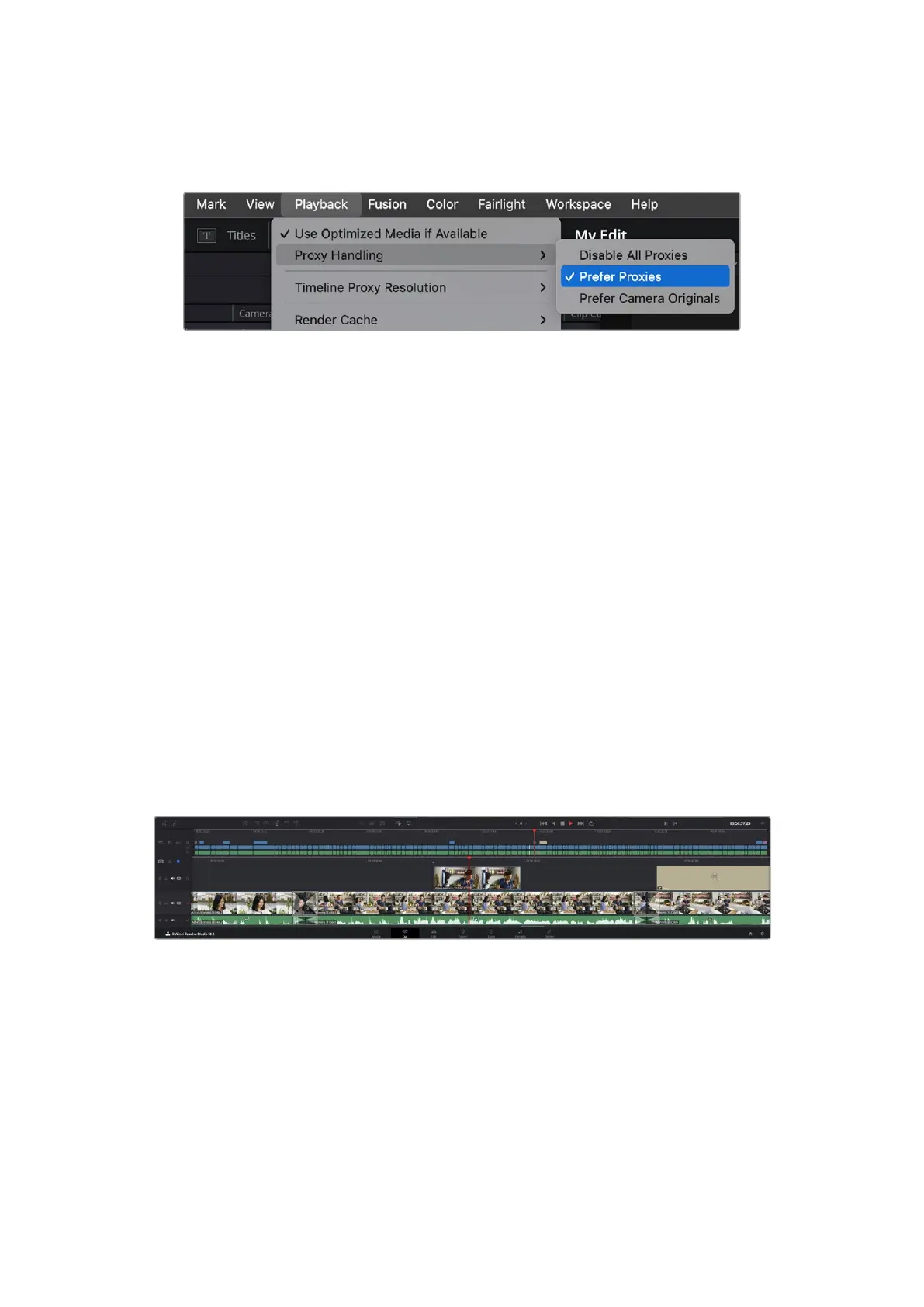
2 Select ‘proxy handling’ and click on ‘prefer proxies’.
Your timeline will now use the proxy files.
You can also select proxy files in the ‘cut’ page using the proxy handling quick select icon:
1 Click on the small camera ‘proxy handling’ icon near the top right side of the screen.
2 Select ‘prefer proxies’ from the menu items.
Proxy Handling Options
The proxy handling settings tells DaVinci Resolve how you want to handle the proxy file
workflow on your timeline. This section describes what the options are.
• Disable All Proxies: Select this option to disable proxy files and only use Blackmagic RAW
files for playback. If the Blackmagic RAW file isn’t available, a ‘media offline’ graphic is
displayed.
• Prefer Proxies: Choose this option to use proxy files for playback. If a proxy file isn’t
available the Blackmagic RAW clip will automatically be used instead. When proxy files are
being used and the original Blackmagic RAW files are unavailable, a purple line is displayed
at the top of the timeline.
• Prefer Camera Originals: Choose this option to use Blackmagic RAW files for playback.
Proxy media will be used automatically if the Blackmagic RAW files are unavailable and a
purple line will be displayed at the top of the timeline.
Adding Clips to the Timeline
Now that you are familiar with the media tabs and viewer mode buttons, you can open the
media pool and quickly start adding clips to your timeline.
The timeline of the cut page, comprising the upper timeline and the zoomed in timeline below
The timeline is where you will build your edit and is like a board with tracks you can attach clips
to, move them around and trim their edits. Tracks let you layer clips over others which gives you
more flexibility to try different edits and build transitions and effects. For example, you can try
an edit with a clip on one track without affecting other clips on tracks below it.
There are different ways to add clips to the timeline, such as smart insert, append, place on
top and more.
96Using DaVinci Resolve



 To Next Page