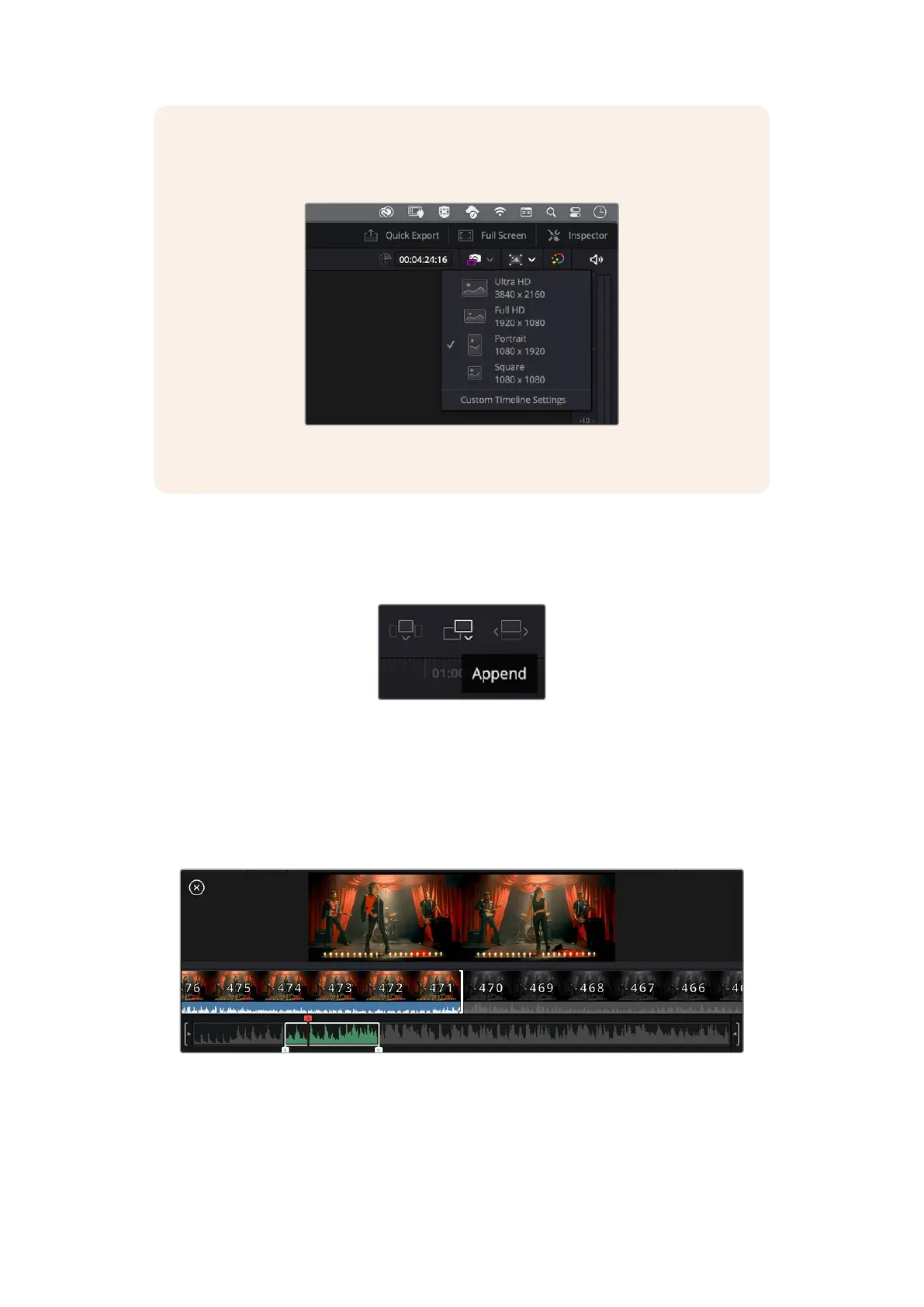
NOTE If you are editing clips using a vertical aspect ratio, you can easily set your
timeline to vertical by clicking on the ‘timeline resolution’ quick menu and selecting
‘portrait 1080x1920’.
Set the timeline for vertical aspect ratios using the
timeline resolution quick menu
Appending Clips
When selecting takes and assembling an edit, you will likely want to add these shots to your
timeline one after the other. The append tool is perfect for this task and will get you editing
very fast.
Click on the append icon to quickly
add clips to the end of the last clip
To append a clip:
1 Double click on a clip in the media pool to open it in the viewer.
2 Using the scratch trim tool, drag the in and out points to select the precise duration of your
shot. You can also press the ‘i’ and ‘o’ keyboard shortcuts to set in and out points.
3 Now click the ‘append’ icon underneath the media pool.
Your first clip will be placed at the head of the timeline.
Repeat steps 1 to 3 to keep adding more clips and they will automatically append, ensuring
there are no gaps in the timeline.
97Using DaVinci Resolve



 To Next Page