NOTE It is standard practice to plug in your XLR cable before switching phantom
power on. It is also important to switch phantom power to ‘off’ when you no longer
have a phantom powered microphone connected. Connecting equipment that
doesn’t require phantom power when still in phantom power mode can damage your
equipment, as the camera outputs a charge when in this mode. Phantom power can
also take quite a while to discharge after switching it off.
Please be aware that you should wait a few minutes when switching off phantom
power before plugging in any other microphones or XLR audio equipment.
Setup Settings
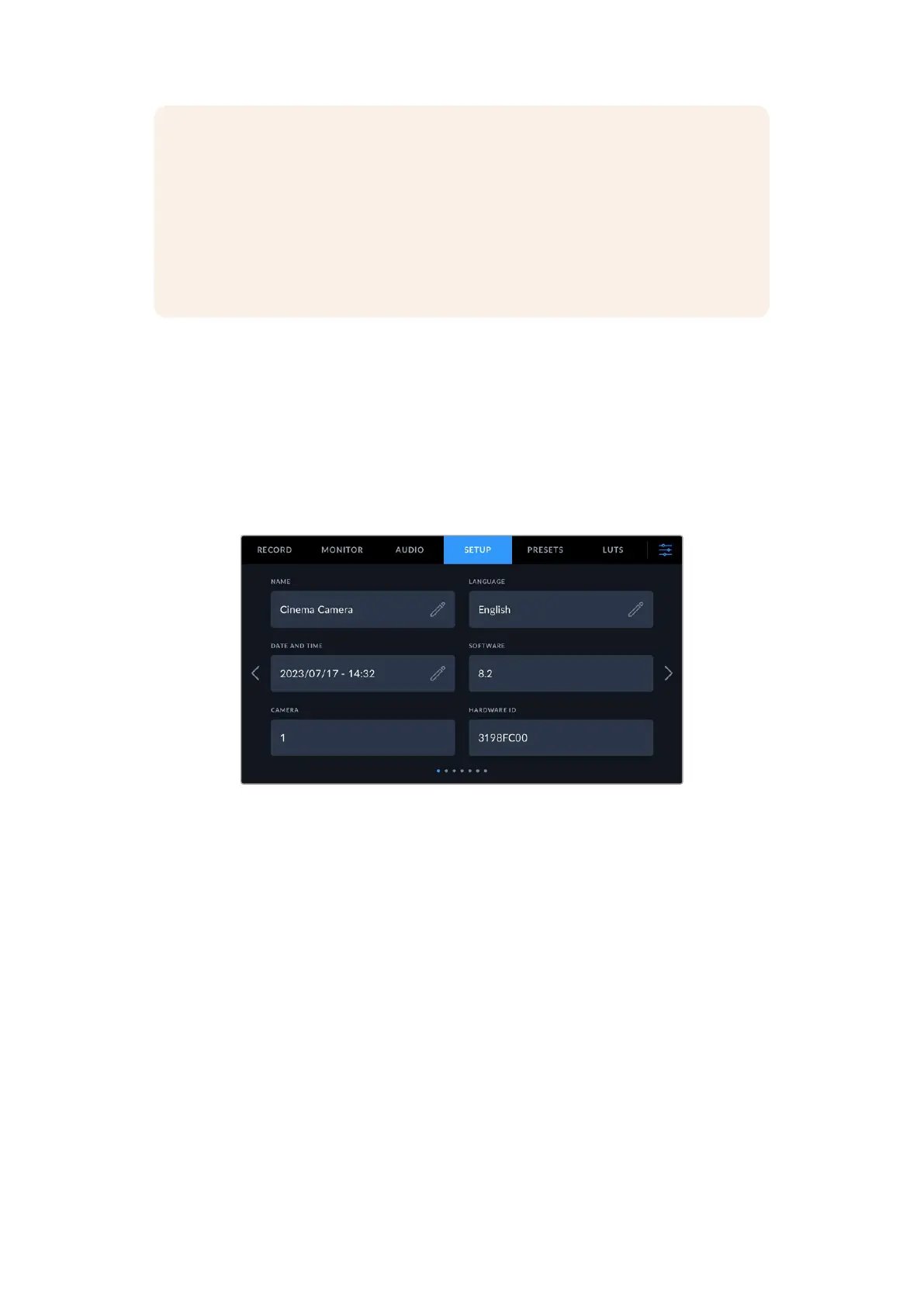
The ‘setup’ tab contains your Blackmagic Cinema Camera 6K’s identification settings, software
version, function button settings and other camera settings not directly linked to recording or
monitoring. This menu has seven pages that you can cycle through by tapping the arrows at the
edge of the LCD touchscreen, or swiping left or right.
Setup Settings 1
The first page of your camera’s ‘setup’ tab contains the following settings.
Name
Use this option to give your camera a unique name.
To change the name:
1 Tap on the edit icon to open the text editor.
2 Tap the circled cross to delete the current name and type in a new name using the alpha
numeric keyboard.
3 Tap ‘update’ to save the new name.
Language
Blackmagic Cinema Camera 6K supports 13 popular languages: English, Chinese, Japanese,
Korean, Spanish, German, French, Russian, Italian, Portuguese, Turkish, Polish and Ukrainian.
The language page will also appear on initial start up.
To select your language:
1 Tap the pencil icon and select your language from the list.
2 Select ‘ok’ to return to the setup menu.
The second UI
screenshot + caption
deleted
68Settings



 To Next Page