Now that you have a basic knowledge of how to edit, color, mix audio and add
visual effects, we recommend experimenting with DaVinci Resolve. Refer to the
DaVinci Resolve manual for more details on how each feature can help you make the
most of your project!
Working with Third Party Software
To edit your clips using your favorite editing software such as DaVinci Resolve, you can copy
your clips from your camera to an external drive or RAID and then import your clips into the
software. You an also import your clips directly from your storage media using a dock or
adapter for your CFexpress card, or via the USB-C port for a USB-C flash disk.
Working with Files from CFexpress Cards
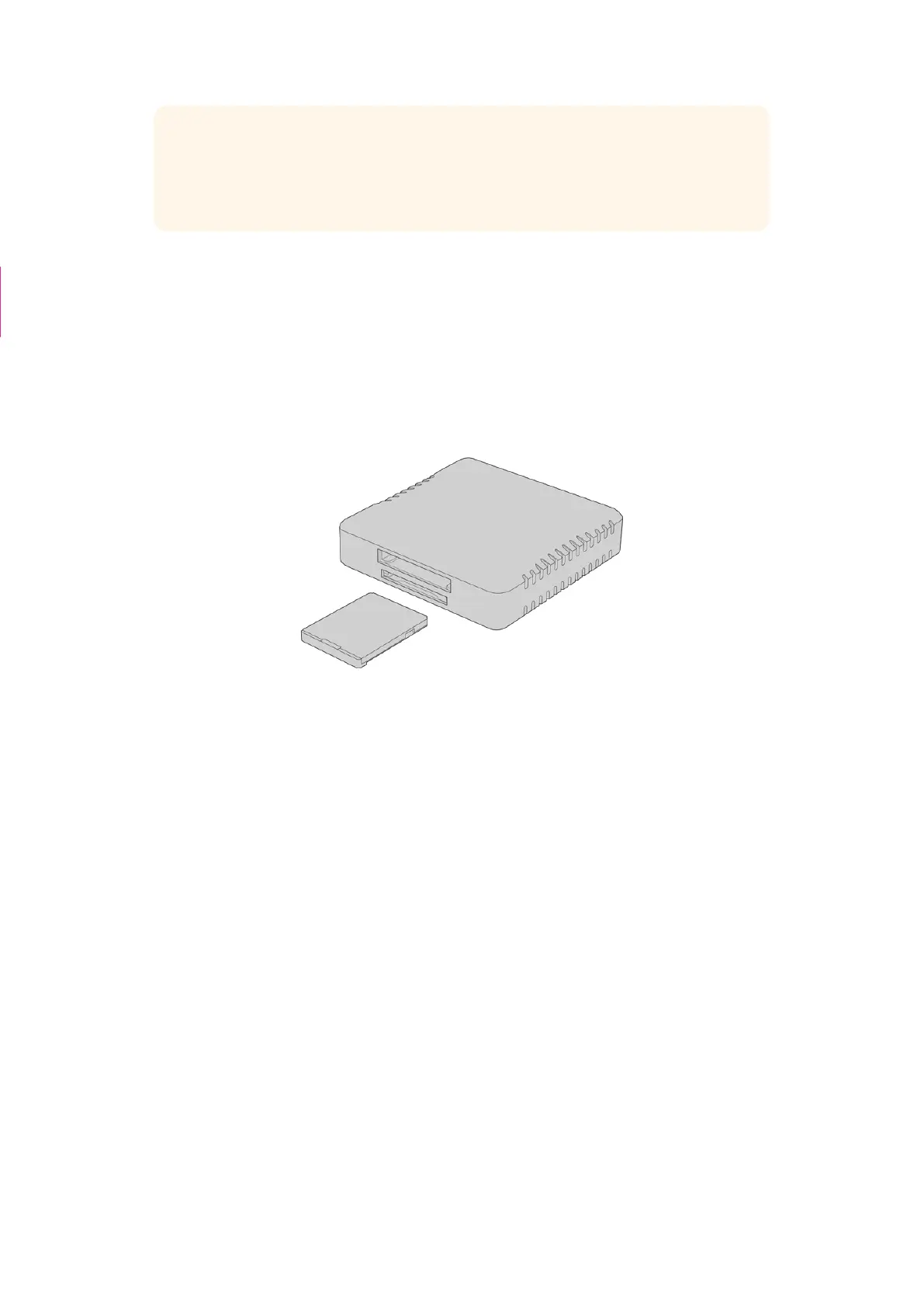
Mount CFexpress cards on your computer using a
CFexpress reader
To import your clips from a CFexpress card:
1 Remove the CFexpress card from your Blackmagic Cinema Camera 6K.
Mount the CFexpress card to your Mac or Windows computer using a CFexpress Type B
card reader.
2 Double click on the CFast or SD card to open it and you should see folders that contain
your Blackmagic RAW files or a list of QuickTime movie files. Depending on the format
you chose to record in, you might have a mixture of files, but they should all use the same
naming convention.
3 Drag the files you want from the CFexpress card onto your desktop on another drive, or you
can access the files straight from the CFexpress card using your editing software.
4 Before you unplug the CFexpress card from your computer, it is important to always eject
the card from Mac or Windows. Removing your card without ejecting can corrupt footage.
Working with Files from USB-C flash disks
To import your clips from a USB-C flash disk:
1 Unplug the USB-C flash disk from your camera.
2 Mount the USB-C flash disk to your Mac or Windows computer via a USB-C port on your
computer. USB 3.0 is preferable as USB 2.0 is not fast enough to edit video in real time.
3 Double click on the USB-C flash disk to open it and you should see a list of Blackmagic
RAW files.
Camera Control with
ATEM Mini section
deleted
124Working with Third Party Software



 To Next Page