Tap a preset to select it, then tap ‘import’ to confirm your selection and copy it to the next
available slot on the camera.
If the preset you want to import has the same name as a preset already saved to your camera,
you can choose to overwrite the existing preset or keep both. At the top right of this screen,
you’ll see the number of remaining empty preset slots available on your camera. You are able to
import as many presets as you have free slots on your camera.
TIP The import menu will be unavailable if all your camera’s preset slots are full. To
import a new preset you will need to delete an existing preset to make room.
Exporting presets
To export a preset to a card or USB-C flash disk, tap the preset you want to export, then tap
the ‘manage’ button. Tap ‘export selected preset’, then tap the media where you want to export
the preset. If a preset with the same name is already present, choose whether to overwrite the
preset or keep both. The camera exports the preset to a ‘Presets’ folder.
Deleting presets
To delete a preset, select it and tap the ‘delete’ icon. When you are prompted to confirm your
choice, tap ‘delete’.
3D LUTs
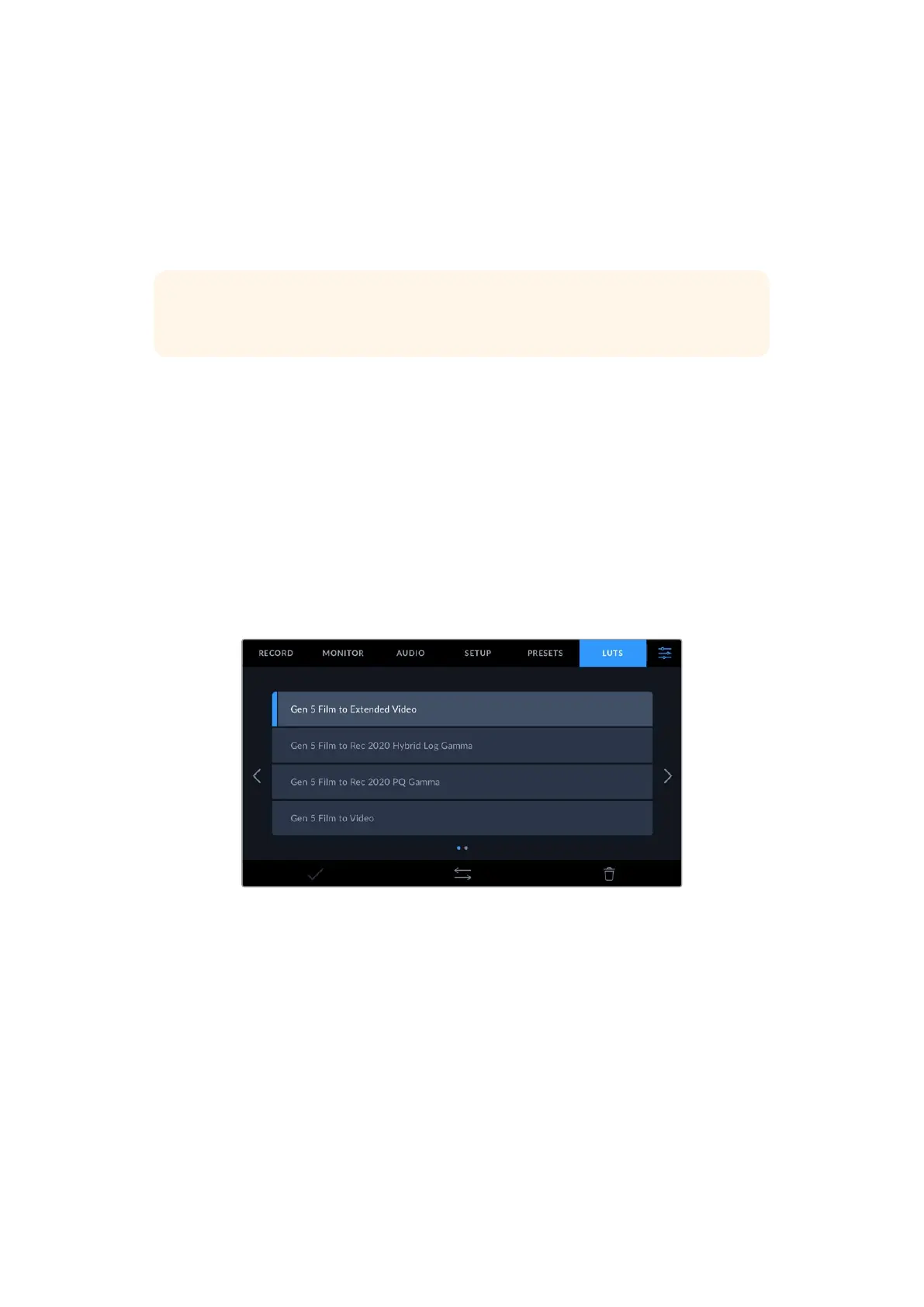
The ‘LUTS’ menu lets you import, export and apply 3D LUTs to your camera’s outputs.
Introducing 3D LUTs
3D LUTs can be applied to images on your camera’s LCD touchscreen, HDMI output and
optional Blackmagic Pocket Cinema Camera Pro EVF viewfinder. LUTs work by telling your
camera what color and luminance output to show for a particular color and luminance input.
For example, a LUT may tell your camera to display a vibrant, saturated blue when it receives a
relatively dull blue input. This can be useful when shooting Blackmagic RAW footage, or using
‘film’ dynamic range, both of which have an intentionally undersaturated, ‘flat’ appearance. By
applying a LUT, you can get an idea of what your footage will look like after it has been graded.
It is easy to create 3D LUTs using DaVinci Resolve or other color correction software, and LUTs
are available online from a variety of sources. Up to 10 17 point or 33 point 3D LUTs up to 1.5
megabytes each can be stored on the camera. Once loaded, you can choose to display a given
LUT on your camera’s LCD touchscreen, HDMI output or viewfinder.
81Settings



 To Next Page