Your Blackmagic Cinema Camera 6K supports 33 point 3D LUTs in .cube format created in
DaVinci Resolve and 17 point 3D LUTs converted to Resolve .cube format via LUT conversion
programs. Your camera processes 3D LUTs using high quality tetrahedral interpolation.
For more information on displaying LUTs, see the ‘monitor settings’ section in this manual.
TIP For more information on displaying LUTs on your camera’ s LCD and HDMI
outputs, see the ‘monitor settings’ section.
To read more about applying LUTs to Blackmagic RAW files, refer to the ‘record
settings’ section.
Built-in LUTs
A number of built in LUTs are provided that allow you to preview different looks when shooting
in ‘film’ dynamic range or Blackmagic RAW.
Each camera provides LUTs that are specific to Gen 5 color science:
• Gen 5 Film to Extended Video
Displays a wider dynamic range than the ‘film to video’ LUT, and applies a mild contrast
change with a smooth roll off in the highlights.
• Gen 5 Film to Rec 2020 Hybrid Log Gamma
Displays a gamma curve that is suitable for HDR screens and compatible with standard
dynamic range screens.
• Gen 5 Film to Rec 2020 PQ Gamma
Displays a gamma curve that is based on what we can perceive with our eyes, for efficient
encoding of HDR images.
• Gen 5 Film to Video
Similar to the REC 709 color standard for high definition video, and has a high level of
contrast and saturation. You may find this setting useful when using Blackmagic Cinema
Camera 6K alongside other broadcast cameras using the REC 709 color space.
LUTs buttons
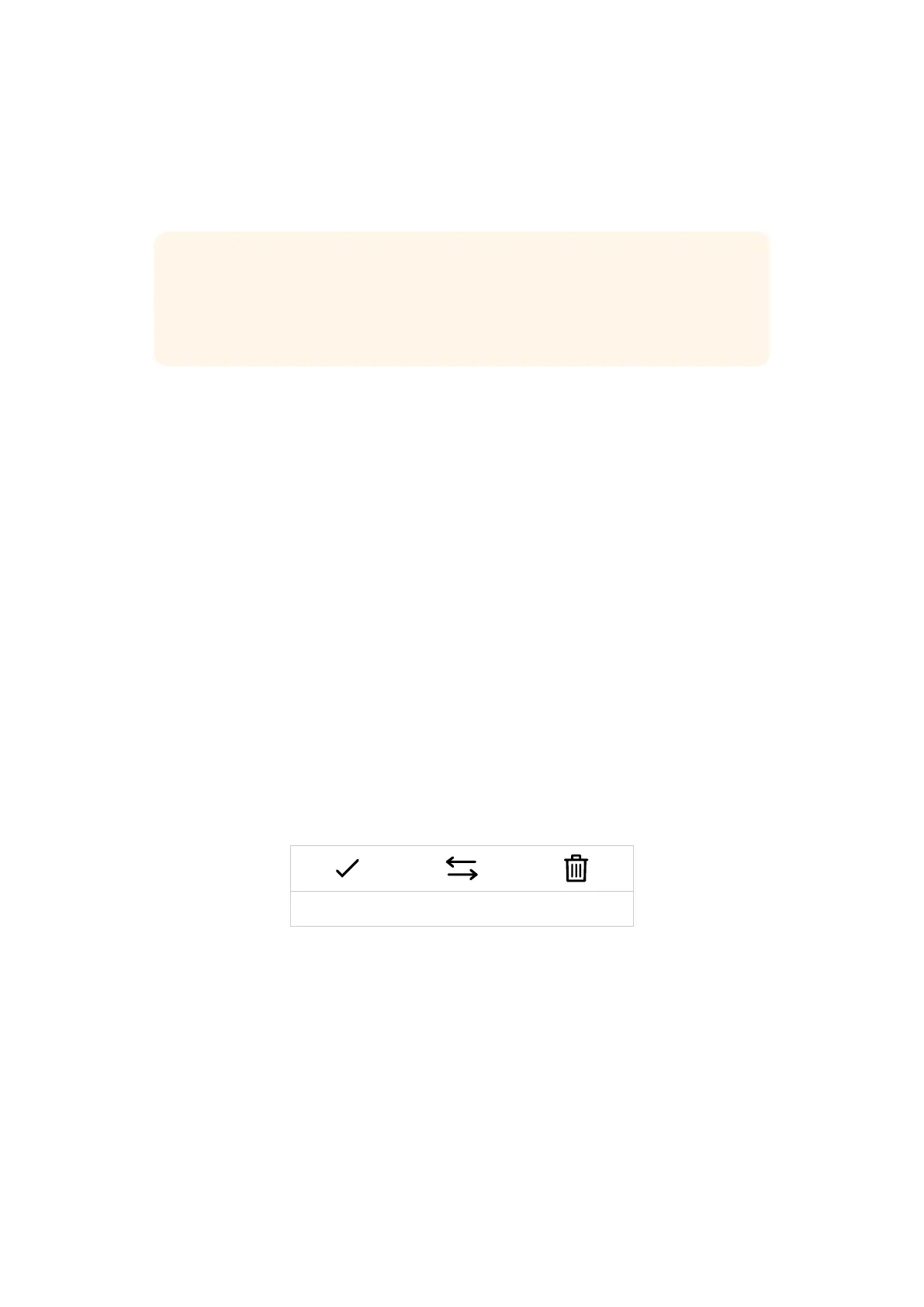
The button icons along the bottom of your camera’s ‘LUTS’ screen correspond to the following
functions:
Load Manage Delete
Importing LUTs
To import a 3D LUT, tap the ‘manage’ icon at the bottom of the ‘LUTs’ menu. Tap ‘import LUT’,
then tap ‘import’ to confirm. This brings up the LUT import screen. If your preferred 3D LUT is
not on the active card or drive, switch between recording media by tapping a media button at
the top of the touchscreen. You can import LUTs from a USB-C flash disk, CFast or SD card.
Your camera searches the root directory and ‘3DLUTs’ folder on your selected media, and lists
available LUTs. Any LUTs you have saved elsewhere are not visible.
Tap a LUT to select it, then tap ‘import’ to confirm your selection and copy it to the next
available slot on the camera.
82Settings



 To Next Page