Preparing Media using a Mac
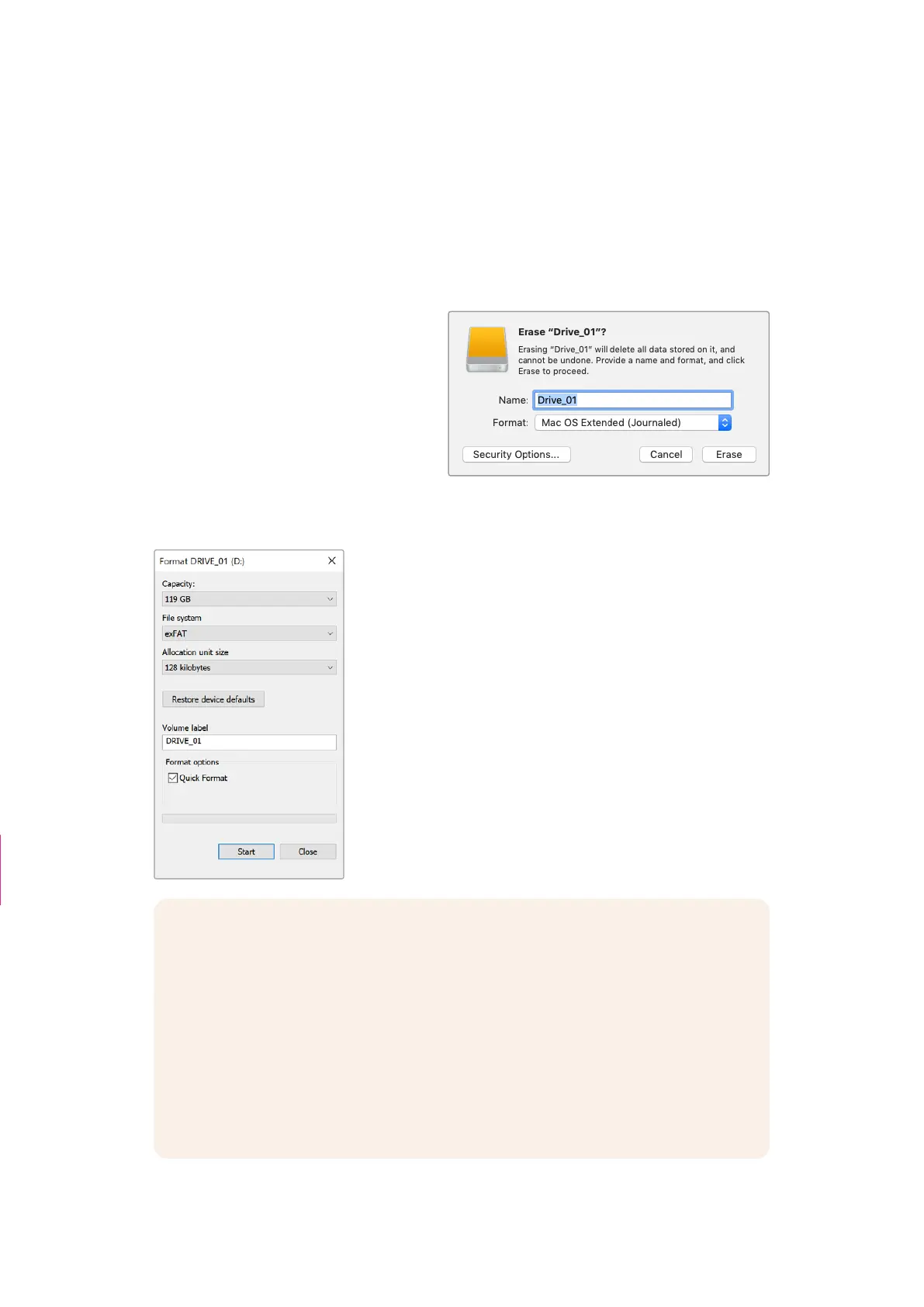
The Disk Utility application included with your Mac can format a drive in the HFS+ or exFAT
formats. Make sure you back up anything important from your disk as you will lose everything on
it when it is formatted.
1 Connect your disk to your computer with an external dock, USB hub, or cable adapter
and dismiss any message offering to use your drive for Time Machine backups.
2 On your computer, go to applications/utilities and launch Disk Utility.
3 Click on the disk icon of your
drive and then click the erase tab.
4 Set the format to Mac OS Extended
(Journaled) or exFAT.
5 Type a name for the new volume
and then click erase. Your media will
quickly be formatted and made ready
for recording.
Preparing Media using Windows
The ‘format’ dialog box can format your camera’s storage
media in the exFAT format on a Windows PC. Remember to
backup anything important from your media first as all data
will be lost when it is formatted.
1 Connect your camera’s storage media to your computer
using an external reader, USB-C cable or adapter.
2 Open the ‘start’ menu or ‘start’ screen and choose
‘computer’. Right click on your camera’s storage media.
3 From the contextual menu, choose ‘format’.
4 Set the file system to ‘exFAT’ and the allocation unit size
to 128 kilobytes.
Caption deleted
NOTE If clips are not recording correctly, check that your CFexpress card or USB-C
flash disk is on our list of recommended media for the codec and frame size you
are using. For lower data rates try lowering your frame rate or resolution. Check the
Blackmagic Design website for the latest information at www.blackmagicdesign.com
Partitioned media can be used with your Blackmagic Cinema Camera 6K, though your
camera will only recognize the first partition of your media for recording and playback.
It’s worth noting that if you use the storage and formatting menu to format your media,
the entire drive including all partitions will be erased, not just the first partition that has
been used for recording and playback. For this reason we strongly recommend using
media with one partition only.
The second word
“NOTE” is removed
13Storage Media



 To Next Page