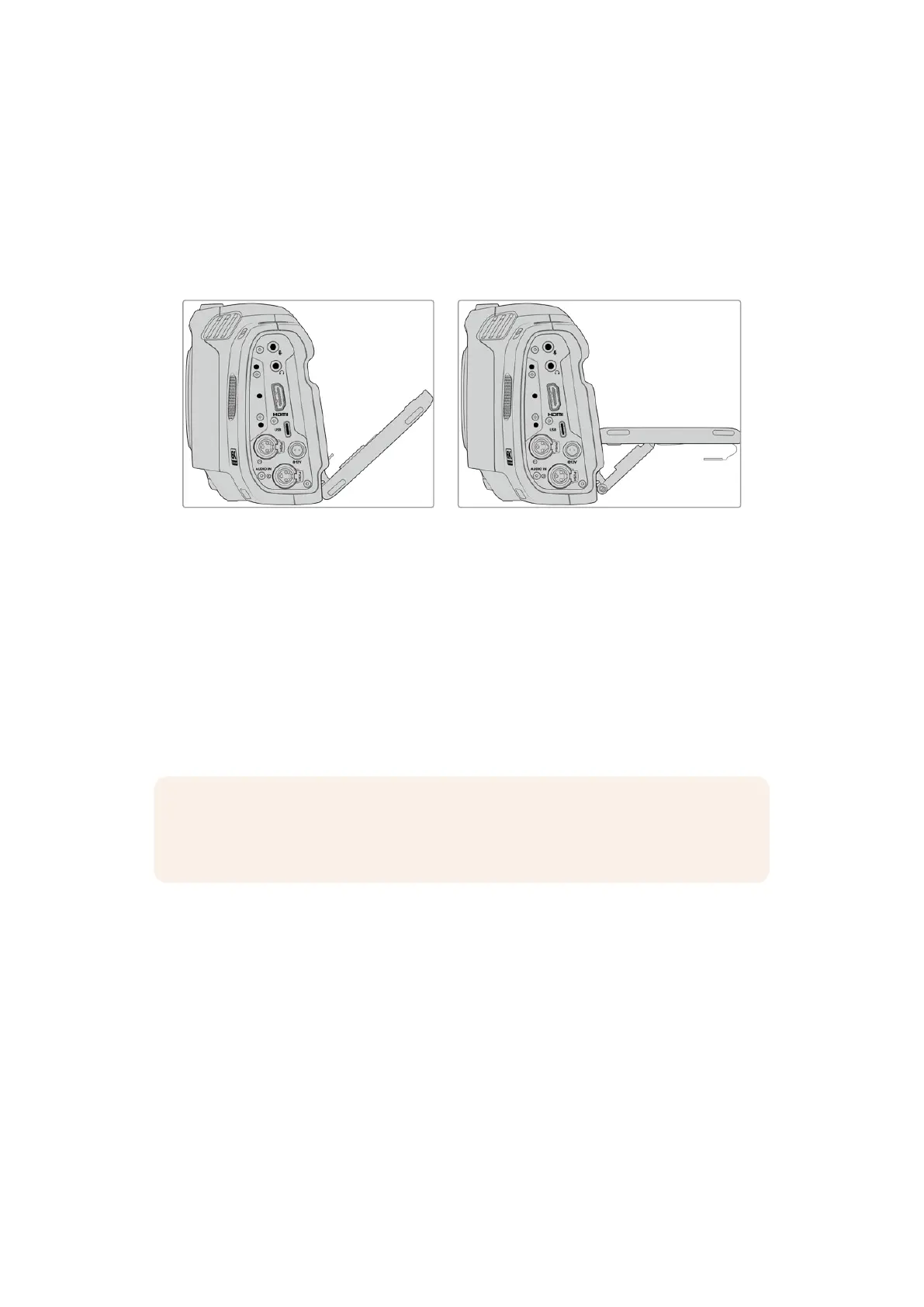
Your Blackmagic Cinema Camera 6K has a tilt screen so you can angle the LCD
touchscreen up or down for a wide range of viewing angles and a power save setting to
dim the LCD when it’s inactive. You can also set the LCD touchscreen to operate at an
extreme brightness that is suitable for shooting in very bright sunlight. This will consume
more power and the screen may run warm at 100% brightness. Atan ambient temperature
of of 35ºC (95ºF) or above, it may automatically reduce the screen brightness to regulate the
temperature and prevent overheating. This safety feature works independently of dimming
due to inactivity. For more information see the‘monitor settings’ section.
The tilt screen offers a wide range of viewing angles
27 Iris Button
Pressing the ‘iris’ button automatically sets an average exposure based on the highlights
and shadows in your shot. You can adjust your lens aperture manually by rotating the
settings wheel to the left and right, or by tapping ‘iris’ on the touchscreen display and
adjusting the iris slider.
28 Focus Button
When using a compatible auto focus lens with your camera, press the ‘focus’ button once to
auto focus. By default the lens will auto focus in the center of the image, however you can
select an alternate auto focus point by tapping on the LCD screen in the area that you want
to focus. Double press the focus button to reset the focus point to the center of the screen.
NOTE It’s important to know that while most lenses support electronic focus, some
lenses can be set to manual or auto focus modes. In this case you need to confirm
your lens is set to auto focus mode.
29 HFR Button
Press the HFR or ‘high frame rate’ button to toggle off speed frame rates. To use this
function, simply set the ‘off speed’ frame rate you’d like to use in the ‘frame rate’ menu.
Once this is set, pressing the HFR button will toggle between your chosen off speed frame
rate and project frame rate. It’s worth mentioning that this setting can only be adjusted
when the recording is stopped.
For more information on project and off speed frame rates, see the ‘touchscreen
controls’ section.
30 Focus Zoom Button
Press the ‘focus zoom’ button to zoom in for adjusting focus at the 1:1 pixel scale. While
zoomed in, you can use a pinch to zoom multitouch gesture on the touchscreen to adjust
the zoom level. For more information, see the ‘pinch to zoom’ section. While zoomed in, you
can touch and drag on the screen to view different areas of the image. When you activate
28Camera Features



 To Next Page