frame guides appear on the LCD touchscreen, HDMI output or viewfinder in their respective
‘monitor’ menus.
Safe Area Guide
To adjust the size of the safe area overlay on your camera’s LCD touchscreen, HDMI and
viewfinder outputs, tap the arrows to the left and right of the percentage displayed in this
setting. This percentage indicates the size of the safe area in relation to the image frame. Most
broadcasters require a 90% safe area.
Guide Opacity
Tap the left or right arrows in the ‘guide opacity’ menu setting to choose the opacity of the
areas blocked out by frame guides on your LCD touchscreen, HDMI output and viewfinder. The
options are 25%, 50%, 75% and 100%.
Guides Color
Tap the left or right arrows in the ‘guides color’ menu setting to choose a color for the guides.
Grids
To set which combination of grids and crosshair you want to display on your camera’s LCD
touchscreen, HDMI output and viewfinder, tap the ‘thirds’, ‘horizon’, ‘crosshair’ or ‘dot’ options in
this setting.
For more information, see the ‘grids’ guide in the ‘touchscreen features’ section.
Monitor Settings 5
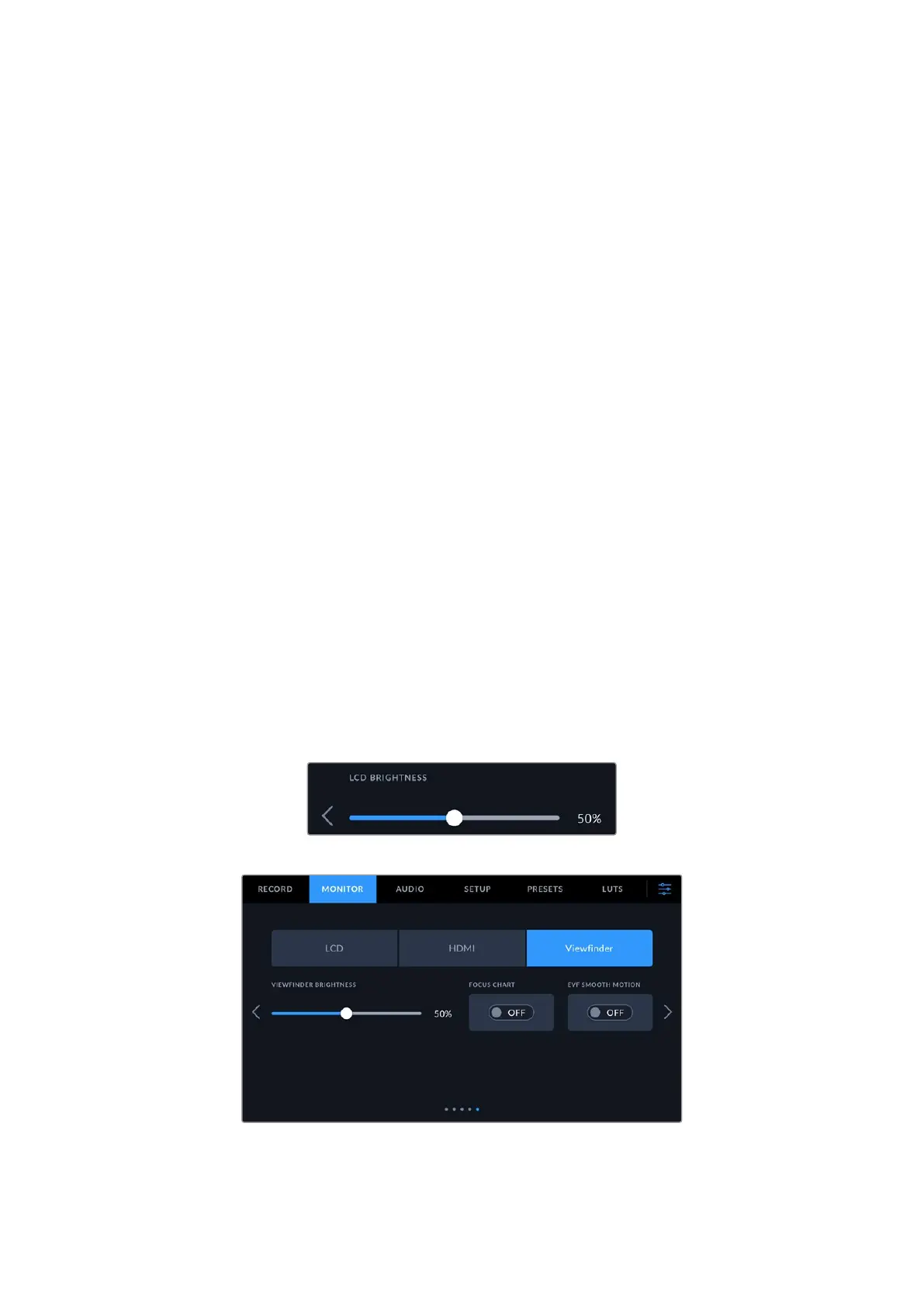
The fifth page of your Cinema Camera 6K’s ‘LCD’ and ‘Viewfinder” monitor tab contains some
settings that vary depending on the selected output. These settings are not available for the
‘HDMI’ output.
LCD only
Screen Brightness
Drag the ‘screen brightness’ slider in the ‘LCD’ menu left or right to adjust the brightness of
your camera’s LCD touchscreen.
Viewfinder
Viewfinder Brightness
Allows adjustments for the brightness of the viewfinder display.
64Settings



 To Next Page