on screen. As no additional overlays are used, this can be a very intuitive way to tell
when focus is dialed in, especially when the subject you’re focusing on is physically well
separated from other elements in shot.
• Colored Lines
When ‘colored lines’ style focus assist is selected, a colored line is superimposed around
the parts of the image that are in focus. This can be a little more intrusive than ‘peaking’
style focus assistance as the lines are drawn over your image, but especially in busy shots
with a lot of visible elements, it can be a precise focus aid.
Focus Assist Color
Use this setting to change the color of focus line overlays when using ‘colored lines’ style focus
assistance. Changing the focus line color can make it easier to tell focus assistance lines apart
from your image. The available options are ‘white,’ ‘red,’ ‘green,’ ‘blue’ and ‘black.’
Focus Assist Level
To set the level of focus assistance for your LCD, HDMI output and viewfinder, move the slider
from left to right.
Setting the focus assist intensity level does not affect whether focus assistance is enabled
on your Blackmagic Cinema Camera 6K’s LCD, HDMI output and viewfinder. You need to
turn focus assistance on individually for each output in the LCD, HDMI output and viewfinder
monitor menus.
TIP The optimum level of focus assistance varies shot by shot. When focusing on
actors, for example, a higher level of focus assistance can help resolve edge detail in
faces. A shot of foliage or brickwork, on the other hand, may show distracting amounts
focus information at higher settings.
Monitor Settings 4
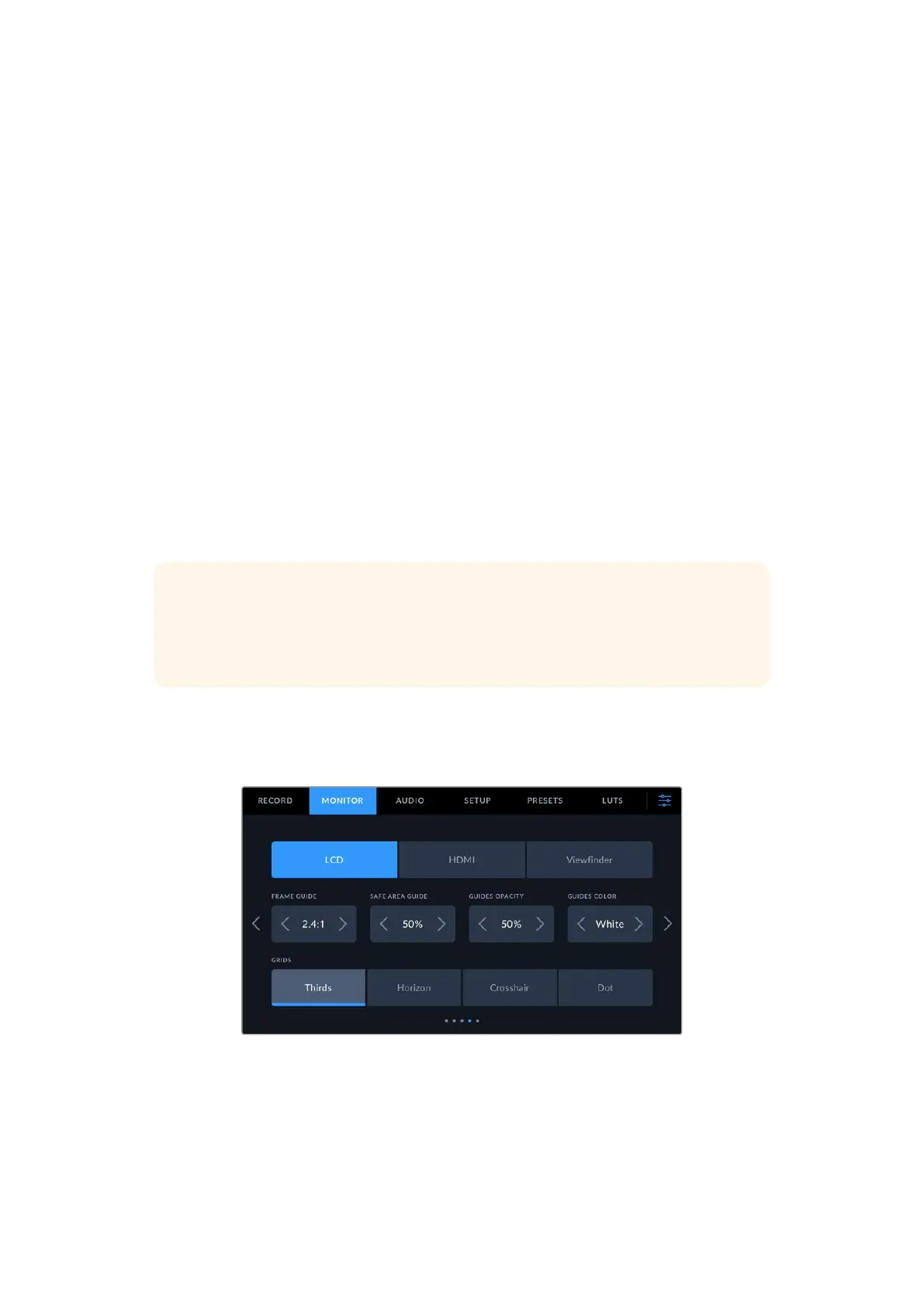
The fourth page of the ‘LCD’, ‘HDMI’ and ‘viewfinder’ monitor tab contains identical settings for
each output. These settings act globally across all three of your camera’s monitor outputs.
Frame Guides
Tap the left or right arrows in the ‘frame guides’ menu setting to cycle through frame guide
options for all outputs on your camera. The options are detailed in the ‘touchscreen features’
section of this manual, and are also accessible from the LCD monitoring menu in your LCD
touchscreen head up display. It’s worth noting that you can individually select whether
63Settings



 To Next Page