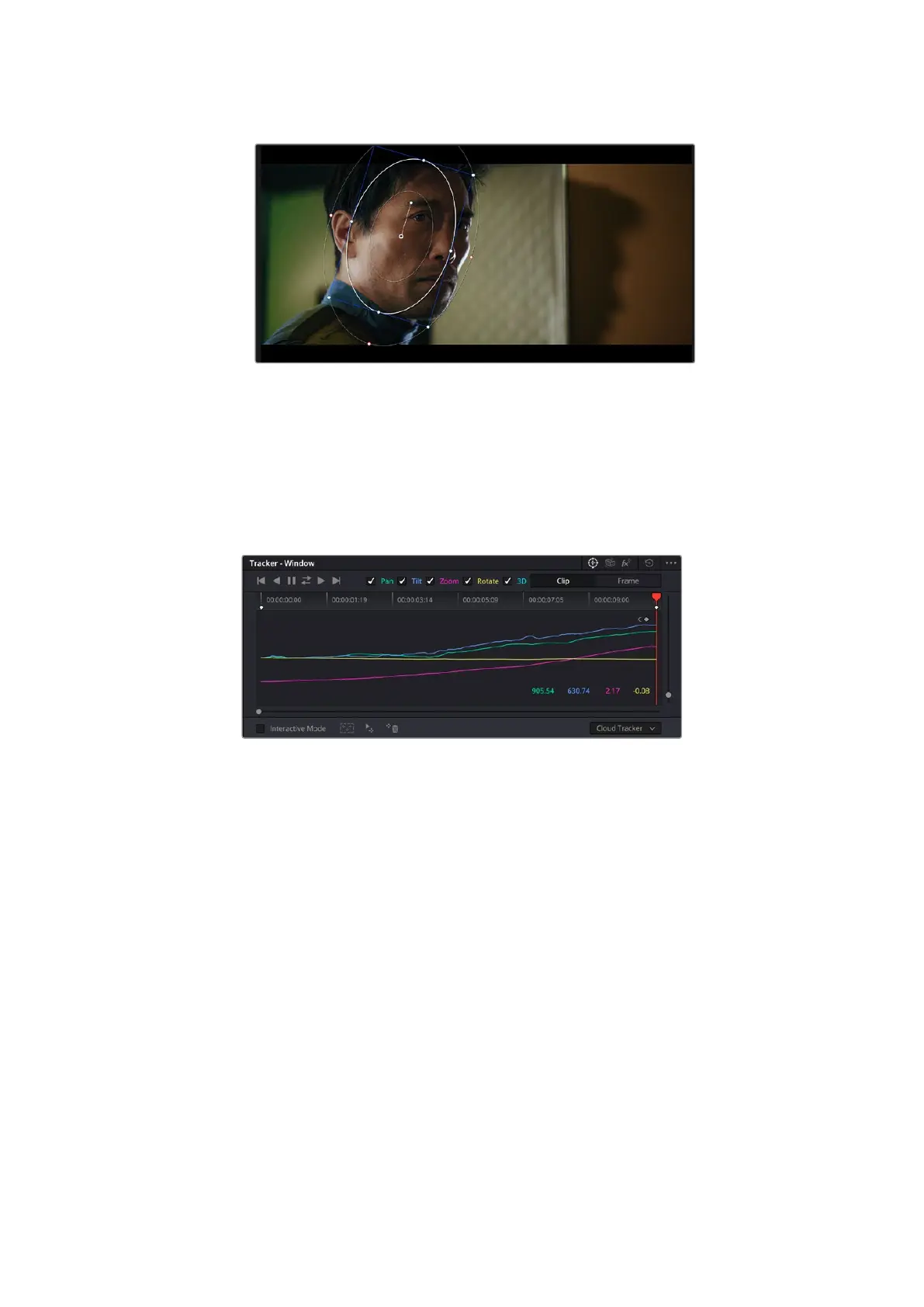
Power windows let you make secondary corrections to specific parts of your image
Tracking a Window
The camera, object or area in your shot may be moving, so to make sure your window stays
on your selected object or area, you can use DaVinci Resolve’s powerful tracking feature. The
tracker analyzes the pan, tilt, zoom and rotation of the camera or object in your clip so you
can match your windows to that movement. If this isn’t done, your correction can move off the
selected target and call attention to itself, which you probably don’t want.
14
You can 4track objects or areas in your clip using the tracker feature so power
windows can follow the action
To track a window to a moving object:
1 Create a new serial node and add a power window.
2 Go to the start of your clip and position and size the window to highlight just the object or
area you want.
3 Open the ‘tracker’ palette. Select the pan, tilt, zoom, rotate, and perspective 3D settings
appropriate for the movement in your clip by checking or unchecking the relevant ‘analyze’
checkboxes.
4 Click on the ‘forward’ arrow to the left of the checkboxes. DaVinci Resolve will now apply
a cluster of tracking points on your clip and then step through the frames to analyze the
movement. When the tracking is done, your power window will follow the path of the
movement in your clip.
Most of the time automatic tracking is successful, but scenes can be complex and sometimes
an object can pass in front of your selected area, interrupting or affecting your track. This
can be solved manually using the keyframe editor. Refer to the DaVinci Resolve manual to
find out more.
108Using DaVinci Resolve



 To Next Page