• Nodes: The nodes window is the heart of the Fusion page where you build your node tree
byconnecting tools together from one node’s output to another node’s input. Thisarea will
change size depending on which editors are open, for example the spline or keyframes
editor. A toolbar atthe top of the nodes area features the most commonly used tools for
fast access.
• Spline: When the spline editor is open, it will appear to the right of the nodes window. This
editor lets you make precise adjustments to each node, such as smoothing the animation
between two keyframes using bezier curves.
• Keyframes: Keyframes for each tool can be added, removed or modified using the
keyframes editor. This also appears to the right of the nodes viewer.
• Metadata: The metadata window will show you metadata available for the active clip,
including the codec, frame rate and timecode.
• Inspector: The inspector in the top right corner displays all settings and modifiers available
for one or more selected nodes. Additional tab options will appear to provide quick access
to other settings for nodes sorted by category.
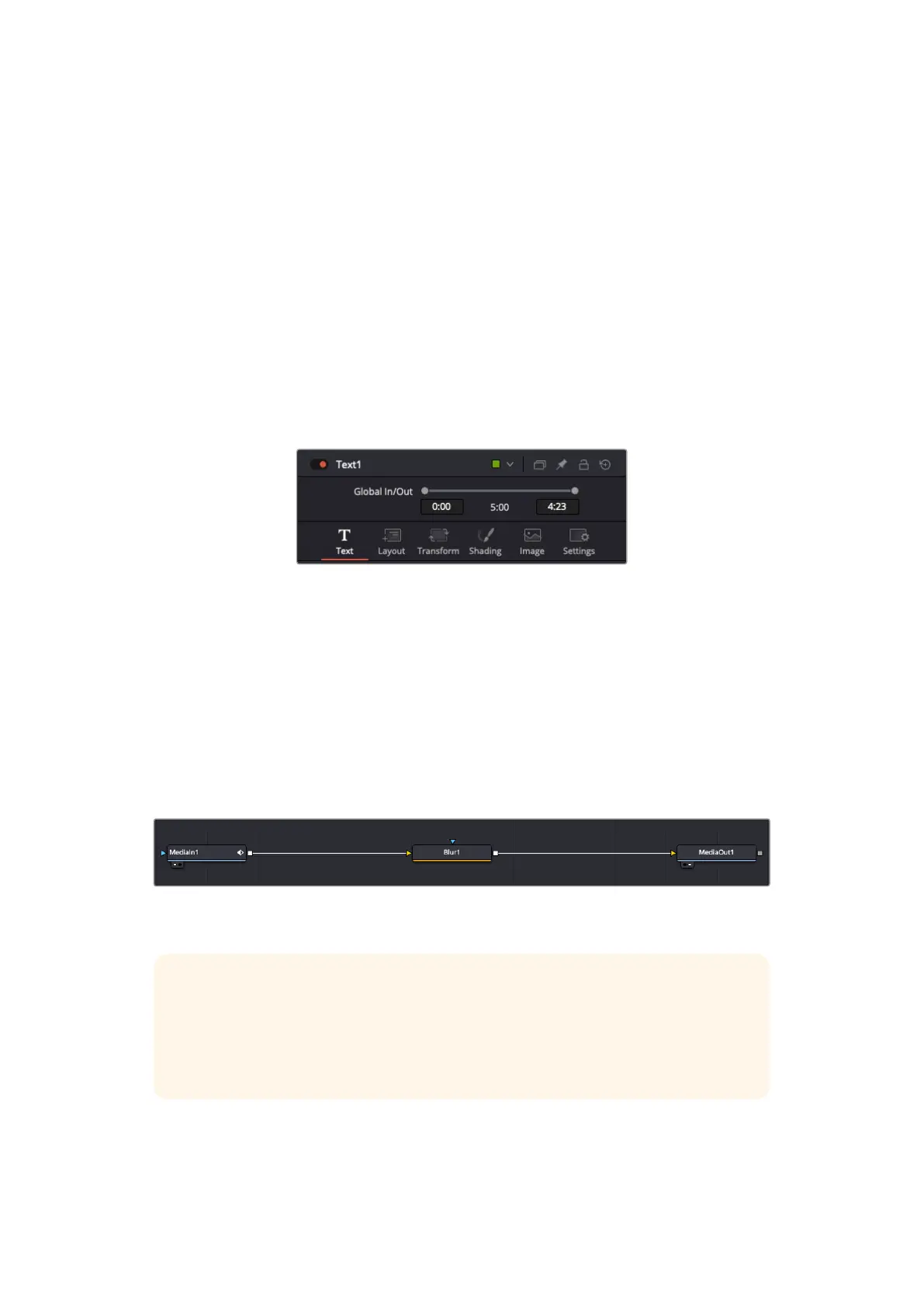
The text inspector contains additional tabs for text, layout,
transform, shading, image and settings.
Getting Started with Fusion
To get started with Fusion, simply position your playhead over any clip on your timeline and
click on the ‘Fusion’ tab to open the Fusion page.
On the Fusion page, your clip is immediately available in a media input node labelled ‘MediaIn’.
Every composition will begin with a ‘mediain’ and a ‘mediaout’ node. This mediain node
represents the top most clip of your timeline at the playhead, and ignores any clips underneath.
Any adjustments you’ve applied to the clip on the edit page, such as transform tools and
cropping changes, are also included.
The media output node, named ‘MediaOut’, is the node that sends the output back to your timeline on DaVinci
Resolve’s edit page.
TIP ResolveFX or OFX plug-ins applied to clips in the cut or edit pages are not
applied in the Fusion page. This is because Fusion effects occur prior to color
correction and OFX/ResolveFX processing. If you want OFX applied before Fusion
effects, right click the clip in the edit page and select ‘new fusion clip’ before clicking
on the Fusion page.
116Using DaVinci Resolve



 To Next Page