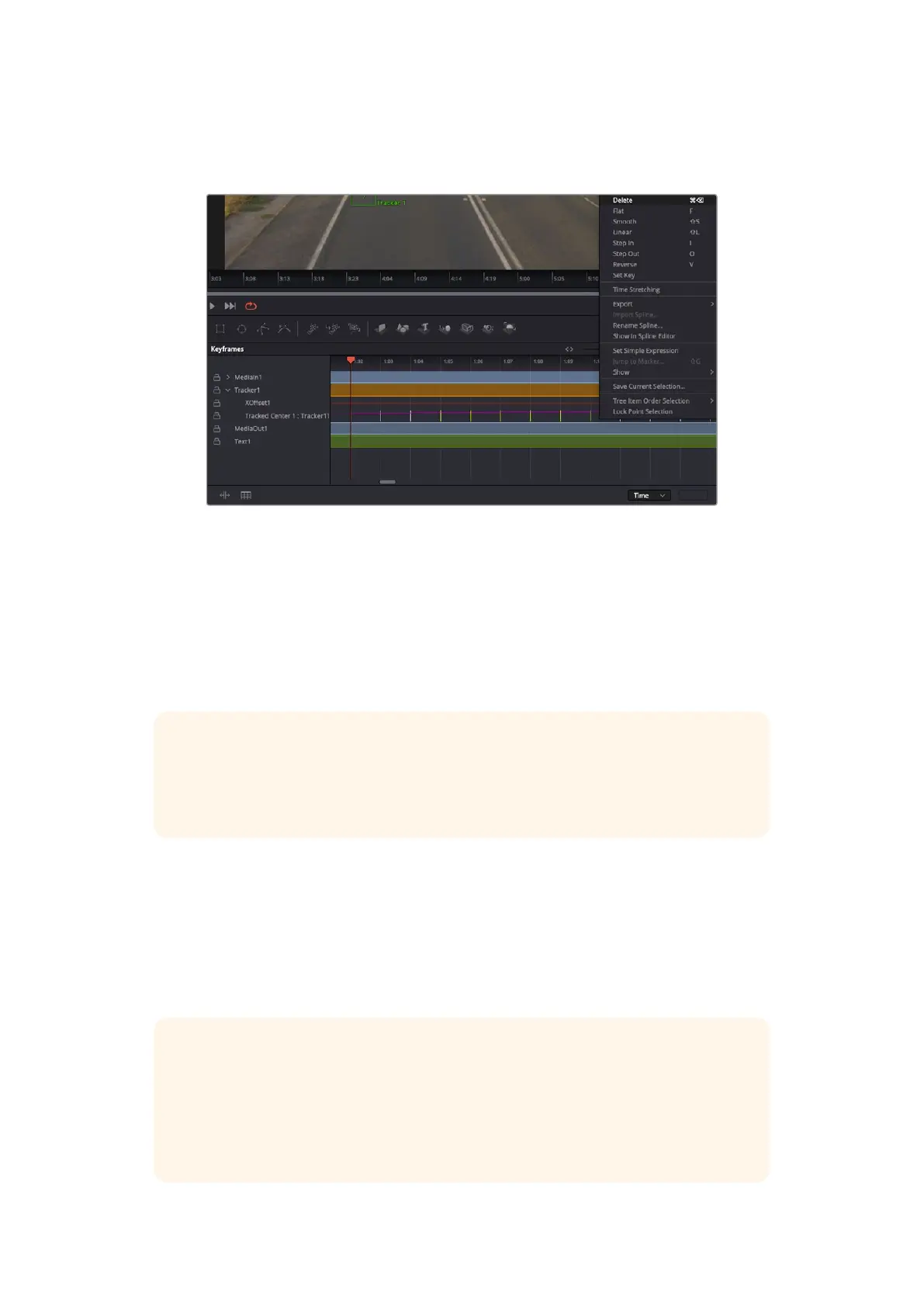
For some shots you might want to remove track points after tracking, such as when the
object you are tracking disappears off the screen. The keyframe editor makes this a very
simple process.
7 Click on the keyframes tab above the inspector to open the keyframes editor. Any nodes
with keyframes applied will have a small arrow next to the node label, and only the
parameter with keyframes added will appear in the list below. Click on the magnify icon and
drag a box around the area you want to edit. This will zoom into that area so you can see
the keyframes easier.
8 Move the playhead to the location of the last keyframe you want. Now select the keyframes
you wish to remove by drawing a box around them with your mouse. The keyframes will
highlight yellow. Right click and choose delete from the menu.
TIP If your effects are particularly system intensive, right clicking on the transport
controls area will give you viewer options, including proxy playback, helping you
get the most out of your system while you build your composition. Refer to the
DaVinci Resolve manual for further detail on all the playback options.
You have now completed your first composition animating text to match a movement in
your footage!
If you want to track an area of the image that contains a flat surface you want to enhance or
replace, you can use the planar tracker. Tracking 2D planes can be helpful for changing labels
and signs in a moving image, or even adding an image to a monitor or TV in your shot.
For more information about the planar tracker and the many powerful tools in the
DaVinci Resolve Fusion page, see the DaVinci Resolve manual.
TIP As you build visual effects in the Fusion page, it’s worth noting if the effect you
are building is a 2D effect, or a 3D effect, as this will determine which merge tool
is used. You may discover yourself frequently combining 2D and 3D effects in the
one composite. In this scenario, it’s helpful to remember that any visual effect using
the 3D space needs to be rendered as a 2D image before it can be merged into a
2D composite.
121Using DaVinci Resolve



 To Next Page