recording when dropped frames are detected. This can prevent you wasting time shooting
unusable footage if you don’t spot the dropped frames indicator.
For more information on choosing a suitable CFexpress card or USB-C flash disk and how to
avoid dropping frames, refer to the ‘storage media’ section.
Apply LUT in File
If you are shooting with the Blackmagic RAW codec and applying a LUT to the HDMI output of
your camera, the selected LUT will be embedded into the Blackmagic RAW file you are recording.
This means that the LUT will be saved in the header of the file and can easily be applied to the
clip in post production without needing to handle a separate file. When the ‘apply LUT in file’
switch is set to ‘on’ in the record menu, this clip will open in Blackmagic RAW Player and DaVinci
Resolve with the chosen LUT already applied to it. The LUT can then be easily toggled ‘on’ or ‘off’
but will always travel with the Blackmagic RAW file as it is written into the clip itself.
DaVinci Resolve also has an ‘Apply LUT’ switch in the RAW settings palette for enabling or
disabling the 3D LUT in the Blackmagic RAW file. The ‘Apply LUT’ setting in DaVinci Resolve is
the same setting as in the camera. This means that when shooting you can direct the colorist
to use the LUT by setting it in the camera, but they can switch it off easily in DaVinci Resolve by
setting ‘Apply LUT’ to ‘off’.
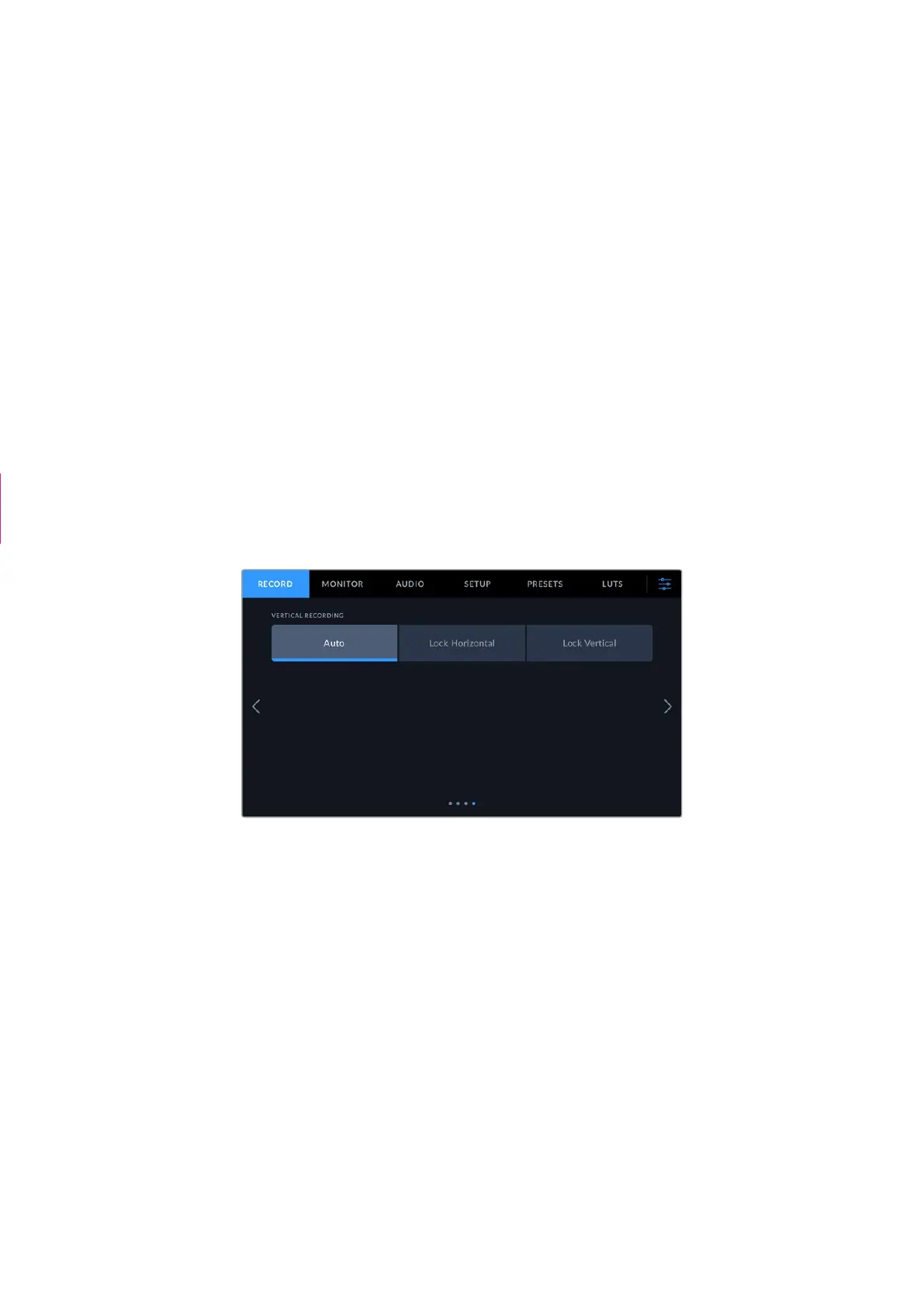
Record Settings 4
The fourth page of the ‘record’ settings tab contains the following settings.
Vertical Recording
Your Cinema Camera 6K is capable of shooting vertically for social media delivery and for
general creative purposes.
Auto
When set to auto, recorded clips will follow the position of the camera when the record
button is pressed. For example, if the record button is pressed while the camera is in a
vertical position, the recording will be tagged in the metadata as vertical. All recordings
tagged as vertical in the metadata will appear vertical when played back using Davinci
Resolve, Blackmagic Raw Player or QuickTime Player.
Alternatively, if the camera is in a horizontal position when recording begins the recording
will stay horizontal and will be tagged as horizontal as well.
Lock Horizontal
Enable the ‘lock horizontal’ setting to tag clips as horizontal and ensure all recordings
appear horizontal regardless of the position of the camera.
“Record LUT to Clip”
section deleted
57Settings



 To Next Page