For this reason, we recommend configuring the pushbuttons with a mouse. Once the Videohub
pushbuttons have been configured, it will be easy to use a finger to select and route, inputs and
outputs, by tapping on Videohub pushbuttons.
Touchscreens work a little differently to a computer mouse but provide the fastest and easiest
way to work with the Videohub Control interface and so are highly recommended. When using
a touchscreen computer, you can enable the Use Take option to help avoid unintentional
routing changes.
Apple iPad
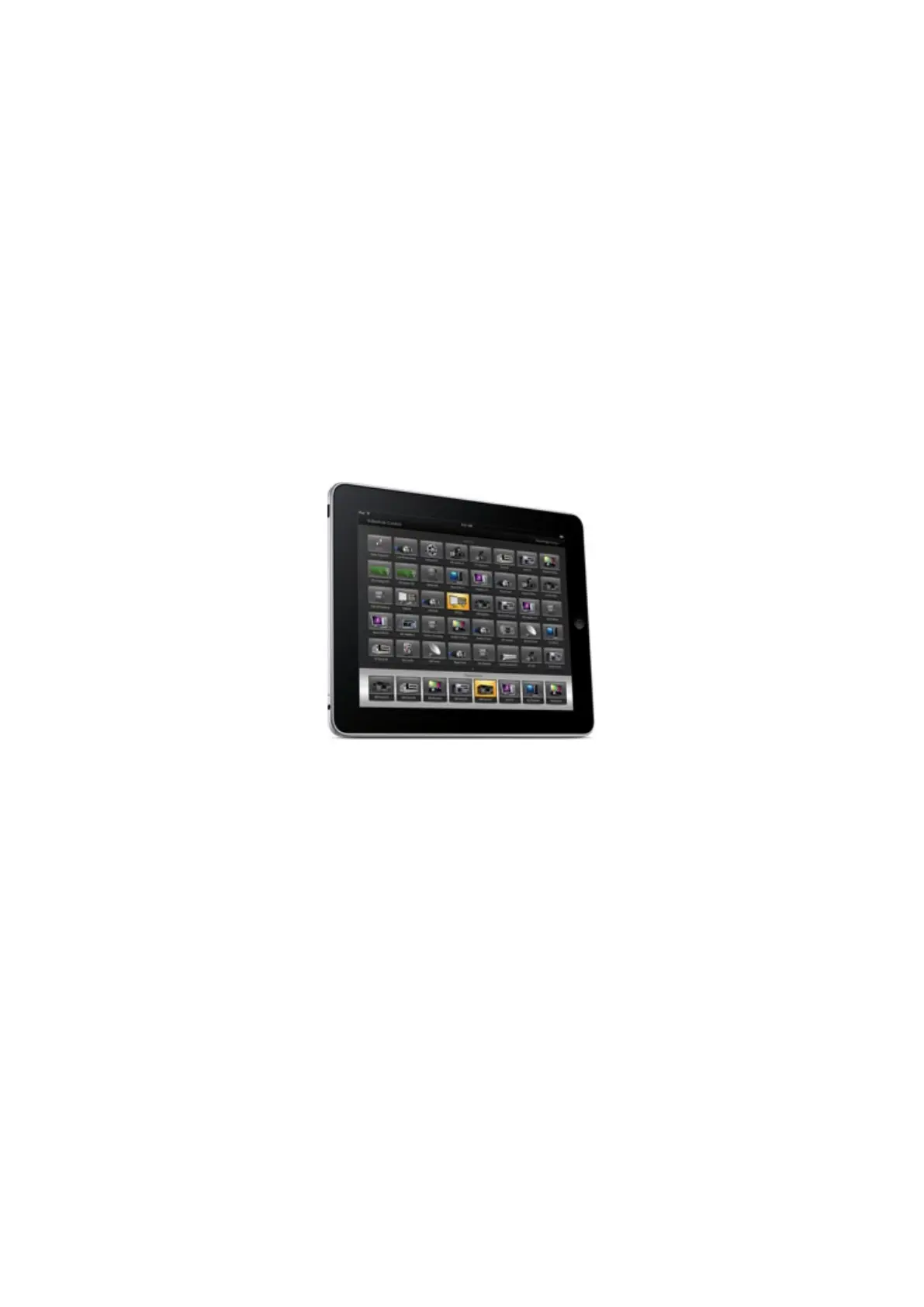
The Videohub Pushbutton controller interface looks stunning on the high resolution Apple iPad
display. Aside from looking great, it also provides the convenience of portable router control
anywhere in your facility or even over the Internet via a wireless or cellular connection! If you
are already familiar with the Videohub Pushbutton interface on a computer, then there is almost
nothing new you need to learn and you’ll only notice slight differences between computer
mouse control and touchscreen control on the iPad. For information on how to download and
install the application, refer to ‘installing the Videohub Software on iPad’ immediately after
this section.
Up to 40 sources and 8 destinations can be displayed in a single Videohub Pushbutton
screen on the iPad. Even more sources and destinations can be displayed by flicking the
iPad left or right, or tapping to the left or right of the row of dots, to move through multiple
Pushbutton screens.
The initial Pushbutton interface
Upon launching the Videohub app on your iPad for the first time, all pushbuttons initially show
the generic BNC connector icon, which you can then replace from a selection of icons. If the
connections have not yet been labeled, then the source pushbuttons will appear as Input 1 to
Input 40 and the destination pushbuttons will appear as Output 1 to Output 8.
If the connections have already been labeled, their names will appear under each of the
respective pushbuttons in place of the connector numbers.
Configuring Videohub Pushbuttons on the iPad
Configuring Videohub Pushbuttons on the iPad is easy. Press and hold any Videohub
pushbutton to open the Videohub Button Setup window. This window allows you to set the
SDIinput or output connection, RS-422 deck control and the icon for the pushbutton.
The Clear button will delete all settings for the pushbutton. In most cases, deck control is
grouped with the associated SDI connections, meaning an SDI connection named Input 1
wouldusually be associated with the corresponding Remote 1.
59Blackmagic Videohub Control



 To Next Page