Cut-Bus Configuration
1 Drag the Number of Destinations slider to 1.
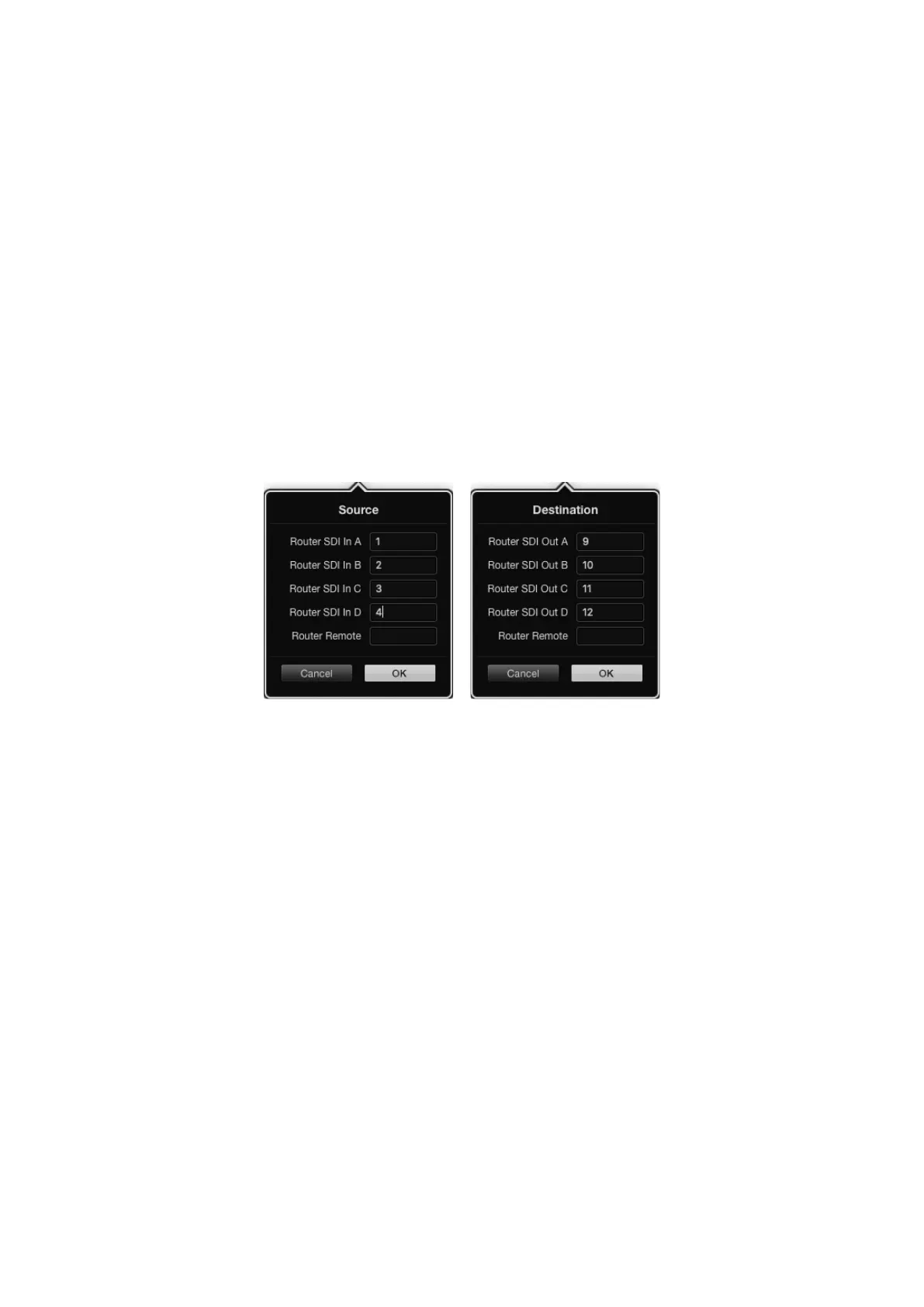
2 Click on the Destination button. In the Router SDI Out A field, enter the number of the
Videohub output port to which the destination device is connected. If your destination
device requires dual link SDI, you will need to enter an output port number in the Router
SDI Out A & B fields. For quad link SDI, you will need to enter numbers in all four ‘out’ fields.
There is a Router Remote field if your Videohub is also routing RS-422 deck control to the
destination device.
3 Click OK to confirm. All the buttons will become white, indicating that they are all sources.
4 Click on each white button in the software interface to configure the source buttons.
5 In the Router SDI In A field, enter the number of the Videohub input port to which the
source device is connected. For dual link SDI destinations you will need to enter port
numbers for fields A and B, or fields A through D for quad link SDI. There is a Router
Remote field if your Videohub is also routing RS-422 deck control from the source device.
6 Click OK to confirm.
Add a port number for all SDI fields when using quad link SDI destinations
XY Controller Configuration
1 Drag the Number of Destinations slider to the desired number.
2 You can now configure the destination buttons by clicking on each gold button in the
software interface. In the Router SDI Out A field, enter the number of the Videohub output
port to which the destination device is connected. For dual link SDI destinations you will
need to enter port numbers for fields A and B, or fields A through D for quad link SDI. There
is also a Router Remote field if your Videohub is also routing RS-422 deck control to the
destination device.
3 Click OK to confirm. If you increase the number of destination buttons, there will be a
matching decrease in the number of available source buttons.
4 Click on each white button in the software interface to configure the source buttons.
5 In the Router SDI In A field, enter the number of the Videohub input port to which the
source device is connected. For dual link SDI destinations you will need to enter port
numbers for fields A and B, or fields A through D for quad link SDI. There is also a Router
Remote field if your Videohub is also routing RS-422 deck control from the source device.
6 Click OK to confirm.
69Videohub Hardware Panel Setup



 To Next Page