Sometimes it can get confusing to know which GPI and Tally Interface you are working with
when you have several connected. Select the GPI and Tally Interface in the Videohub Control
Panels pane and click the Identify button. The LED next to the Ethernet IN port on the selected
device will light up.
GPI IN 1
GPI IN 2
GPI IN 3
GPI IN 4
GPI IN 5
GPI IN 6
GPI IN 7
GPI IN 8
GPI OUT
GPI OUT
GPI OUT
GPI OUT
GPI OUT
GPI OUT
GPI OUT
GPI OUT
GPI IN 1
GPI IN 2
GPI IN 3
GPI IN 4
GPI IN 5
GPI IN 6
GPI IN 7
GPI IN 8
GPI OUT
GPI OUT
GPI OUT
GPI OUT
GPI OUT
GPI OUT
GPI OUT
GPI OUT
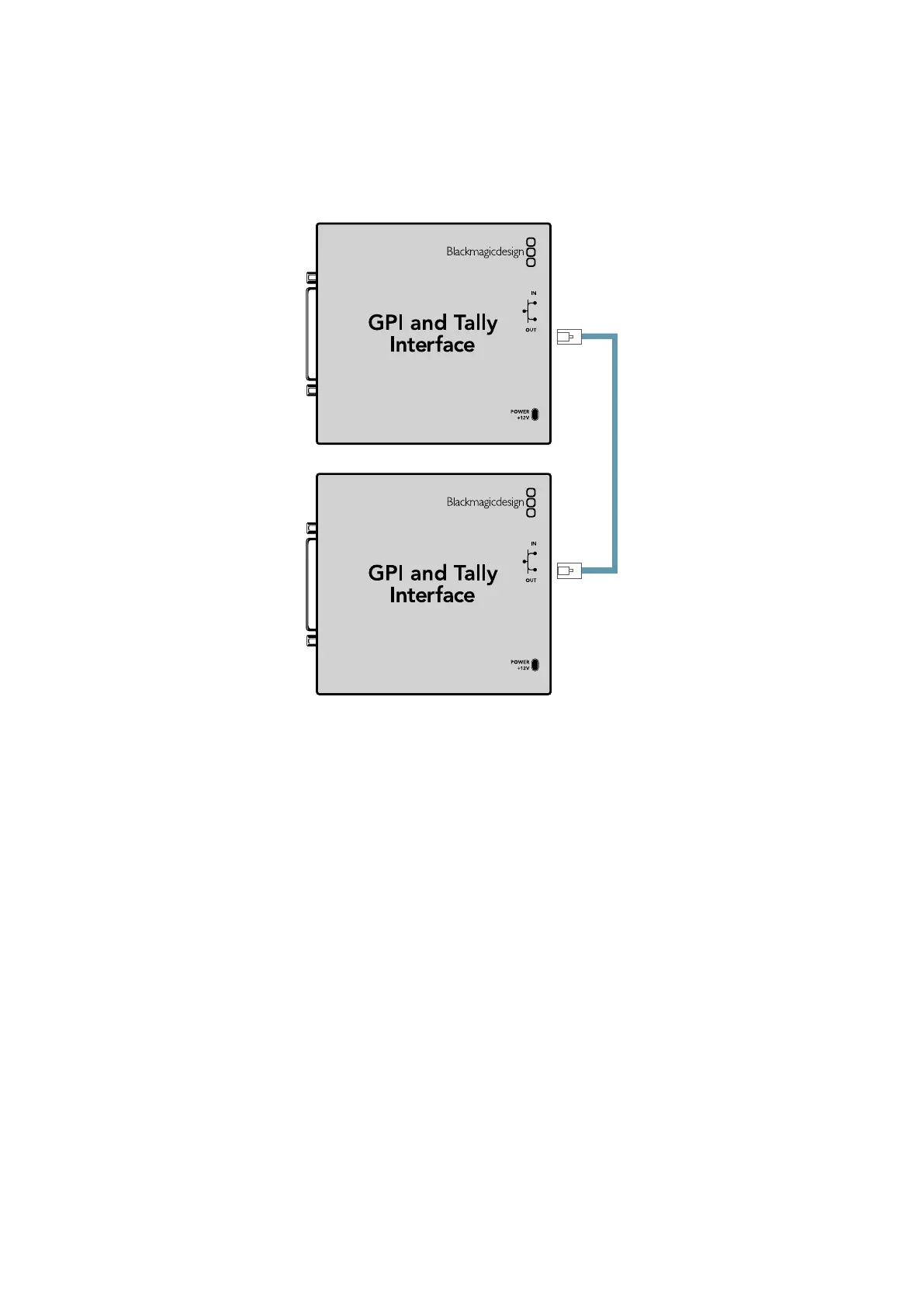
Daisy chain multiple GPI and Tally Interfaces using Ethernet.
Power must be supplied to each individual unit in the chain.
Adding a GPI and Tally Interface Over a Network
You may want to configure a second GPI and Tally Interface but it may be in another location
and only accessible over a network. You can add it to your list manually by entering its IP
address into Videohub Hardware Panel Setup.
If you do not know the IP address of the GPI and Tally Interface you want to add, connect it to a
computer with USB, open Videohub Hardware Panel Setup and note down the IP address in the
Network Settings tab.
If you do not have access to the unit because it is in another location, you can find it on the
network using the Bonjour browser. This application will show you all the devices on your
network and will give you the IP address of the GPI and Tally Interface you wish to add.
1 Press the + (add device) button at the bottom of the Videohub Control Panels pane.
2 Type in the IP address of the GPI and Tally Interface and press OK.
3 The second GPI and Tally Interface will appear in the list with any other devices that are
connected to the Videohub.
73Videohub Hardware Panel Setup



 To Next Page