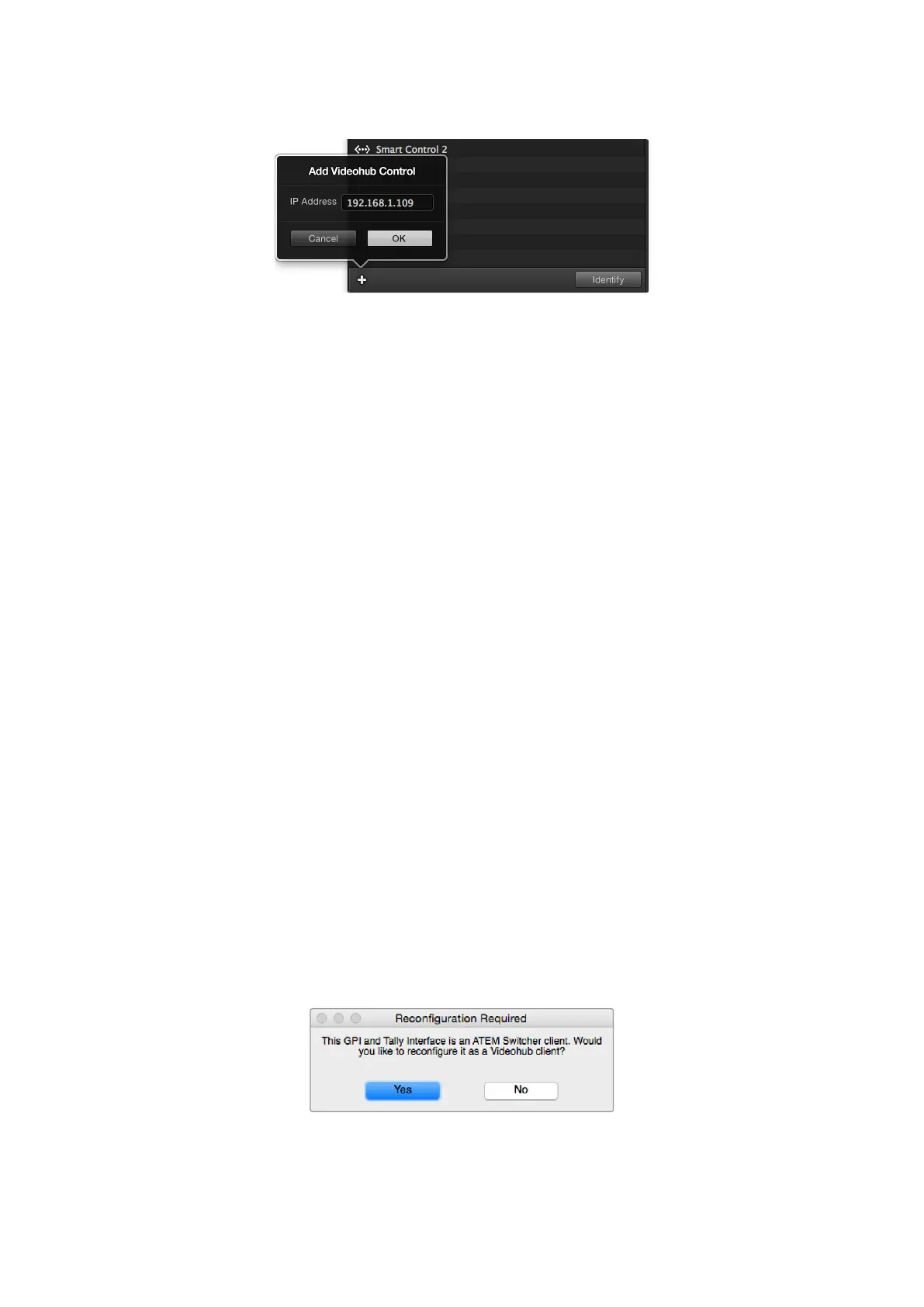
Press the + (add device) button and enter the IP address of a
GPI and Tally Device you want to add. Press the Identify button
to activate the LED on a selected GPI and Tally Interface.
Setting up the GPI and Tally Interface
The GPI and Tally Interface is configured using the Videohub Hardware Panel Setup. Before you
can use the GPI and Tally Interface, you may need to install the latest version of the software.
1 Connect the power adapter to the GPI and Tally Interface.
2 Connect the GPI and Tally Interface to your computer with a USB Type A to B cable.
3 Open the software and it will detect whether your GPI and Tally Interface has been
configured for a Videohub before. If it has the software will open without any need
for changes. Otherwise a message will tell you your GPI and Tally Interface has been
configured for use with an ATEM Switcher and will need to be reconfigured for use with
Videohub. Click Yes. After a few moments the GPI and Tally Interface will be reconfigured
as a Videohub client.
Configuring the GPI and Tally Interface
If your Videohub does not have an Ethernet port, or if it is only accessible over a network:
1 Connect a USB type A to B cable from your GPI and Tally Interface to your computer.
2 Connect an Ethernet cable from the Ethernet IN port on your GPI and Tally Interface to your
Ethernet switcher.
3 Open Videohub Hardware Panel Setup.
4 You should see your GPI and Tally Interface with a USB icon next to it in the Videohub
Control Panels pane. Give your GPI and Tally Interface a unique name so it can be easily
recognized. To do so, click inside the GPI and Tally Name field and type a name.
5 Check the option to configure your IP address as ‘using DHCP’ or ‘static IP’. Depending on
your setup, you may choose either so it’s probably a good idea to check with your network
administrator to see which is the better option.
6 In the Remote Videohub IP field, enter the IP address of the Videohub you want to connect
to. A red light next to the field will turn green and the LED on the GPI and Tally interface will
illuminate when a connection has been established.
You will need to reconfigure your GPI and
Tally Interface to work with Videohub
74Videohub Hardware Panel Setup



 To Next Page