6.3 Reading a book
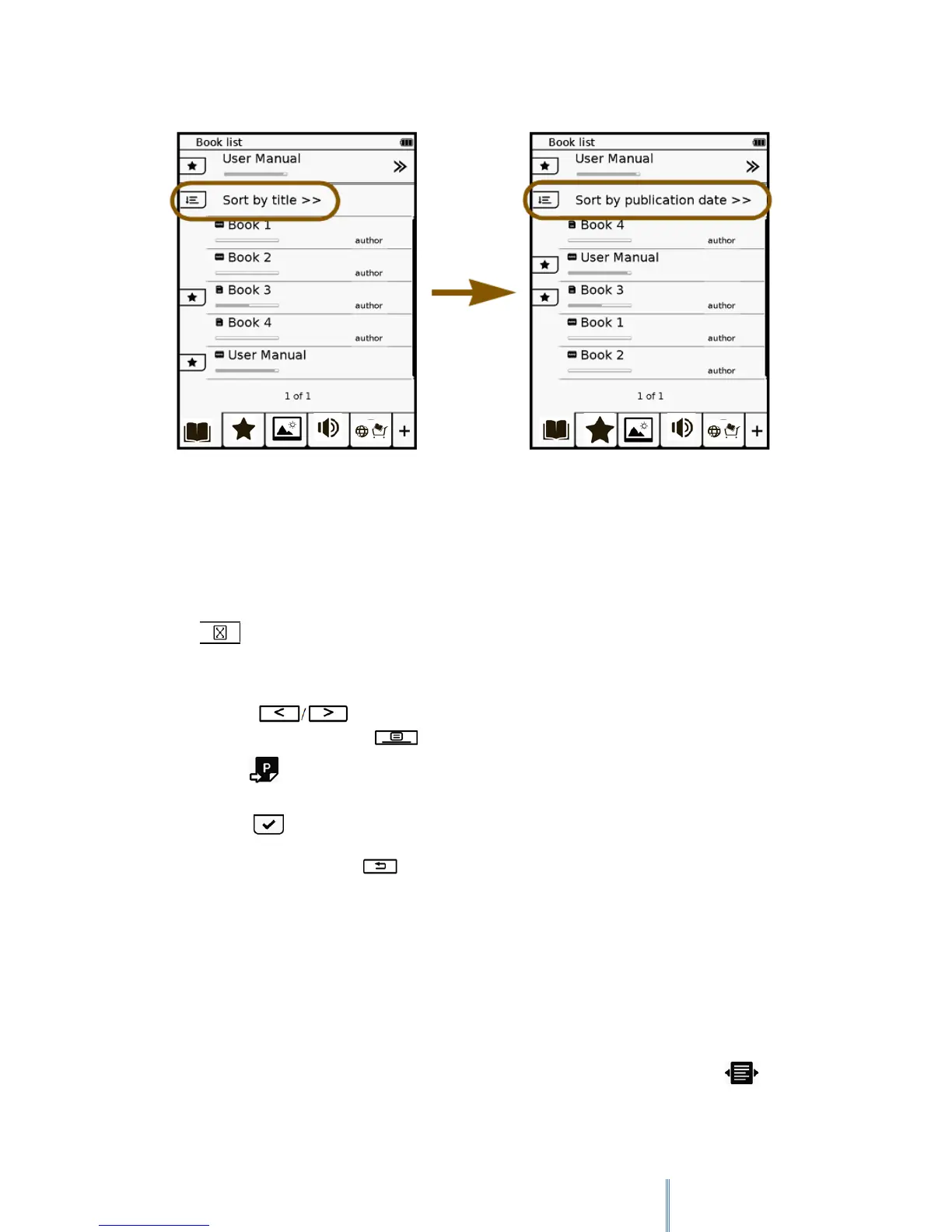
Tap the title of a desired book in the Book list. The first or last-read page of the book will
appear on the screen.
Tap to read the book in full screen.
To turn the pages:
1. Press or use your finger to turn the pages.
2. Press the Menu button to open the sub-menu.
3. Tap and enter the desired page you want to read by tapping the on-screen
number buttons.
4. Tap to confirm inputs and jump to the selected page.
When finished reading, press to close and leave the book. Your device will remember
your last read page of the book and display your reading status bar on the Book list.
6.4 Selecting a Reading Mode
You can select a page layout to best suit your reading needs. (Supported file format: .pdf)
1. When reading a book, press the Menu button to open the sub-menu and tap
.
2. Select a desired reading mode:



 To Next Page