a. : Fit to Page (single page at a time)
b. : Continuous (continuous pages)
c.
: Reflow (reformatting and separating texts from graphics)
5. When done, tap to confirm selection.
6.5 Zooming the contents
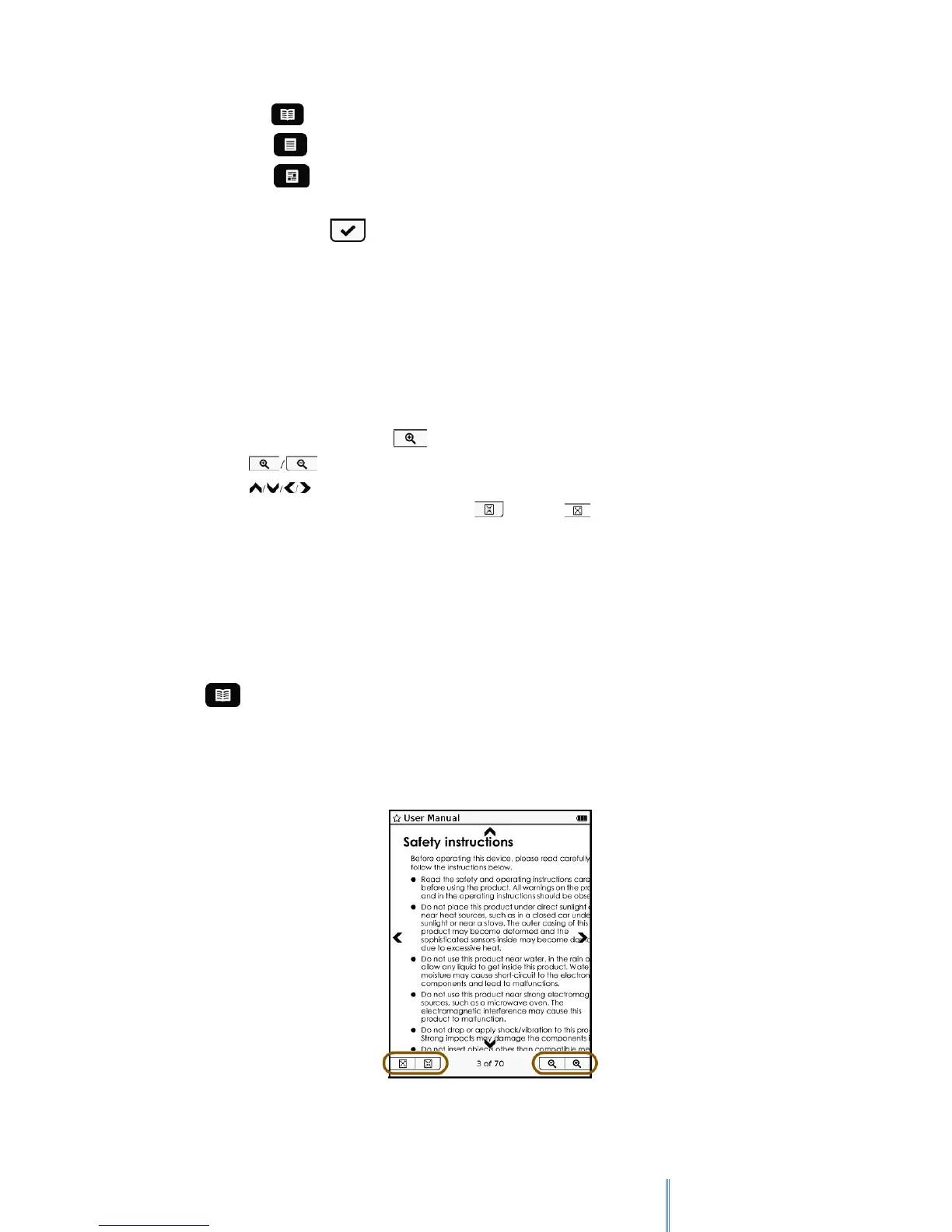
To active the zoom, follow these instructions:
1. When reading a book, tap to zoom in on the current page.
2. Tap repeatedly to adjust the zooming ratio.
3. Tap to move to the particular part you want to see.
4. To view the close-up in full screen, tap . Or, tap to return to the current page
in its original size.
Please keep in mind that the zoom acts depending on the type of reading mode currently
activated:
Adjust to page: With this option the size of the characters and the images
increase but they do not readjust to the screen. Increasing the size, parts of the text will
be hidden in the margins of the screen. To be able to read it, touch the arrows as
previously indicated.



 To Next Page