Home > Network > Additional Methods of Configuring Your Brother Machine for a Wireless
Network > Configure Your Machine for a Wireless Network in Ad-Hoc Mode Using a New SSID
Configure Your Machine for a Wireless Network in Ad-Hoc Mode Using
a New SSID
You must connect to a new SSID from your computer when it is configured for Ad-Hoc mode.
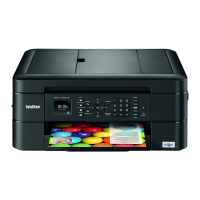
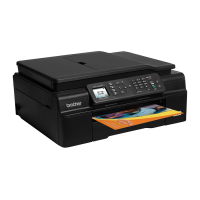
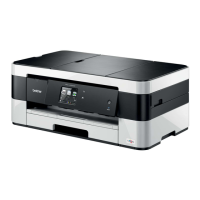
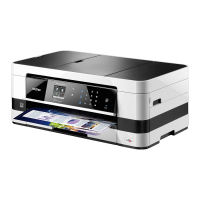
>> MFC-J460DW/MFC-J480DW/MFC-J485DW
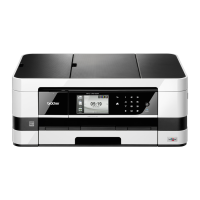
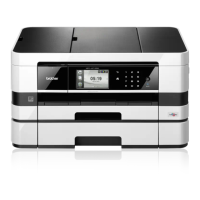
>> MFC-J680DW/MFC-J880DW/MFC-J885DW
MFC-J460DW/MFC-J480DW/MFC-J485DW
1. Press Settings.
2. Press a or b to select the following:
a. Select [Network]. Press OK.
b. Select [WLAN]. Press OK.
c. Select [Setup Wizard]. Press OK.
3. When [Enable WLAN?] appears, press OK.
This will start the wireless setup wizard. To cancel, press Stop/Exit.
4. The machine will search for your network and display a list of available SSIDs. Press a or b to select the
[<New SSID>] option, and then press OK.
5. Enter the SSID name, and then press OK.
For more information about how to enter text, see the Appendix.
6. Press a or b to select the [Ad-hoc] option, and then press OK.
7. Press a or b to select the Encryption type [None] or [WEP], and then press OK.
8. If you selected the [WEP] option for Encryption type, enter the WEP key, and then press OK.
Your Brother machine supports the use of the first WEP key only.
9. To apply the settings, press 1 to select [Yes]. To cancel, press 2.
10. The machine will attempt to connect to the wireless device you have selected.
If your wireless device is connected successfully, the machine's LCD displays [Connected].
For Windows
®
:
You have completed the wireless network setup. Use the Brother Installation CD-ROM to install drivers and
software necessary for operating your device.
For Macintosh:
You have completed the wireless network setup. Go to your model's Downloads page on the Brother Solutions
Center at
http://support.brother.com to install drivers and software necessary for operating your device.
MFC-J680DW/MFC-J880DW/MFC-J885DW
1. Press [Settings] > [All Settings] > [Network] > [WLAN] > [Setup Wizard].
2. When [Switch Network interface to wireless?] or [Enable WLAN?] appears, press [Yes].
This will start the wireless setup wizard. To cancel, press [No].
3. The machine will search for your network and display a list of available SSIDs. Press a or b to display the
[<New SSID>] option, and then press it.
4. Press [OK].
5. Enter the SSID name, and then press [OK].
389


 To Next Page
 Loading...