Home > Security > Lock the Machine Settings > About Using TX Lock > Change the TX Lock Password
Change the TX Lock Password
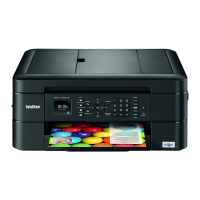
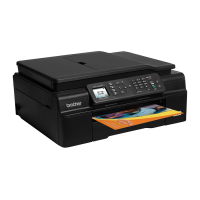
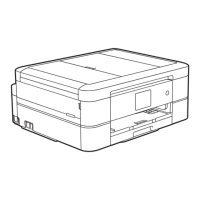
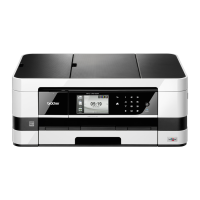
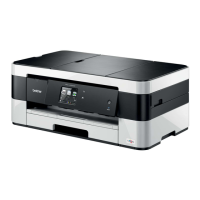
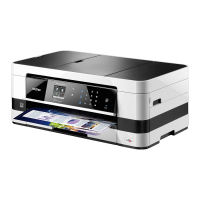
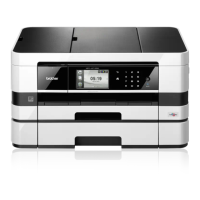
Related Models: MFC-J460DW/MFC-J480DW/MFC-J485DW/MFC-J680DW
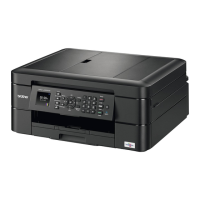
>> MFC-J460DW/MFC-J480DW/MFC-J485DW
>> MFC-J680DW
MFC-J460DW/MFC-J480DW/MFC-J485DW
1. Press Settings.
2. Press a or b to select the following:
a. Select [Fax]. Press OK.
b. Select [Miscellaneous]. Press OK.
c. Select [TX Lock]. Press OK.
d. Select [Set Password]. Press OK.
3. Enter the four-digit number of the current password. Press OK.
4. Enter a four-digit number for the new password. Press OK.
5. When the LCD displays [Verify]: re-enter the new password. Press OK.
6. Press Stop/Exit.
MFC-J680DW
1. Press [Settings] > [All Settings] > [Fax] > [Miscellaneous] > [TX Lock] > [Set
Password].
2. Enter the four-digit number of the current password using the Touchscreen. Press [OK].
3. Enter a four-digit number for the new password using the Touchscreen. Press [OK].
4. When the Touchscreen displays [Verify], re-enter the new password using the Touchscreen. Press [OK].
5. Press
.
Related Information
• About Using TX Lock
422


 To Next Page
 Loading...